Semrush Site Audit Warnings: Common Issues and How to Fix Them
Maintaining a website’s health is crucial for ensuring better search rankings, user experience, and overall performance in the ever-evolving world of SEO. However, websites often encounter technical and on-page issues that can hinder their visibility on search engines. This is where SEMrush Site Audit comes into play.
Key takeaways
- Semrush warnings are less severe than errors but still hurt rankings and user experience if left unfixed.
- Technical warnings include broken external links, slow pages, mixed content, temporary redirects, uncompressed files and oversized pages.
- On-page warnings cover meta description and title length, duplicate titles, H1 problems, thin content and missing alt text.
- Indexing warnings flag noindex tags, internal nofollow links, robots.txt blocks, orphan pages and canonical problems.
- Fix warnings that affect many pages or key templates first, then re-run the audit to confirm.
What is Semrush Site Audit?
SEMrush Site Audit is a powerful tool that scans a website for errors and warnings that might impact its SEO performance. It evaluates multiple factors, including technical issues, on-page SEO problems, crawlability, mobile-friendliness, and structured data errors. SEMrush categorizes these findings into three levels:
✅ Errors – Critical issues that require immediate attention.
⚠️ Warnings – Important concerns that can affect SEO but are less severe than errors.
ℹ️ Notices – Minor suggestions for further optimization.
Warnings indicate potential problems that, if ignored, could escalate into more serious SEO challenges. These warnings include slow page speed, missing meta tags, duplicate content, broken internal links, improper canonicalization, and UX issues. While they might not seem urgent initially, they can negatively affect rankings and user experience over time.
Technical Warnings & Fixes
Technical issues can hinder website performance, slow indexing, and negatively impact SEO rankings. SEMrush highlights technical warnings that need attention to ensure a seamless user experience and optimal search engine performance. Below, we discuss the most common technical warnings and how to fix them.
Broken External Links
Why Broken External Links Harm User Experience & SEO
Broken external links occur when a linked page is deleted, moved, or has a changed URL, leading to 404 errors. These issues can:
🚨 Hurt user experience, as visitors encounter dead links.
🚨 Waste crawl budget, as search engines try to follow non-existent pages.
🚨 Lower website credibility and negatively affect SEO rankings.
How to Find Broken External Links?
✅ Use SEMrush Site Audit to detect broken external links.
✅ Check Google Search Console → Coverage Report for 404 errors.
✅ Use third-party tools like Broken Link Checker to scan external links.
How to Fix It?
✔ Update broken links by replacing them with active URLs.
✔ If the page still exists under a new URL, use 301 redirects.
✔ If no replacement link is available, remove the broken link or update the content accordingly.
✔ Perform regular link audits to keep external links updated.
Slow Page Speed
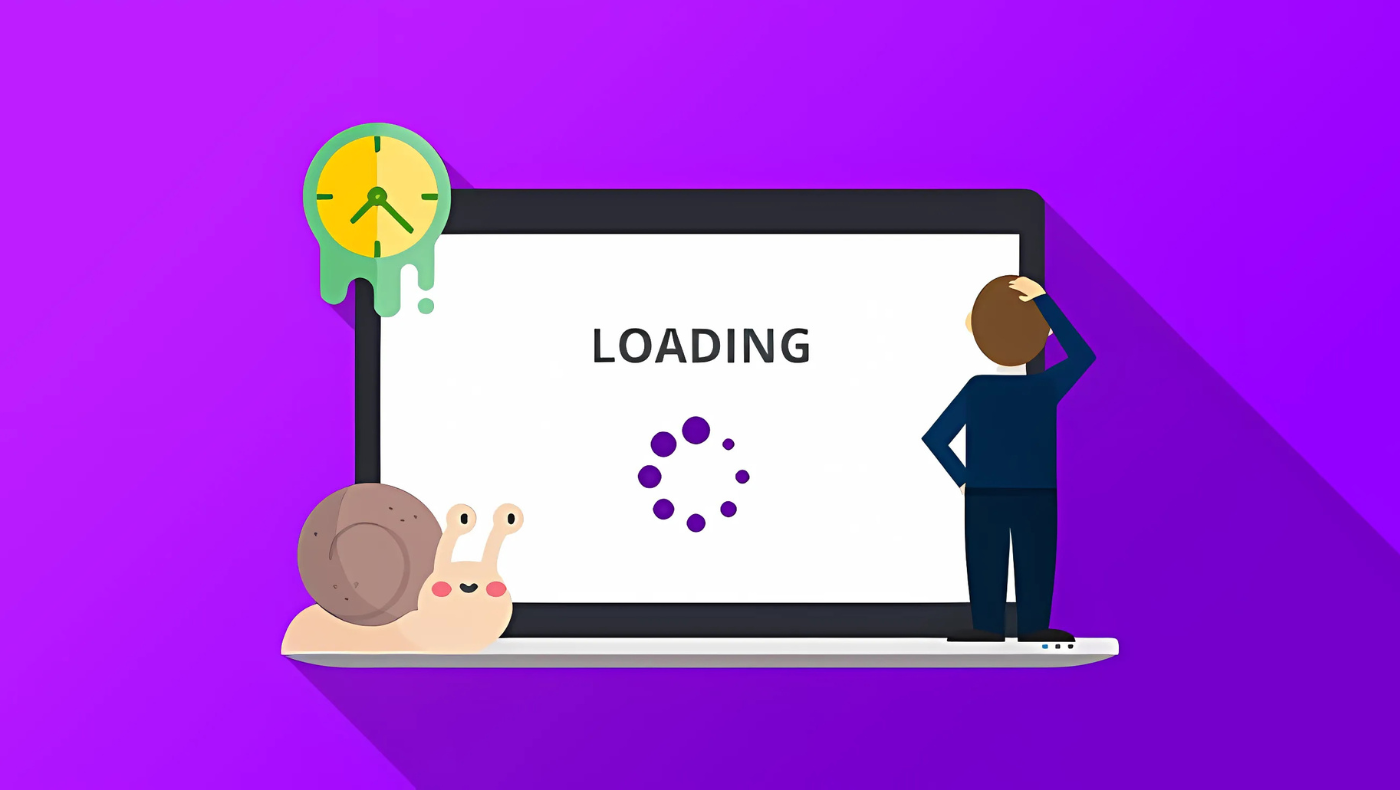
How Slow Loading Impacts SEO & Conversions
A slow website frustrates users and negatively affects SEO. Research shows that:
🚀 Slower pages tend to lose visitors and sales, especially on mobile.
🚀 Google considers Core Web Vitals (LCP, INP, CLS) ranking factors.
🚀 Slow-loading websites lead to a higher bounce rate and lower engagement.
Tools for Testing Page Speed
🔍 Google PageSpeed Insights – Analyzes desktop and mobile performance.
🔍 GTmetrix – Provides detailed insights on load time and bottlenecks.
🔍 Lighthouse Audit (Chrome DevTools) – Offers real-time performance testing.
How to Fix It?
✅ Optimize images by compressing them (use WebP format).
✅ Enable browser caching to store site resources for faster loading.
✅ Minify JavaScript, CSS, and HTML to reduce file sizes.
✅ Use a Content Delivery Network (CDN) to load content faster across locations.
✅ Reduce unnecessary redirects that slow down page rendering.
HTTPS Pages with Internal Links to HTTP (Mixed Content)
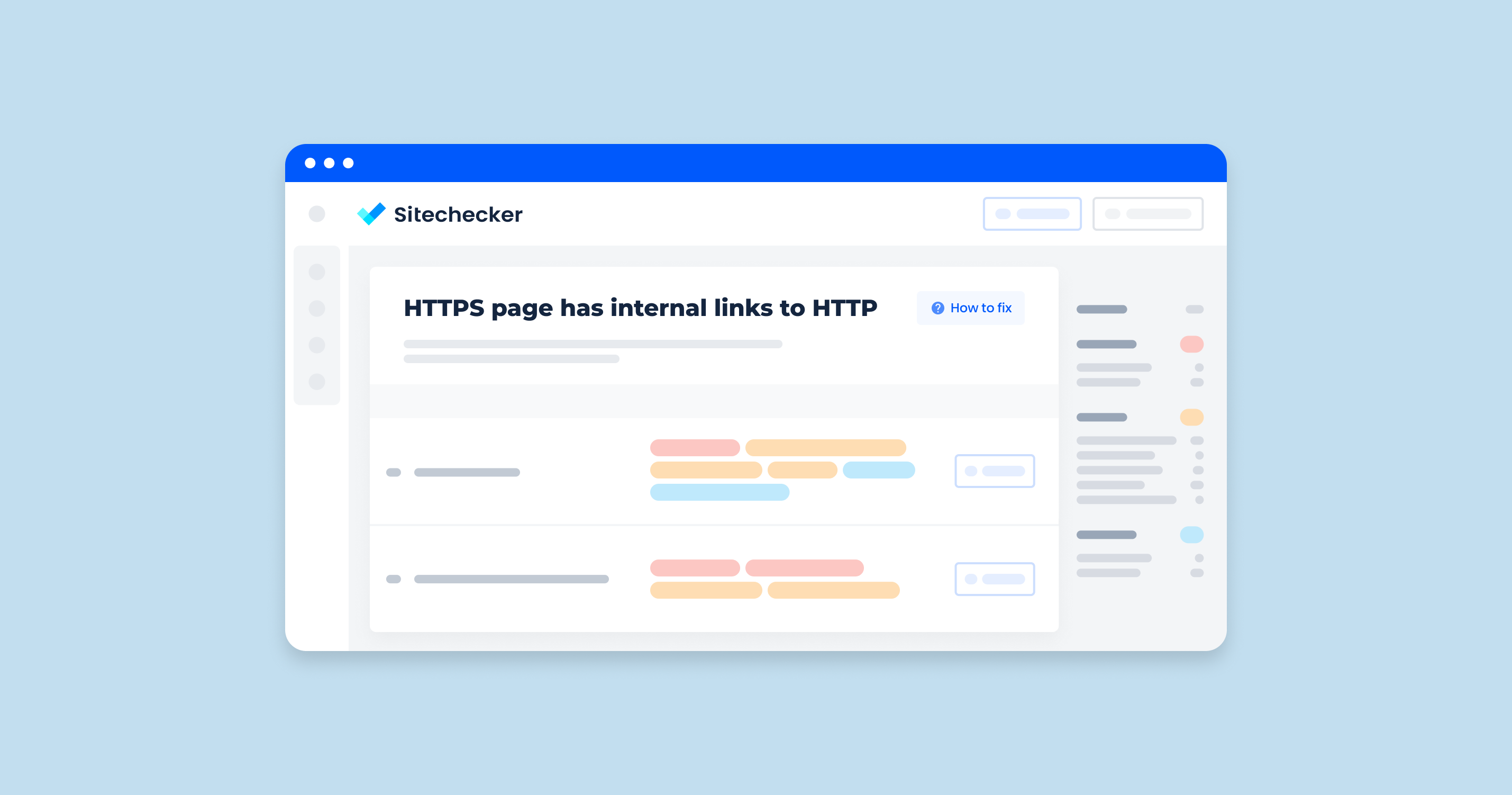
Why Mixed Content is a Security Risk & Affects Rankings
When HTTPS pages contain internal links to HTTP resources (images, scripts, stylesheets), search engines flag them as mixed content, which:
❌ Creates security vulnerabilities, making the site less trustworthy.
❌ Triggers browser warnings, discouraging visitors from proceeding.
❌ Negatively affects SEO rankings, as Google prioritizes secure websites.
How to Fix It?
✔ Identify mixed content using SEMrush, Google Search Console, or Chrome DevTools.
✔ Update all internal links to HTTPS versions.
✔ If external resources are HTTP-only, try finding an HTTPS alternative or host them locally.
✔ Use 301 redirects to force HTTP links to redirect to HTTPS versions.
Duplicate Content Issues
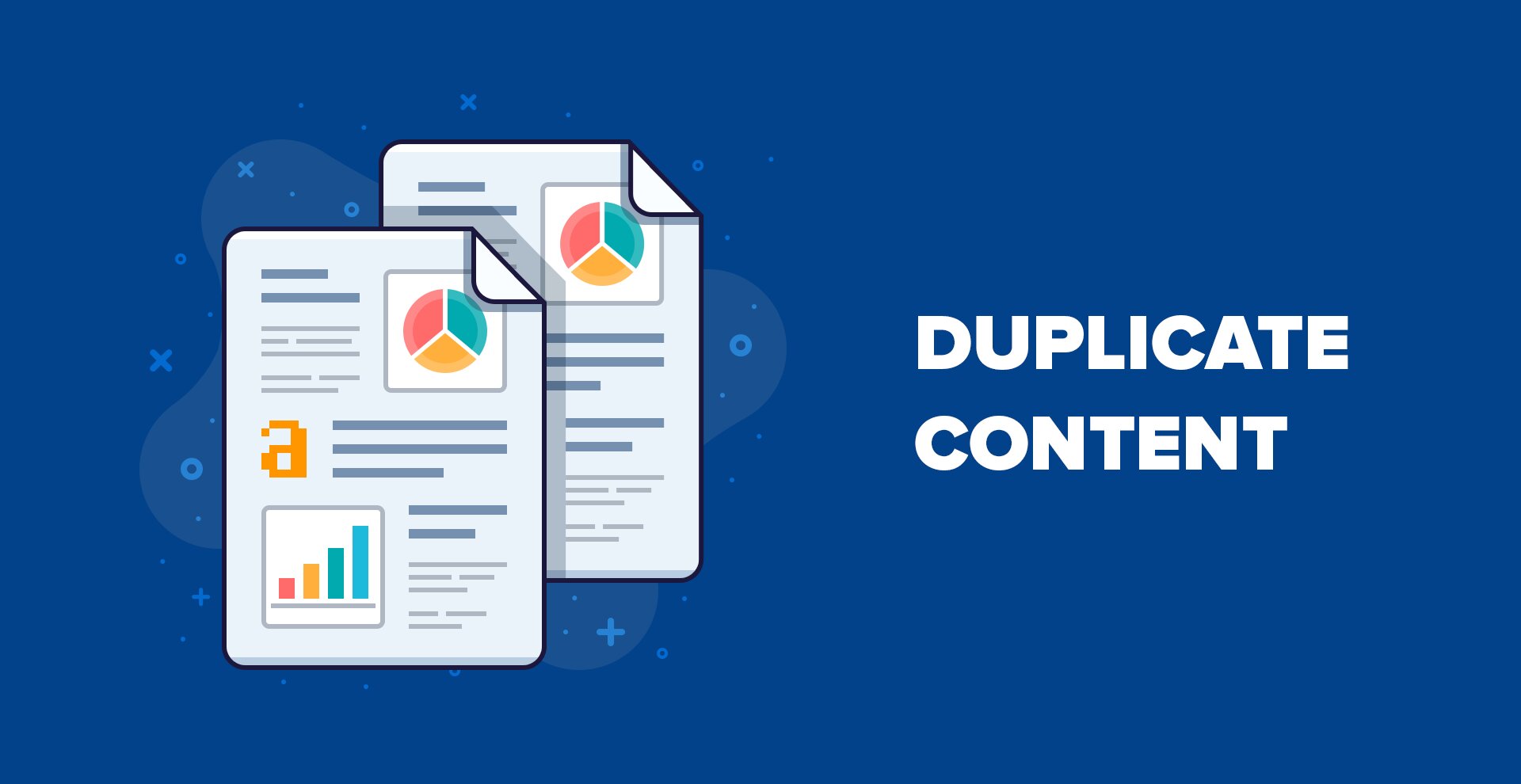
How Duplicate Content Confuses Search Engines & Lowers Rankings
Duplicate content happens when multiple pages have the same or very similar content, leading to:
⚠️ Google struggling to determine the canonical (original) version.
⚠️ Lower search visibility, as duplicate pages compete against each other.
⚠️ Risk of Google penalties if the duplication appears intentional.
How to Fix It?
✅ Use canonical tags (rel=”canonical”) to signal the preferred page to search engines.
✅ 301 redirect duplicate pages to the original content.
✅ Rewrite content to make it unique and valuable.
✅ Avoid boilerplate text duplication across pages.
Temporary Redirects (302, 307) Instead of Permanent Redirects (301)
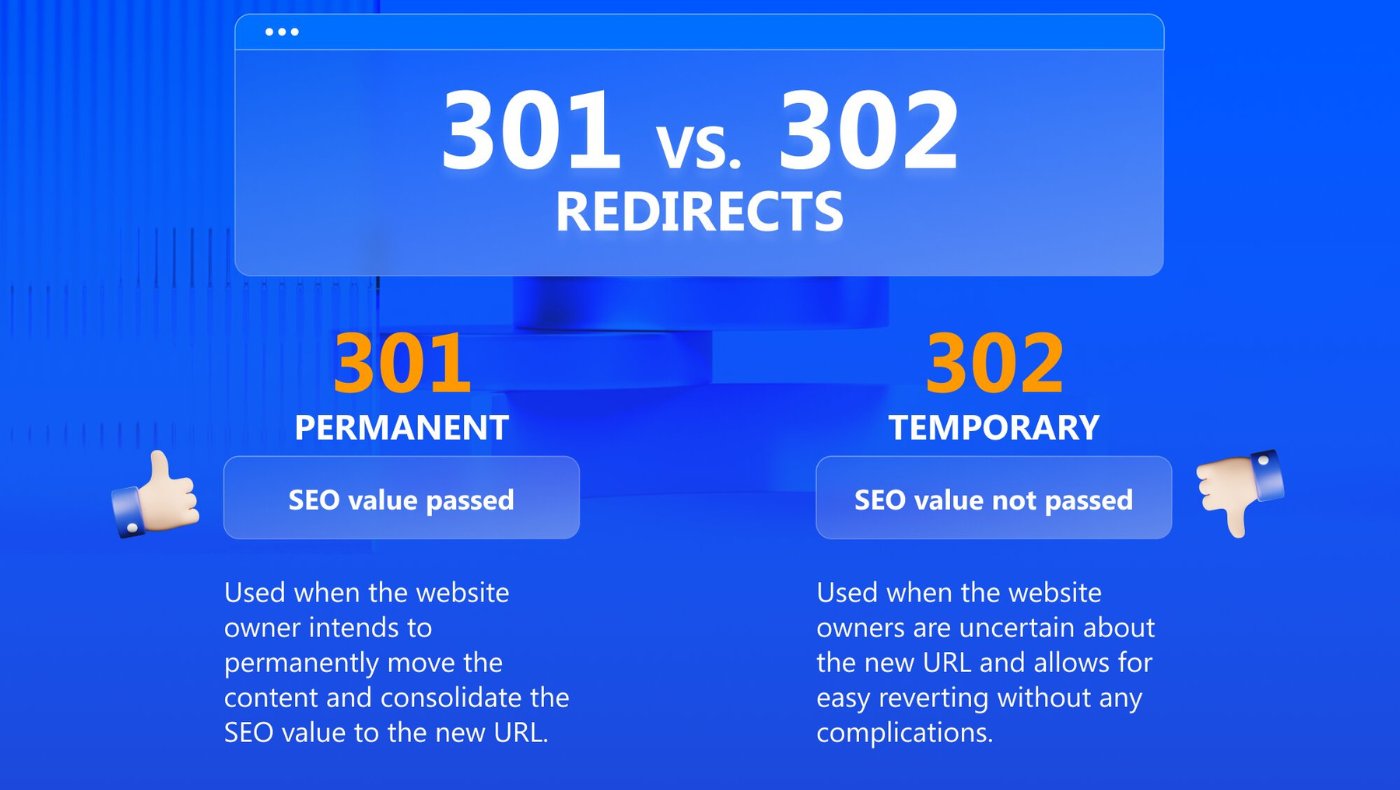
Why Temporary Redirects Affect Link Equity & SEO
Temporary redirects (302, 307) indicate that a page may return in the future, unlike 301 redirects, which permanently move content. Misusing them can:
🚨 Keep the old URL in the index instead of the new one, so signals may not consolidate where you want them.
🚨 Confuse search engines about which URL to index.
🚨 Cause inconsistent rankings if search engines keep switching between old and new URLs.
How to Fix It?
✔ Replace 302 or 307 redirects with 301 redirects for permanent moves.
✔ Use 302 only if the redirection is temporary (e.g., maintenance mode).
✔ Regularly check redirect chains to avoid unnecessary hops.
Uncompressed JavaScript and CSS Files
How Large JS & CSS Files Slow Down Websites
🚀 Uncompressed scripts increase page load times.
🚀 Excessive file size negatively impacts Core Web Vitals.
🚀 Search engines may delay indexing due to slow script execution.
How to Fix It?
✔ Minify CSS, JavaScript, and HTML using tools like UglifyJS, CSSNano, or Minify.
✔ Enable Gzip or Brotli compression on the server.
✔ Use asynchronous (async) or deferred (defer) loading for JavaScript files.
✔ Eliminate unused CSS/JS to reduce unnecessary code execution.
Large Page Size
How Large Pages Increase Bounce Rate
❌ Large page sizes result in slower loading speeds.
❌ Heavy pages consume more mobile data, leading to poor mobile experience.
❌ Users abandon slow websites, leading to higher bounce rates.
How to Fix It?
✔ Compress images using TinyPNG or ImageOptim.
✔ Implement lazy loading for off-screen images.
✔ Reduce third-party scripts that add bulk to the page.
✔ Optimize web fonts by using system fonts or limiting font variations.
Excessive Number of Links on a Page

How Too Many Links Dilute Link Equity & Confuse Users
🔹 Search engines may ignore excessive links beyond a certain threshold.
🔹 Users get overwhelmed by too many clickable elements.
🔹 Page authority (link equity) gets diluted across many links.
How to Fix It?
✔ Prioritize internal links that provide the most value.
✔ Avoid excessive footer and sidebar links.
✔ Use structured internal linking instead of unnecessary hyperlinks.
✔ Keep anchor text descriptive and relevant.
Broken JavaScript and CSS Files
How Broken Scripts Break Website Functions
🚨 When JavaScript or CSS files fail to load, key site functionalities like menus, buttons, and animations stop working.
🚨 Google may struggle to render pages properly, affecting rankings.
🚨 Users experience layout issues, missing elements, or broken interactive features.
How to Fix It?
✔ Use Chrome DevTools Console (Ctrl + Shift + J) to identify script errors.
✔ Check if file paths are correct (avoid 404 errors for missing scripts).
✔ Ensure scripts load asynchronously to prevent blocking page rendering.
✔ Minify and optimize JavaScript/CSS files for faster loading.
On-Page SEO Warnings & Fixes

On-page SEO improves search visibility, user experience, and website engagement. SEMrush detects various on-page warnings that, if ignored, can negatively impact rankings and click-through rates (CTR). This section covers common on-page SEO issues and how to fix them effectively.
Missing Meta Descriptions
Why Meta Descriptions Impact CTR & Search Visibility
Meta descriptions are HTML snippets that summarize a webpage’s content. While they don’t directly impact rankings, they influence CTR by attracting users in search results. Missing meta descriptions can:
❌ Lead to poorly generated snippets, making the page less engaging.
❌ Reduce click-through rates, affecting organic traffic.
❌ Make it harder for search engines to understand page intent.
How to Fix It?
✅ Write engaging and keyword-optimized meta descriptions.
✅ Keep them between 150-160 characters for optimal display.
✅ Use action-oriented language (e.g., “Learn more,” “Find out how”).
✅ Include primary keywords naturally to improve relevance.
Duplicate Meta Descriptions
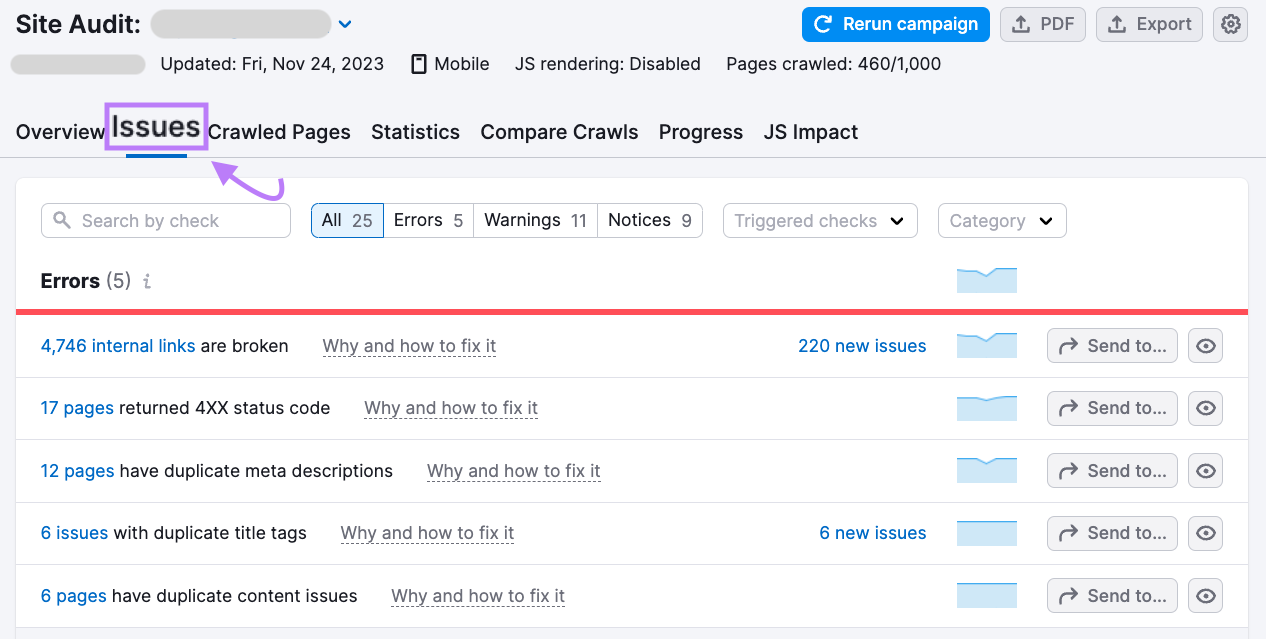
Why Having the Same Description Across Multiple Pages is Bad
🚨 Google may ignore duplicate descriptions, reducing the effectiveness of snippets.
🚨 Pages with identical descriptions struggle to differentiate in search results.
🚨 Poor CTR and user engagement due to repetitive content.
How to Fix It?
✔ Write unique descriptions for each page that reflect its content.
✔ Use dynamic meta tags for similar product or category pages.
✔ Check for duplicate descriptions using SEMrush or Google Search Console.
Meta Description Too Long or Too Short
Best Practices for Ideal Meta Description Length
📏 Google typically displays 150-160 characters for meta descriptions.
📏 Too short = lacks information and fails to attract clicks.
📏 Too long = gets truncated, hiding important details.
How to Fix It?
✔ Keep meta descriptions concise yet informative.
✔ Use Google SERP simulators to preview descriptions.
✔ Include a call to action (CTA) to encourage engagement.
Title Tag Too Long or Too Short
Importance of Concise Yet Descriptive Titles
✅ Titles should be 50-60 characters for optimal display in search results.
✅ Overly long titles get cut off, reducing clarity.
✅ Short titles fail to convey enough information.
How to Fix It?
✔ Write concise, compelling, and keyword-optimized titles.
✔ Use power words (e.g., “Best,” “Ultimate,” “Guide”) to attract clicks.
✔ Avoid excessive keyword stuffing in title tags.
Duplicate Title Tags
Why Duplicate Titles Confuse Search Engines
❌ Google struggles to determine which page is most relevant.
❌ Duplicate titles dilute SEO rankings across multiple pages.
❌ Users may get confused if multiple pages appear in search results with the same title.
How to Fix It?
✔ Ensure each page has a unique and descriptive title.
✔ Use specific keywords relevant to each page’s content.
✔ Audit duplicate titles using SEMrush Site Audit or Screaming Frog.
Multiple H1 Tags on a Page
Why More Than One H1 Can Confuse Search Engines
⚠️ H1 headers define the primary topic of a page.
⚠️ Multiple H1s dilute keyword focus and confuse search engines.
⚠️ Poor header structure affects accessibility and readability.
How to Fix It?
✔ Use only one H1 tag per page (the main title).
✔ Use H2-H6 for subheadings to organize content properly.
✔ Ensure the H1 is clear, keyword-rich, and relevant.
Missing H1 Tags
Why a Missing H1 Affects SEO & Content Clarity
🚨 The H1 tag is crucial for on-page SEO and content hierarchy.
🚨 Without it, search engines struggle to understand page focus.
🚨 Users may find the page harder to read and navigate.
How to Fix It?
✔ Add a clear and keyword-rich H1 to every page.
✔ Ensure H1 is different from the title tag but still relevant.
✔ Avoid using logos or images as H1s (text-based is best).
Low Word Count
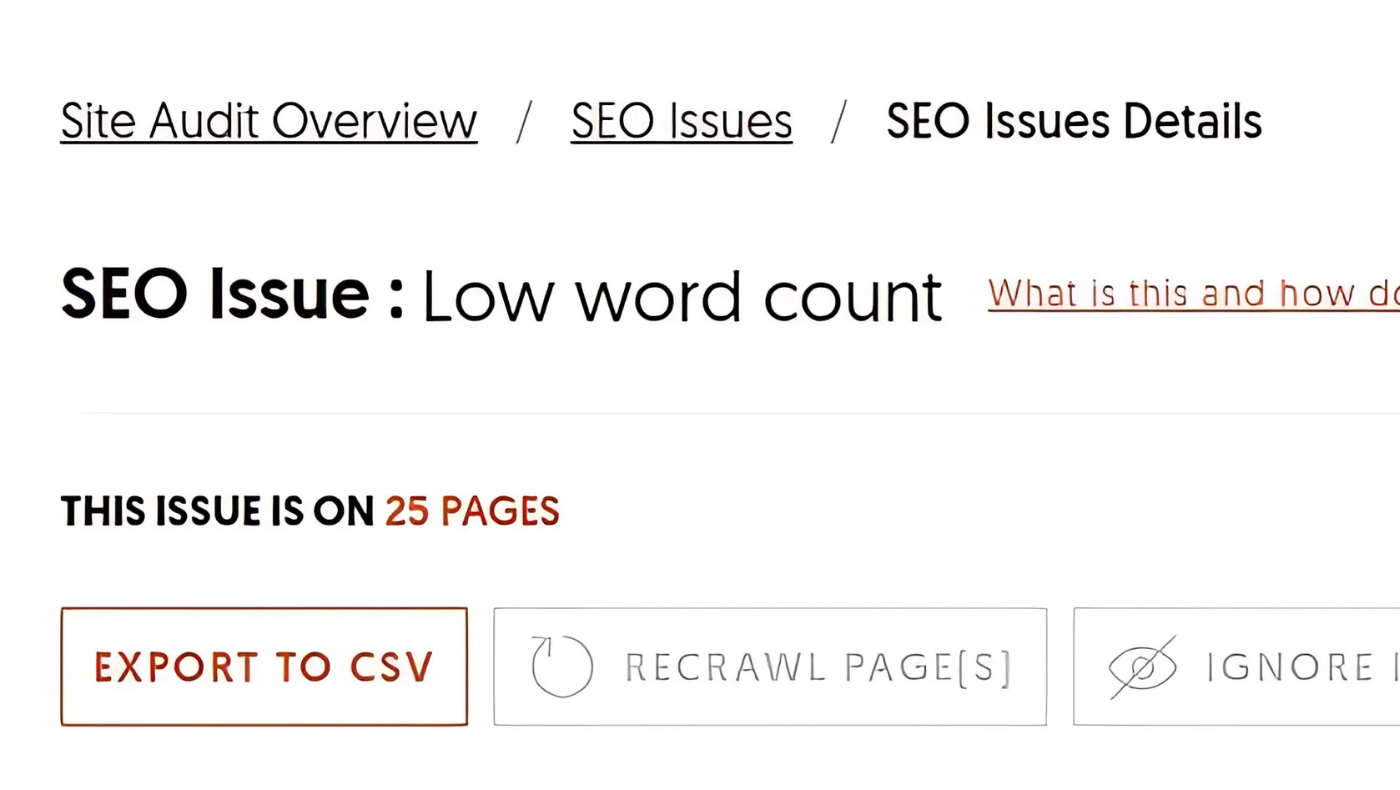
Why Thin Content Fails to Rank in Search Results
📉 Pages with low word count provide little value to users.
📉 Google prefers comprehensive, informative content.
📉 Thin content often leads to higher bounce rates.
How to Fix It?
✔ Expand content to provide in-depth, high-quality information.
✔ Include related keywords and FAQs to boost relevance.
✔ Use structured formatting (headings, lists, bullet points) for better readability.
Keyword Stuffing Detected
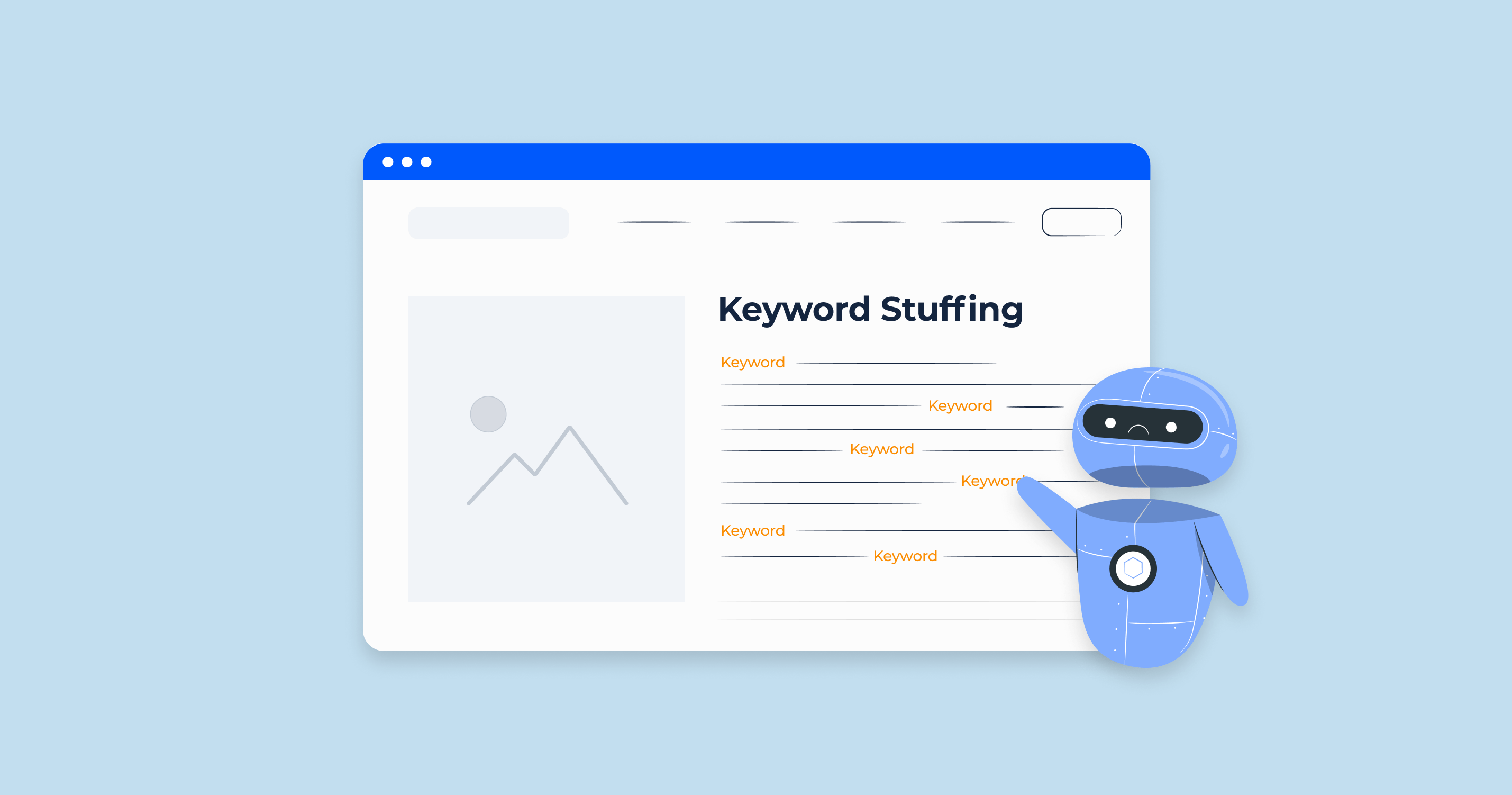
How Keyword Stuffing Hurts SEO & Readability
🚨 Excessive keyword usage triggers Google penalties.
🚨 Creates poor user experience with unnatural phrasing.
🚨 Google understands synonyms and related terms, so repeating the exact keyword adds nothing.
How to Fix It?
✔ Use keywords naturally within content.
✔ Replace overused keywords with synonyms and related terms.
✔ Focus on user intent rather than keyword repetition.
Images Missing Alt Text
Why Alt Text is Important for Accessibility & SEO
📌 Helps visually impaired users understand images.
📌 Google uses alt text for image SEO and rankings.
📌 Missing alt text = lost ranking opportunities in image search.
How to Fix It?
✔ Add descriptive alt text to all images.
✔ Use target keywords naturally in alt attributes.
✔ Avoid keyword stuffing in alt text.
Images Too Large
How Large Images Slow Down Pages
❌ Heavy images increase load times, affecting Core Web Vitals.
❌ Large images consume more bandwidth, causing slow mobile performance.
❌ Poor image optimization reduces SEO rankings.
How to Fix It?
✔ Compress images using TinyPNG, ImageOptim, or Squoosh.
✔ Convert images to next-gen formats (WebP, AVIF).
✔ Use lazy loading to defer off-screen images.
Broken Internal Images
How Broken Images Affect User Experience & SEO
🚨 Missing images make pages look incomplete.
🚨 Users may leave the site due to poor UX.
🚨 Broken images reduce content relevance and credibility.
How to Fix It?
✔ Check image URLs for 404 errors using SEMrush or Chrome DevTools.
✔ Replace broken images with working versions.
✔ Ensure images are hosted properly and load correctly.
Indexing & Crawlability Warnings & Fixes
Indexing and crawlability issues can prevent search engines from properly discovering and ranking your content. If pages are not indexed or crawlable, they won’t appear in search results, leading to lost organic traffic. This section covers common SEMrush indexing & crawlability warnings, explaining their impact and how to fix them.
Noindex Tag Present on Important Pages
Why Incorrect Noindex Tags Block Pages from Appearing in Google
A noindex meta tag (<meta name=”robots” content=”noindex”>) tells search engines not to index a page. While this is useful for pages like thank-you pages or admin panels, accidental noindex on important pages can:
❌ Prevent those pages from appearing in Google search results.
❌ Lead to traffic loss, even if the page has valuable content.
❌ Reduce organic reach and visibility.
How to Fix It?
✔ Check for noindex directives using SEMrush, Google Search Console, or Chrome DevTools (Ctrl+U to view source).
✔ Remove <meta name=”robots” content=”noindex”> from important pages.
✔ If using WordPress, ensure SEO plugins (Yoast, Rank Math) are not blocking indexing.
✔ Update robots.txt to avoid blocking pages that should be indexed.
Nofollow Attributes on Internal Links
How Nofollow on Internal Links Impacts Link Equity
A nofollow tag (rel=”nofollow”) tells search engines not to pass link authority (PageRank) to the linked page. While useful for sponsored links or login pages, improper use on internal links can:
🚨 Prevent important pages from gaining authority.
🚨 Break internal linking strategies, reducing crawl efficiency.
🚨 Impact SEO by limiting search engines’ ability to navigate the site.
How to Fix It?
✔ Identify nofollow links using SEMrush or Screaming Frog.
✔ Remove rel=”nofollow” from important internal links (e.g., blog posts, category pages).
✔ Use nofollow only on unimportant pages like login or affiliate links.
Pages Blocked by Robots.txt
Why Important Pages Shouldn’t Be Blocked in Robots.txt
The robots.txt file controls which pages search engines can crawl. Blocking essential pages can:
❌ Prevent Google from indexing key content.
❌ Cause SEO ranking drops if critical pages aren’t crawled.
❌ Block CSS, JavaScript, or media files, breaking site rendering.
How to Fix It?
✔ Check robots.txt using Google Search Console → URL Inspection Tool.
✔ Open the robots.txt file (yoursite.com/robots.txt) and look for:

✔ Remove Disallow for any page that should be indexed.
✔ Ensure JavaScript, CSS, and images are not accidentally blocked.
Orphan Pages Detected
Why Pages with No Internal Links Get Ignored by Search Engines
An orphan page has no internal links pointing to it, making it hard for search engines to discover and index. This can:
🚨 Cause pages to remain unindexed, even if they have valuable content.
🚨 Reduce SEO authority since no other pages pass link equity.
🚨 Create navigation issues, making content harder for users to find.
How to Fix It?
✔ Use SEMrush or Google Search Console to identify orphan pages.
✔ Link orphan pages from relevant pages or menus within the website.
✔ Add them to XML sitemaps and submit the sitemap in Google Search Console.
✔ Use breadcrumb navigation to make these pages easier to find.
Non-Canonical Pages Without a Canonical Tag
How Non-Canonical URLs Cause Duplicate Content Issues
A canonical tag (<link rel=”canonical” href=”correct-url”>) tells search engines which page is the main version when duplicate or similar content exists. Without a canonical tag:
❌ Google may index the wrong version, splitting ranking power.
❌ Multiple versions of the same page may compete against each other.
❌ Duplicate content issues can dilute SEO efforts.
How to Fix It?
✔ Identify non-canonical URLs using SEMrush or Screaming Frog.
✔ Add <link rel=”canonical” href=”preferred-page-url”> to the correct page.
✔ Ensure only one canonical tag is present per page.
✔ Use 301 redirects if duplicate pages exist without purpose.
Duplicate Canonical Tags
Why Multiple Canonical Tags Confuse Search Engines
If a page has multiple conflicting canonical tags, search engines:
🚨 Might ignore them, leading to indexing issues.
🚨 Could misinterpret the correct URL, harming SEO rankings.
🚨 Can confuse which page is primary, leading to ranking dilution.
How to Fix It?
✔ Inspect pages using SEMrush or Chrome DevTools (Ctrl+U to view source).
✔ Ensure only one canonical tag is present per page.
✔ If a page has multiple canonical tags, remove the extra ones from HTML or CMS settings.
✔ Test canonical tags using Google’s URL Inspection Tool to verify indexing.
Structured Data & Schema Warnings & Fixes
Structured data is crucial in helping search engines understand content better and enhancing search results with rich snippets. SEMrush highlights schema-related warnings that can prevent your site from displaying rich results, reduce SEO effectiveness, and cause indexing issues.
Missing Structured Data Markup
Why Schema Markup Helps Google Understand Content
Structured data (Schema Markup) is a standardized format that helps search engines understand and categorize content. When missing, your site may:
❌ Lose rich results (star ratings, product details, FAQs, etc.) in Google SERPs.
❌ Reduce click-through rates (CTR) due to a lack of enhanced search features.
❌ Make it harder for search engines to interpret and display relevant information.
How to Fix It?
✔ Identify missing structured data using Google’s Rich Results Test or SEMrush’s Site Audit Tool.
✔ Implement schema markup using JSON-LD (preferred by Google) or Microdata.
✔ Use relevant structured data types based on your content, such as:
- Article Schema for blog posts.
- Product Schema for eCommerce pages.
- FAQ Schema for frequently asked questions.
- Local Business Schema for local SEO optimization.
✔ Validate structured data implementation using Google’s Rich Results Test or the Schema Markup Validator.
Example of JSON-LD Schema for an Article:
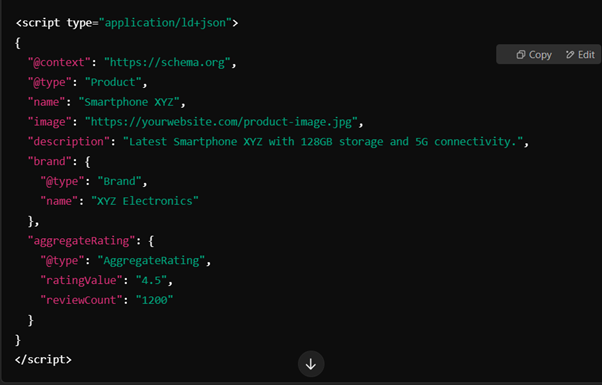
✔ Add the script inside the <head> section of your HTML.
Incorrect Schema Markup Implementation
Why Errors in Schema Prevent Rich Results from Appearing
🚨 If schema markup is incorrectly implemented, Google may:
- Ignore the structured data completely.
- Display validation errors in Google Search Console.
- Fail to generate rich snippets in search results.
How to Fix It?
✔ Use Google’s Rich Results Test or Schema Validator to check for errors.
✔ Ensure schema markup follows Google’s official schema.org guidelines.
✔ Common errors and fixes:
| Error | Cause | Fix |
| “Missing required field” | Certain required properties are missing | Add all mandatory fields (e.g., datePublished for articles) |
| “Incorrect data format” | Incorrect date, price, or URL format | Use the correct ISO format (e.g., YYYY-MM-DD for dates) |
| “Conflicting multiple schema types” | Using incompatible schema types together | Ensure only related schema types are used (e.g., don’t mix Product with Event) |
✔ Update schema markup and validate the fix using Google’s testing tools.
Multiple Schema Markup Types on One Page
When Multiple Schemas Conflict & How to Properly Structure Them
🔹 Using multiple schema types on the same page is acceptable, but conflicting schemas can create issues.
🔹 Common conflicting schema errors include:
- Product + Article Schema on the same page.
- FAQ + Review Schema improperly implemented together.
- Multiple Organization Schemas on a single site page.
How to Fix It?
✔ Use only relevant schema types for a page’s purpose.
✔ Combine compatible schema types into one structured data object, if needed.
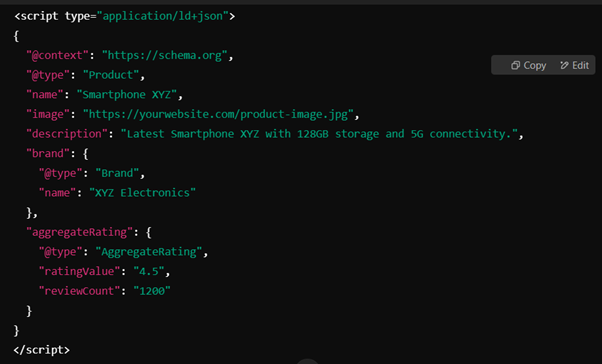
✔ Use nested schema to maintain hierarchy and avoid conflicts.
Example of Correct Nested Schema (Product + Review Schema):
Mobile & UX Warnings & Fixes
With Google’s mobile-first indexing, ensuring a mobile-friendly experience is crucial for SEO rankings, user engagement, and conversions. Poor mobile optimization can lead to higher bounce rates, reduced user satisfaction, and ranking drops. SEMrush identifies several mobile and UX-related warnings that can negatively impact a website’s performance on mobile phones.
Non-Mobile-Friendly Pages
How Mobile Issues Affect Google Rankings & User Experience
Google prioritizes mobile-friendly websites in its ranking algorithm. If your website isn’t optimized for mobile, you may experience:
❌ Lower rankings due to poor mobile usability.
❌ Higher bounce rates, as mobile users leave due to poor navigation.
❌ Reduced conversions, since mobile visitors struggle with usability issues.
How to Fix It?
✅ Check mobile usability with Lighthouse in Chrome DevTools, since Google retired its Mobile-Friendly Test in 2023.
✅ Implement responsive design using CSS media queries (@media) or a framework like Bootstrap.
✅ Use flexible layouts, scalable images, and adaptive fonts for all screen sizes.
✅ Optimize tap targets and buttons to click on smaller screens easily.
Which Semrush Warnings to Fix First
A large site can show thousands of warnings. Sort them by impact, not by count, so your time goes where it moves results.
| Priority | Warnings | Why |
|---|---|---|
| High | Noindex or robots.txt blocks on important pages, mixed content, broken JavaScript and CSS files | These can stop key pages from being indexed, rendered or trusted by browsers |
| Medium | Slow page speed, large pages, uncompressed files, temporary redirects on permanent moves, orphan pages | These affect Core Web Vitals, crawling and how signals reach the right URL |
| Lower | Meta description or title length, missing alt text, too many links, low word count on utility pages | These mostly affect click-through rate and accessibility, and many are quick to fix in bulk |
Work smarter, not page by page
- Fix templates first. If a warning appears on every product page, the cause is usually the theme or template. One fix clears them all.
- Check business value. Start with pages that bring traffic, leads or sales, using Google Search Console and GA4.
- Re-crawl after each batch. Re-run the audit so you can see which warnings are cleared and whether any new ones appeared.
Frequently asked questions
Should I fix every Semrush warning?
Not always. Fix warnings that affect important pages or repeat across a template first, because one change can clear hundreds of issues. Some warnings are expected, such as low word count on a contact page or a deliberate temporary redirect. Check each warning against the page's purpose before spending time on it.
Do Semrush warnings lower the Site Health score?
Yes. Semrush calculates Site Health from the errors and warnings it finds, so clearing warnings raises the score. Notices do not affect it. Treat the score as a progress guide, not a Google ranking factor. A page can rank well with warnings, and a high score does not guarantee rankings.
Why does Semrush flag low word count on my pages?
Semrush flags pages whose text falls below its word count threshold, since very short pages can look thin. It is a prompt to check, not a rule. Product, contact and category pages can be short and still useful. Expand the page only if searchers need more information to complete their task.
What is the difference between a Semrush warning and a Semrush error?
An error is a serious issue that can stop pages being crawled, indexed or used, such as 5XX server errors, broken internal links or missing title tags. A warning is less urgent but can still weaken rankings or experience, such as slow pages, mixed content or duplicate meta descriptions. Fix errors first, then warnings.