Canonical Tags: Avoiding Duplicate Content Issues
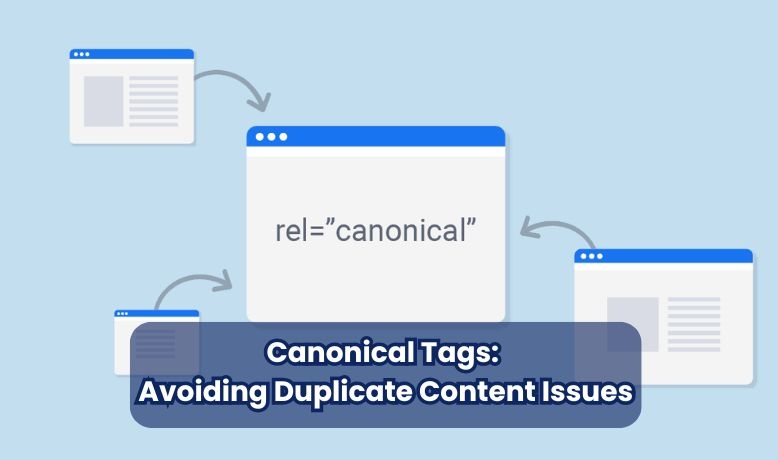
In the world of SEO, duplicate content can dilute rankings and confuse search engines about which version of a page to index. This is where canonical tags come into play. A canonical tag (rel="canonical") is an HTML element that tells search engines which page version should be treated as the primary source.
Key takeaways
- A canonical tag tells search engines which URL is the main version when several URLs show the same content.
- Use one absolute, self-referencing canonical on every page, placed in the HTML head, with straight quotes.
- Canonicals are hints: internal links, sitemaps and redirects must point to the same URL or Google may choose a different canonical.
- Each hreflang language version keeps its own self-referencing canonical; PDFs get theirs through an HTTP Link header.
- Use a 301 redirect instead when the duplicate page does not need to stay live, and check Google's chosen canonical in the URL Inspection tool.
What Are Canonical Tags?
A canonical tag is a snippet of code placed in a web page’s <head> section that specifies the preferred URL among multiple versions of the same content. It helps search engines consolidate ranking signals and avoid indexing duplicate pages.

Why Are They Important for SEO?
Canonical tags are essential for SEO because they:
- Prevent duplicate content issues that could harm search rankings.
- Ensure proper indexing by directing search engines to the main version of a page.
- Preserve link equity by consolidating backlinks to the preferred URL.
- Improve crawl efficiency, allowing search engines to focus on unique content instead of duplicates.
How Do Canonical Tags Help Resolve Duplicate Content Issues?
When multiple URLs display the same or similar content (e.g., example.com/page vs. example.com/page?ref=123), search engines might struggle to determine which page to rank. By implementing a canonical tag, website owners explicitly indicate the preferred version, ensuring:
- Google normally shows only the canonical URL in search results (it can still choose a different URL when other signals disagree; see the limitations section below).
- SEO value is not split across duplicate pages.
- Users and search engines access the most authoritative version of the content.
What Causes Duplicate Content?
Duplicate content occurs when multiple URLs lead to identical or near-identical webpage versions. This confuses search engines, leading to ranking dilution, indexing issues, and SEO inefficiencies. Here are some of the most common causes of duplicate content:
URL Parameters (Tracking Codes, Session IDs, Filters)
Many websites dynamically generate URLs with tracking codes, session IDs, or sorting filters, resulting in multiple variations of the same page.
Example:
- example.com/product
- example.com/product?utm_source=google
- example.com/product?session=12345
Since the core content remains unchanged, search engines may mistakenly index all versions separately, leading to duplicate content issues.
WWW vs. Non-WWW and HTTP vs. HTTPS Versions
Search engines treat the following variations as separate URLs unless properly redirected or canonicalized:
- http://example.com
- https://example.com
- http://www.example.com
- https://www.example.com
Failing to standardize a preferred version can cause content duplication across these URL variations.
Printer-Friendly Pages and Mobile Versions
Some websites create separate printer-friendly versions or distinct mobile URLs, leading to duplication.
Example:
- example.com/article (main version)
- example.com/article?print=true (printer-friendly)
- m.example.com/article (mobile version)
A canonical tag ensures search engines recognize the main content version, consolidating ranking signals.
Syndicated Content Across Multiple Domains
Search engines may not know which version to prioritize when content is republished on other websites or shared across multiple domains (e.g., guest posts, press releases).
Example:
- Original: example.com/blog-post
- Syndicated: newsportal.com/blog-post
Using a cross-domain canonical tag (rel="canonical") on syndicated content helps preserve the SEO value of the source.
Pagination and Sorting in E-Commerce
E-commerce websites often use paginated product lists and sorting filters, generating multiple URLs for the same category.
Example:
- example.com/shop?page=1
- example.com/shop?page=2
- example.com/shop?sort=price_asc
Sorting URLs should canonicalise to the main category URL, but each paginated page (such as ?page=2) should keep its own self-referencing canonical, because it lists different products.
How to Fix These Issues?
Now that we’ve identified the major causes of duplicate content, the next section will cover how to implement canonical tags correctly to prevent SEO issues and consolidate ranking authority.
How to Implement Canonical Tags
Proper implementation of canonical tags is essential for consolidating duplicate URLs, preserving SEO value, and ensuring accurate indexing. Below is a step-by-step guide on how to correctly apply canonical tags.
Basic Syntax and Placement in <head> Section
A canonical tag is placed inside the <head> section of a webpage to indicate the preferred URL. The syntax follows this format:

- The rel="canonical" attribute signals the preferred version of a page.
- The href attribute specifies the canonical URL that search engines should index.
Where to Place It?
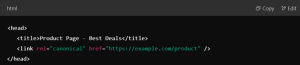
Canonical tags should always be placed inside the <head> section of the HTML document:
Self-Referencing Canonical Tags for SEO Stability
Even if a page has no duplicate versions, using a self-referencing canonical tag is a best practice to prevent unexpected duplication issues.
✅ Example of a Self-Referencing Canonical Tag:

This ensures search engines always consider this URL as the primary version, preventing conflicts.
Use Absolute URLs Instead of Relative URLs
Canonical tags should always use absolute URLs (full URLs) rather than relative URLs to avoid confusion for search engines.
✅ Correct Example (Absolute URL):

❌ Incorrect Example (Relative URL):

Search engines may misinterpret relative URLs, leading to indexing issues or canonicalization errors.
Correct vs. Incorrect Implementation Examples
✅ Correct Implementation (Single Preferred URL)

Ensures one version of the category page is indexed.
❌ Incorrect Implementation (Multiple Canonical Tags)
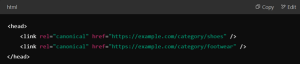
Issue: Search engines will ignore both tags due to conflicting signals.
❌ Incorrect Implementation (Pointing to Irrelevant URLs)
Issue: If this tag is added to a product page, it may remove the product page from search results and consolidate its SEO value with the homepage incorrectly.
Best Practices for Canonical Tags
Implementing canonical tags correctly is crucial for avoiding duplicate content issues, but it’s important to follow best practices to maximize their effectiveness. Here are the key guidelines for ensuring proper canonicalization without SEO conflicts.
Consistency in Canonical Tag Usage
Search engines rely on clear signals to determine the correct version of a webpage. Inconsistent canonicalization can lead to indexing errors and ranking dilution.
✅ Best Practice:
- Always use the same canonical URL structure across all related pages.
- Ensure internal links, sitemaps, and canonical tags point to the same preferred URL.
❌ Common Mistake:
- One page has a self-referencing canonical tag, but internal links or sitemaps reference a different variation.
Example:
- Canonical tag: https://example.com/shoes
- Internal links: https://example.com/shoes?sort=newest
- Issue: Search engines receive mixed signals about which page to prioritize.
Internal Linking Strategies to Support Canonicalization
Canonical tags work best when reinforced with proper internal linking.
✅ Best Practice:
- Link to the canonical version of the page in internal navigation and content.
- Avoid linking to URL variations with tracking parameters or filters.
❌ Common Mistake:
- If internal links consistently point to a non-canonical version, search engines may ignore the canonical tag altogether.
Example:
- Canonical tag: https://example.com/product
- Internal links: https://example.com/product?ref=123
- Issue: The non-canonical version gains more authority, confusing search engines.
Using Canonical Tags Alongside 301 Redirects
The Quick Rule: Canonical Tag or 301 Redirect?
| Scenario | Use Canonical Tag | Use 301 Redirect |
| Duplicate pages must remain live | ✅ Yes | ❌ No |
| Pages serve identical content | ✅ Yes | ❌ No |
| URLs must be permanently redirected | ❌ No | ✅ Yes |
| Pages have slight content variations | ✅ Yes | ❌ No |
✅ Best Practice:
- Use 301 redirects when permanently merging pages.
- Use canonical tags when keeping duplicate content accessible to users but consolidating ranking signals.
Ensuring Only One Canonical Tag Per Page
Using multiple canonical tags confuses search engines and invalidates the signal.
✅ Best Practice:

- One canonical tag per page ensures clarity for search engines.
❌ Common Mistake:
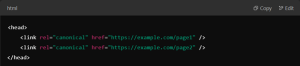
Issue: Search engines ignore both tags due to conflicting instructions.
Limitations and Considerations of Canonical Tags
While canonical tags are a powerful tool for managing duplicate content, they are not a guaranteed directive for search engines. There are situations where canonicalization may be ignored or an alternative approach, like 301 redirects, is more suitable.
Canonical Tags Are a Hint, Not a Directive
Canonical tags suggest the preferred URL, but search engines decide which version to index.
✅ Best Practice:
- Ensure internal linking, sitemaps, and hreflang tags align with the canonical tag.
- Avoid linking to non-canonical URLs, as Google may prioritize the most linked version.
❌ Common Issue:
- If a non-canonical URL has higher authority (more backlinks, internal links, engagement), search engines may override the canonical tag and index that version instead.
Example:
- Canonical tag: example.com/product-a
- Most backlinks point to example.com/product-a?utm_source=ads
- Search engines might index the non-canonical URL instead.
Situations Where Search Engines May Ignore Canonical Tags
Search engines disregard canonical tags in the following cases:
🔴 Conflicting Signals
- Search engines may choose their preferred version if the canonical tag points to one URL, but internal links, sitemaps, or hreflang tags point to another.
🔴 Thin or Duplicate Content Across Domains
- If multiple sites reuse the same content, search engines may ignore canonical tags and assign rankings to the most authoritative version (not necessarily the one marked as canonical).
🔴 Inconsistent Implementation Across Variations
- If different versions of the same page have conflicting canonical tags, Google may ignore all of them.
Example:
- Page A: <link rel="canonical" href="https://example.com/page-B">
- Page B: <link rel="canonical" href="https://example.com/page-A">
- Issue: This creates a loop, causing Google to ignore both canonical tags.
Canonical Tag or 301 Redirect: Common Scenarios
Canonical tags are ideal for keeping duplicate pages live, while 301 redirects should be used for permanent content consolidation.
| Scenario | Use Canonical Tag | Use 301 Redirect |
| The same content must remain accessible | ✅ Yes | ❌ No |
| Page variations (e.g., filters, parameters) | ✅ Yes | ❌ No |
| URL needs to be permanently removed | ❌ No | ✅ Yes |
| Merging duplicate pages into one | ❌ No | ✅ Yes |
✅ Best Practice:
- Use a 301 redirect if a page no longer serves a purpose and must be removed.
- Use canonical tags when keeping multiple similar pages active but consolidating SEO signals.
Example:
- Canonical Tag Use Case:
- A product page has multiple filtered versions (?color=red, ?size=large), and all should point to the main product URL.
- 301 Redirect Use Case:
- A discontinued product page should redirect users and search engines to a replacement product page.
Monitoring and Maintaining Canonical Tags
Even after implementing canonical tags, continuous monitoring is essential to ensure they function correctly and prevent indexing errors. Here’s how to track, audit, and fix canonical tag issues for better search performance.
Using Google Search Console to Check Canonicalized Pages
Google Search Console provides insights into how Google interprets canonical tags on your website.
✅ Steps to Check Canonicalization in Google Search Console:
- Go to Google Search Console → Select your property.
- Navigate to “Indexing” → “Pages.”
- Use the URL Inspection Tool and enter a page’s URL.
- Under “Google-selected canonical”, verify if Google respects your canonical tag or has chosen a different version.
❌ Common Issue:
- If Google ignores your canonical tag and selects a different page as canonical, there may be conflicting SEO signals (e.g., internal links pointing to a different URL).
✅ Fix:
- Align sitemaps, internal links, and hreflang tags to reinforce the correct canonical URL.
Regular SEO Audits to Detect Canonical Implementation Issues
Periodic SEO audits help identify missing, conflicting, or broken canonical tags before they cause ranking issues.
✅ Best Tools for SEO Audits:
- Screaming Frog SEO Spider: Scans pages to check canonical tag presence and correctness.
- Ahrefs / Semrush / Sitebulb: Identify canonical conflicts, missing tags, and indexing issues. Our free on-page SEO checker shows the canonical tag of any single URL.
❌ Common Canonical Issues Found in Audits:
- Multiple canonical tags on a single page.
- Incorrect canonicalization loops (Page A points to Page B, and vice versa).
- Non-canonical pages receiving more backlinks than the canonical version.
✅ Fix:
- Ensure each page has only one canonical tag.
- Standardize internal linking to support the canonical version.
- Redirect high-authority duplicate pages using 301 redirects where necessary.
Fixing Canonical Tag Conflicts for Better Search Performance
Canonical tags should always provide a clear and consistent SEO signal. Conflicts can confuse search engines, leading to improper indexing.
✅ Steps to Resolve Canonical Conflicts:
- Check if duplicate pages exist in Google’s index with a search such as
site:example.com inurl:utm_(see the copyable code section below).
- Identify and fix mismatched signals:
- Ensure internal links and canonical tags point to the same preferred URL.
- Check if a page is indexed under the wrong canonical version in Google Search Console.
- Use 301 redirects if necessary:
- If duplicate pages do not need to remain live, use a 301 redirect instead of a canonical tag.
- Re-crawl and re-index pages:
- Use Google Search Console’s “Request Indexing” feature to speed up changes.
The Examples as Copyable Code
The screenshots above show each tag; here is the same markup as text with straight quotes, which is what browsers and crawlers expect.
Basic canonical tag in the head
<head>
  <link rel="canonical" href="https://example.com/shoes/">
</head>
Self-referencing canonical
On https://example.com/blog/canonical-tags/ the tag points to that same URL:
<link rel="canonical" href="https://example.com/blog/canonical-tags/">Absolute, not relative
<!-- Correct -->
<link rel="canonical" href="https://example.com/shoes/">

<!-- Wrong: relative URL -->
<link rel="canonical" href="/shoes/">
One tag, not two
<!-- Wrong: conflicting tags, Google may ignore both -->
<link rel="canonical" href="https://example.com/shoes/">
<link rel="canonical" href="https://example.com/shoes/?sort=newest">
Pointing at an unrelated page
<!-- Wrong on a product page: tells Google to drop it in favour of the homepage -->
<link rel="canonical" href="https://example.com/">
Finding parameter duplicates in Google's index
Run these searches to see whether tracking or filter URLs have been indexed:
site:example.com inurl:utm_
site:example.com inurl:?sort=
site:example.com inurl:?ref=
Canonical Statuses in the Search Console Pages Report
When you open Indexing, then Pages, in Google Search Console, the "Why pages aren't indexed" table lists three reasons that relate to canonicals. They are not all problems.
| Status | What it means | What to do |
|---|---|---|
| Alternate page with proper canonical tag | Google saw the page, read its canonical and indexed the canonical URL instead. | Nothing, if the canonical points where you intended. This is the tag working. |
| Duplicate without user-selected canonical | Google found duplicates and none of them declares a canonical, so it picked one itself. | Add a canonical tag to every copy that points to the version you want, and link to that version internally. |
| Duplicate, Google chose different canonical than user | Your tag says one URL, Google chose another. | Inspect the URL to see Google's choice, then fix the conflicting signal: internal links, sitemap entries, redirects, hreflang or a stronger backlink profile on the other URL. |
The URL Inspection tool shows both the "User-declared canonical" and the "Google-selected canonical" for any page, which is the quickest way to confirm a single fix.
Canonicals for PDFs, hreflang Versions and Paginated Pages
Three cases trip up otherwise well-configured sites.
PDFs and other files: use the HTTP header
A PDF has no HTML head, so Google reads the canonical from an HTTP response header instead. Send it from the server, for example in Apache's .htaccess:
<Files "price-list.pdf">
  Header add Link "<https://example.com/pricing/>; rel=\"canonical\""
</Files>
The same header works for HTML pages when you cannot edit the template.
hreflang: every language version keeps its own canonical
The most common international mistake is pointing the Urdu or Arabic page's canonical at the English page. That tells Google the translation is a duplicate, and it drops out of search. Each version must self-canonicalise and list all the others in hreflang:
<!-- On https://example.com/ar/shoes/ -->
<link rel="canonical" href="https://example.com/ar/shoes/">
<link rel="alternate" hreflang="ar-ae" href="https://example.com/ar/shoes/">
<link rel="alternate" hreflang="en-ae" href="https://example.com/en/shoes/">
<link rel="alternate" hreflang="x-default" href="https://example.com/en/shoes/">
hreflang only works between pages that are canonical, so a canonical pointing elsewhere silently breaks the whole set.
Pagination: page 2 is not a duplicate of page 1
Sorting and filter URLs (?sort=price_asc) should canonicalise to the main category URL. Paginated pages (?page=2) list different products, so each keeps a self-referencing canonical; pointing them all at page 1 hides the products on later pages from Google. Check what your platform outputs by viewing the source of a page 2 URL, because some themes get this wrong.
Setting Canonical Tags in WordPress and Shopify
Most small business sites run on WordPress or Shopify. Both handle canonical tags for you, but you should know where to check and override them.
WordPress
- Yoast SEO: open the post, go to the Yoast panel, then the Advanced tab, and enter a URL in the Canonical URL field. Leave it blank to keep the self-referencing default.
- Rank Math: open the post, go to the Rank Math panel, then the Advanced tab, and fill in the Canonical URL field.
- Without a plugin: WordPress core adds a self-referencing canonical to single posts and pages. Whether archives and paginated pages get one depends on your theme, so view the source of a category page to check; an SEO plugin covers the gaps.
Shopify
- Most Shopify themes output a canonical tag in
theme.liquidusing thecanonical_urlobject. Check that it is present in the head. - Products reached through a collection, such as
/collections/shoes/products/red-shoe, canonicalise to/products/red-shoeby default. Keep this behaviour. - View the source of a collection's
?page=2URL to confirm it canonicalises to itself; if your theme points it at page 1, edit the canonical line intheme.liquid. - Link to the plain
/products/URL in menus and custom sections where possible.
Quick check on any site
- Open the page and view the source.
- Search for
rel="canonical". - Confirm there is exactly one, it uses the full https URL, and it matches the version you want indexed.
Frequently asked questions
Should every page have a self-referencing canonical tag?
Yes, it is a good default. A self-referencing canonical tells search engines that this exact URL is the preferred version, which protects you when tracking parameters, session IDs or capital letters create extra copies of the URL. Most SEO plugins and platforms such as WordPress with Yoast or Rank Math, and Shopify themes, add one automatically.
Is a canonical tag the same as a noindex tag?
No. A canonical tag says another URL is the main version and asks search engines to pass signals to it. A noindex tag tells search engines not to show the page at all. Do not combine them on the same page, because they send mixed signals. Use a canonical for duplicates you want consolidated, and noindex for pages that should never appear in search.
Can a canonical tag point to a different domain?
Yes. Cross-domain canonicals are allowed, for example when the same article appears on two sites you own. Google treats it as a hint, as with any canonical. For content syndicated to other publishers, Google now recommends that the partner uses a noindex tag on their copy, because a cross-domain canonical may not always stop their version from ranking.
How long does Google take to respect a new canonical tag?
It depends on how often Google crawls the pages involved. Popular pages may update within days, while deep pages can take weeks. You can speed it up by requesting indexing in the URL Inspection tool, updating internal links and sitemaps to the canonical URL, and removing links to the duplicate versions so all signals point the same way.
What does 'Duplicate, Google chose different canonical than user' mean?
It is a status in the Search Console Pages report. Google found your canonical tag but decided another URL is the better main version, usually because internal links, backlinks, the sitemap or a redirect point elsewhere, or because the two pages are not really duplicates. Open the URL in the URL Inspection tool to see which URL Google picked, then align every signal to the version you want.