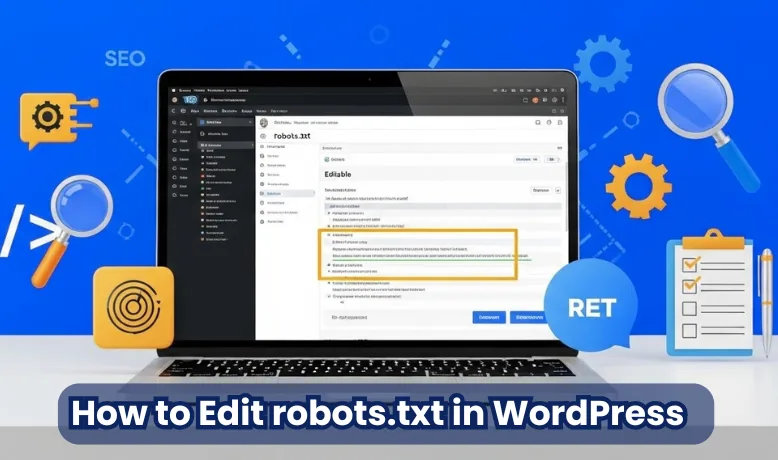
How to Edit robots.txt in WordPress
When search engines like Google or Bing crawl your WordPress site, they don’t just look at your content—they follow every file, folder, and link they can access. But what if you want to control which parts of your website are visible to them? That’s exactly where the robots.txt file comes in.
Key takeaways
- WordPress serves a virtual robots.txt by default, with a Sitemap line for wp-sitemap.xml; view it at yourdomain.com/robots.txt.
- You can edit it with Yoast SEO, Rank Math or AIOSEO, or manually through FTP or cPanel File Manager.
- Block low-value areas like /wp-admin/ and internal search, but keep admin-ajax.php, CSS, JavaScript and images crawlable; use canonical tags, not Disallow, for duplicate URLs.
- Decide which AI crawlers (GPTBot, ClaudeBot, Google-Extended, CCBot, Bytespider) you want to block; Google-Extended does not affect Google Search.
- After editing, check the robots.txt report (Settings) and URL Inspection in Google Search Console; the old robots.txt Tester and Fetch as Google are gone.
The robots.txt file acts like a traffic signal for search engine bots. It tells them which pages or directories they can crawl and which ones they should avoid. For example, you might want search engines to skip your admin area, private files, or duplicate content while focusing only on your main posts and pages.
For WordPress users, learning to edit robots.txt is an important step toward better SEO and smarter crawl management. It can improve your site’s visibility, save crawl budget, and prevent indexing errors.
Where to Find robots.txt in WordPress
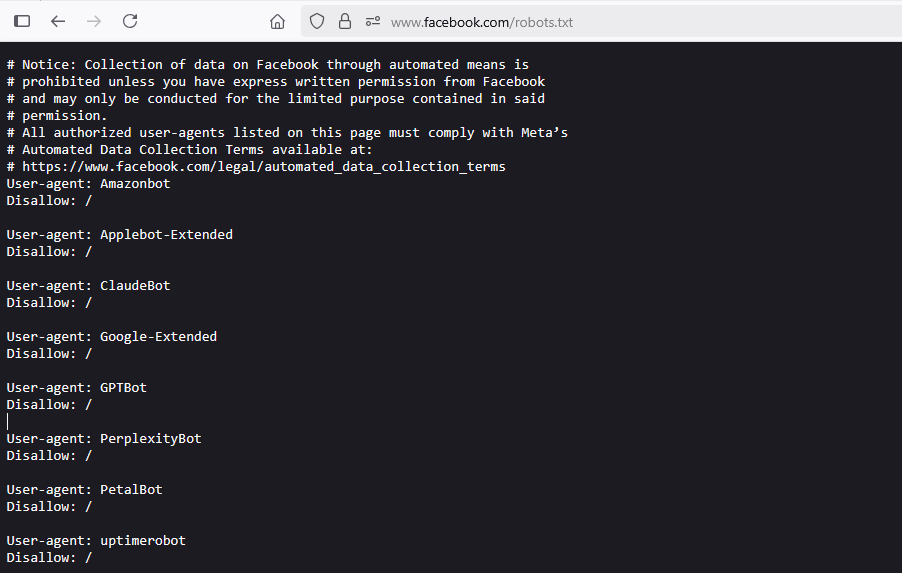
The robots.txt file in WordPress works a little differently compared to static websites. By default, WordPress automatically generates a virtual robots.txt file, which means you won’t see an actual file in your site’s root directory unless you create one manually.
To check if your site already has a robots.txt file:
- Open your browser.
- Type your domain name followed by /robots.txt (e.g., www.example.com/robots.txt).
- Press Enter.
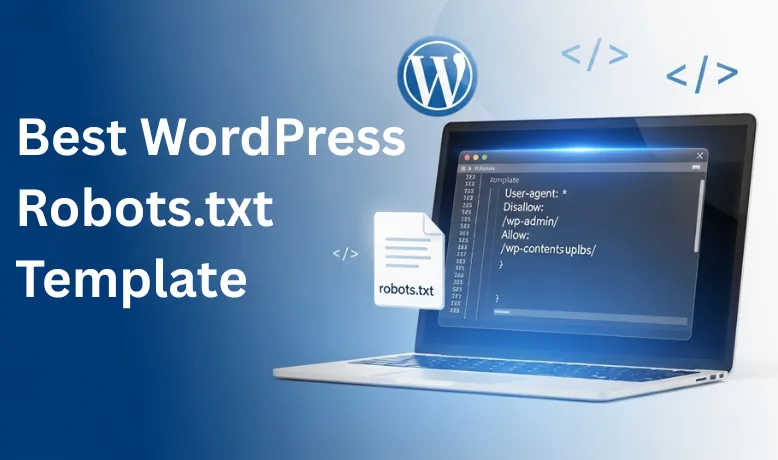
If a file loads, congratulations—you’ve found your robots.txt. Most WordPress sites will display a basic file that blocks access to the /wp-admin/ directory while allowing access to important files like admin-ajax.php.
Methods to Edit robots.txt in WordPress
There are three main methods to edit your robots.txt file in WordPress:
Method no 1: Editing robots.txt with Plugins (Yoast SEO, RankMath, AIOSEO)
Steps to Edit robots.txt with Yoast SEO:
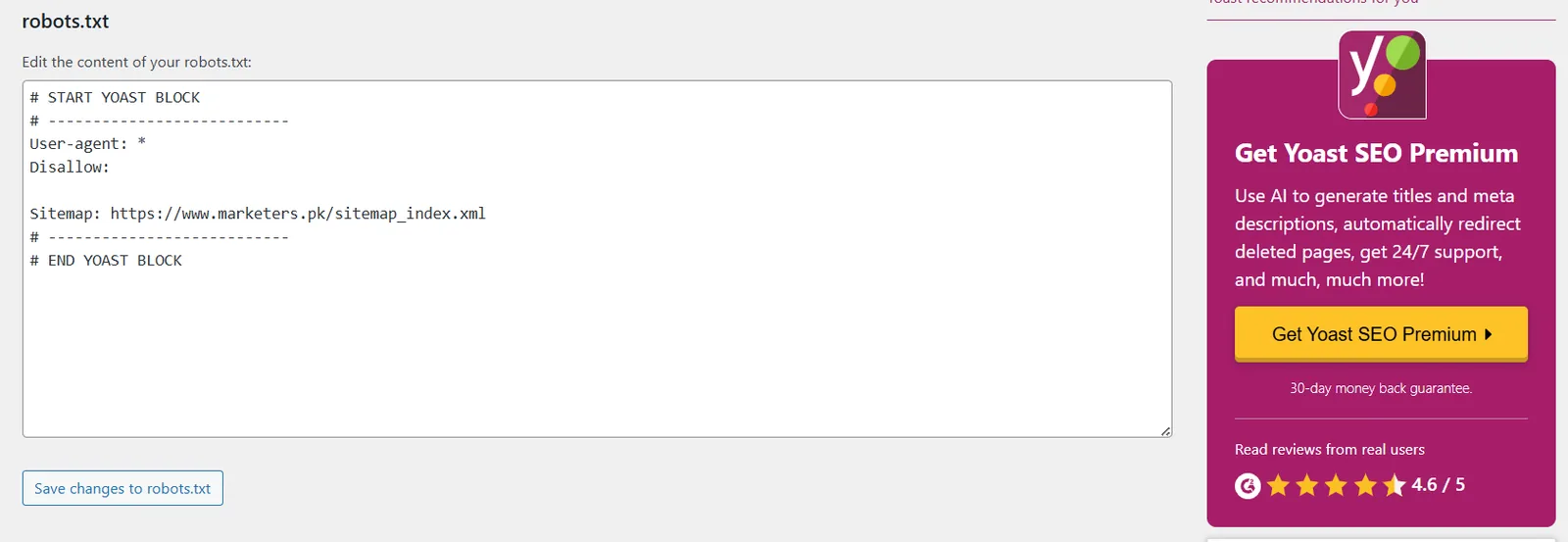
- Log in to your WordPress Dashboard.
- Go to SEO in the left-hand menu, then click on Tools.
- Click on the File Editor option under “SEO Tools”.
- You will see your robots.txt file. Yoast will prompt you to create one if it’s not created yet.
- Make the necessary edits:
- Example: Disallow: /wp-admin/ to block the admin section from being crawled.
- After editing, click Save Changes to apply the updates.
Method no 2: Editing robots.txt with Rank Math or AIOSEO
Steps to Edit robots.txt with Rank Math (in AIOSEO the editor is under Tools → Robots.txt Editor):
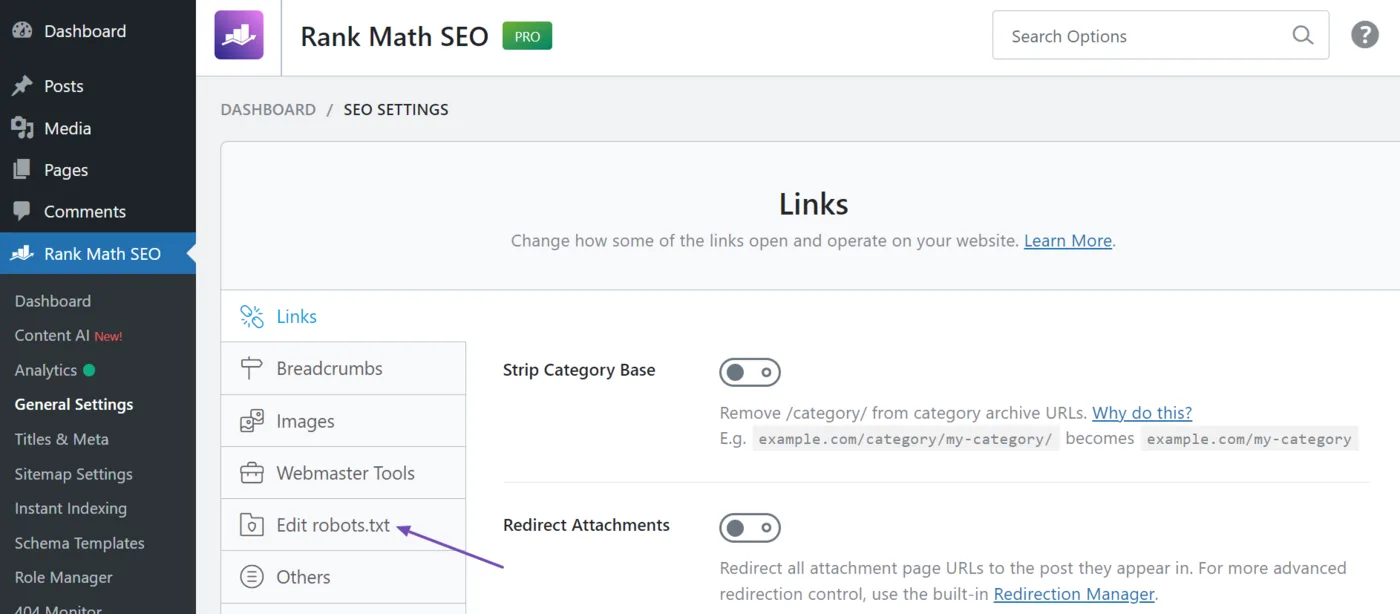
- Log in to your WordPress Dashboard.
- Navigate to RankMath in the left-hand menu and click General Settings.
- Scroll to the robots.txt section.
- Click on Edit robots.txt.
- Make your changes in the editor:
- Example: Disallow: /?s= to stop internal search result pages from being crawled.
- After making the changes, click Save Changes to apply them.
Method no 3: Manually editing robots.txt via FTP/cPanel
Steps to Edit robots.txt Manually via FTP/cPanel:
- Log in to your hosting account (via FTP or cPanel).
- If using cPanel, open File Manager; if using FTP, connect using your FTP client.
- Navigate to the public_html directory (or the root folder where WordPress is installed).
- Look for robots.txt in the folder.
- If it’s not present, create a new file and name it robots.txt.
- Open robots.txt in a text editor.
- Add or modify the rules you need. For example:
- Disallow: /wp-admin/ to block the WordPress admin area.
- Allow: /wp-admin/admin-ajax.php to allow specific admin files.
- Save and upload the file back to the root directory.
Best Practices for robots.txt in WordPress
Once you’ve learned how to edit your robots.txt file, it’s important to follow best practices to ensure that it benefits your site’s SEO without causing issues. Here are some of the most effective rules for your WordPress robots.txt file.
Recommended robots.txt Rules
- Allowing Essential Files
You should always allow bots to access important files like CSS, JavaScript, and images to ensure proper page rendering. Without these files, your site might not display correctly in search results.

- Disallowing Sensitive Areas
Block search engines from accessing areas of your site that shouldn’t be indexed, like your wp-admin directory. This prevents unnecessary crawl requests and avoids search engines from indexing admin pages.

- Preventing Duplicate Content
WordPress often creates duplicate URLs through parameters, filters and internal search. Do not rely on Disallow to fix this: a disallowed URL can still be indexed, and Google cannot see a canonical tag on a page it is not allowed to crawl. Use canonical tags for parameter and filter duplicates, and reserve Disallow for infinite spaces such as internal search results (Disallow: /?s=) and endless filter combinations. Never Disallow a URL you want removed from the index; use a noindex tag instead.
- Allowing Admin AJAX Requests
While blocking the /wp-admin/ section, it is essential to allow the admin-ajax.php file for many WordPress plugins to function properly.

Setting Crawl Rate and Crawl Delay
If you notice your site is over-crawled (which can negatively affect your site speed), you can set a crawl delay in the robots.txt file. This instructs search engines to wait a specific amount of time between requests. However, Google ignores this directive; Bing and some other crawlers respect it.

Blocking Specific Bots
Add user-agent-specific rules to block specific bots from accessing your site. For example, to block Bingbot:

Directing Search Engines to Your Sitemap
Including a Sitemap line in your robots.txt file helps search engines find your sitemap without you submitting it anywhere. WordPress core already adds Sitemap: https://yourdomain.com/wp-sitemap.xml to its virtual file; Yoast SEO and Rank Math replace this with their own sitemap index (for example /sitemap_index.xml). Open yourdomain.com/robots.txt to see which line your site outputs, and make sure it points at a sitemap that actually loads.

Testing & Validating Your robots.txt
After editing your robots.txt file, testing and validating your changes is important to ensure that everything works as expected. Incorrect configurations can prevent search engines from crawling your website properly or may result in unwanted pages being indexed.
Using Google Search Console’s robots.txt Report
Google Search Console has a robots.txt report that shows the file Google last fetched, when it fetched it and any parsing errors. The old per-URL robots.txt Tester was retired in 2023; per-page checks now live in URL Inspection. Here’s how to use the report:
Steps to Test robots.txt in Google Search Console:
- Log in to Google Search Console.
- Go to Settings and open the robots.txt report (the old robots.txt Tester was retired in 2023).
- The report lists each robots.txt file Google found for your site, with its fetch status, the date it was last crawled and any errors or warnings.
- Click a file to see the exact content Google has cached. If you have just fixed a mistake, use Request a recrawl so Google fetches the new version sooner.
- To test a single page, use URL Inspection instead: enter the URL, click Test live URL, and check the Crawl section for “Crawl allowed?” and “Blocked by robots.txt”.
- If you find any issues, modify your robots.txt file accordingly.
What to Look For:
- Blocked pages: Ensure that important pages are not accidentally blocked by robots.txt.
- Unblocked pages: Confirm that search engines can crawl and index critical pages on your site.
Using URL Inspection to Check Crawl Behaviour
Once your robots.txt file is live, use the URL Inspection tool to see how Googlebot fetches a specific page. (Fetch as Google was retired in 2019; URL Inspection replaced it.) This is the quickest way to confirm that a page you care about is not blocked.
Steps to Use URL Inspection:
- Go to Google Search Console.
- Click on “URL Inspection” in the left-hand menu.
- Enter the URL of a page you want to test.
- Click “Test Live URL”.
- Google will show whether the page can be crawled and indexed properly.
- If there are issues (e.g., blocked by robots.txt), it will display an error.
Using External Tools to Validate Your robots.txt
In addition to Google Search Console, you can use external tools to validate your robots.txt file, including:
- Bing Webmaster Tools: Bing also offers a robots.txt tester.
- SEO crawlers like Screaming Frog crawl your site and list every URL your robots.txt blocks, and free checkers such as the marketers.pk robots.txt Tester show which rule matches a given URL and user-agent.
Best Practices for Ongoing Validation
After initial testing, it’s important to check your robots.txt file as your website evolves regularly:
- Monitor site performance in Google Search Console.
- Revisit robots.txt when you make major site changes (e.g., adding new pages or restructuring the site).
- Test after every update to ensure that search engines can still crawl and index your important pages.
Controlling AI Crawlers in robots.txt
Since 2023 the most common reason site owners open their robots.txt is to decide what AI companies may do with their content. Each company publishes its own user-agent, and the main ones honour robots.txt rules. Add a block like this to your file if you want to opt out:
User-agent: GPTBot
Disallow: /

User-agent: ClaudeBot
Disallow: /

User-agent: Google-Extended
Disallow: /

User-agent: CCBot
Disallow: /

User-agent: PerplexityBot
Disallow: /

User-agent: Bytespider
Disallow: /
What each token controls, as of October 2026:
- GPTBot (OpenAI) and ClaudeBot (Anthropic) fetch pages for model training. OpenAI and Anthropic use separate user-agents for search-style fetching, so blocking the training bot does not by itself remove you from their answers.
- Google-Extended only controls whether Google may use your content for Gemini training. It does not affect Google Search, and AI Overviews are built from Googlebot's crawl, so blocking it will not take you out of Search or AI Overviews.
- CCBot is Common Crawl, whose dataset many AI labs train on.
- PerplexityBot fetches pages for Perplexity's answers; blocking it mostly removes you from citations there.
- Bytespider (ByteDance) has been reported to ignore robots.txt at times, so a firewall or Cloudflare rule is the only reliable block.
Think before you block everything. For a Lahore business, being mentioned when someone asks ChatGPT or Perplexity for a recommendation is often worth more than the training opt-out. A common middle path is to block training-only bots (GPTBot, ClaudeBot, CCBot, Google-Extended) and leave search-style bots allowed. Review the list every few months, because new user-agents appear often.
Which Editing Method Should You Choose?
All three methods change the same public file, but they suit different situations. Pick one method and stick with it, because mixing a plugin editor with a manually uploaded file is the most common reason edits seem to vanish.
| Method | Best for | Watch out for |
|---|---|---|
| Yoast SEO file editor | Sites already running Yoast that want a quick change from the dashboard | Needs write permission on the server; some hosts disable file editing |
| Rank Math or AIOSEO editor | Sites using those plugins; edits change the virtual file WordPress serves | The editor is ignored or locked if a physical robots.txt already exists in the root folder |
| FTP or cPanel File Manager | Developers, sites without an SEO plugin, or when a plugin editor will not save | A typo can block the whole site; always download a backup first |
Quick rule: if you use an SEO plugin, edit through that plugin. If you upload a physical file, remember that it wins over anything the plugin generates, so future edits must be made to that file.
Whichever route you take, open yourdomain.com/robots.txt in a private browser window afterwards. If you still see the old rules, clear your caching plugin and any CDN cache, such as Cloudflare, before assuming the edit failed. You can also paste the URL into the free marketers.pk robots.txt Tester to confirm which rule applies to a given page and user-agent.
Conclusion
Editing your robots.txt file in WordPress is essential in controlling how search engines crawl and index your site. By following best practices, testing your changes, and avoiding common mistakes, you can enhance your site’s SEO, prevent duplicate content issues, and ensure that search engines are crawling the most important pages. Whether you choose to edit via an SEO plugin or manually through FTP, the right configuration can significantly improve how your site performs in search results. Make sure to revisit your robots.txt file regularly to optimise your site for search engines and users.
Frequently asked questions
Does editing robots.txt remove pages from Google?
No. robots.txt controls crawling, not indexing. If you disallow a page that is already indexed, Google may keep it in results, sometimes without a description, because it can no longer read the page. To remove a page, allow crawling and add a noindex meta tag, or return a 404 or 410 status, then use the Removals tool if you need it hidden quickly.
How long does Google take to see robots.txt changes?
Google usually caches robots.txt for up to about a day, so changes are normally picked up within 24 hours. If you fixed an urgent mistake, such as accidentally blocking the whole site, open the robots.txt report under Settings in Google Search Console and request a recrawl of the file. Then use URL Inspection to confirm key pages are crawlable again.
Why won't my robots.txt changes save in WordPress?
The most common causes are file permissions, a host that blocks file edits, or a physical robots.txt file that overrides your plugin. Check the site root for an existing robots.txt file, confirm your plugin has write access, and clear any page or CDN cache. If the plugin editor stays locked, edit the file directly through cPanel File Manager or FTP instead.
Should I block AI crawlers like GPTBot in robots.txt?
It depends on what you want. Blocking training crawlers such as GPTBot, ClaudeBot and CCBot stops your content being used to train models, as far as those companies honour robots.txt. It may also reduce how often AI assistants cite your pages, since some search-style bots share the same rules. Google-Extended only affects Gemini training, not Google Search or AI Overviews, which use Googlebot. Many Pakistani businesses leave the bots allowed because AI mentions bring enquiries.