How to Manually Overwrite the robots.txt File in WordPress
A robots.txt file is a simple text file that tells search engine crawlers which parts of your website they can or cannot access. In WordPress, this file is key in controlling how your site is indexed and displayed in search results. While WordPress generates a virtual robots.txt by default, there may be times when you need to manually overwrite it, whether to block specific pages, allow certain resources, or fine-tune your SEO strategy.
Key takeaways
- WordPress generates a virtual robots.txt only when no real robots.txt file exists in the site root.
- Uploading a physical robots.txt via FTP or cPanel overrides the virtual file and any plugin-generated rules.
- The robots_txt filter in functions.php changes the virtual file, so it stops working once a physical file exists.
- A physical file must declare its own Sitemap line, because the virtual file's automatic wp-sitemap.xml line disappears with it.
- Always back up the current file, then confirm changes at yourdomain.com/robots.txt and in Search Console's robots.txt report.
Method 1 – Using an SEO Plugin (Yoast SEO, Rank Math or All in One SEO)
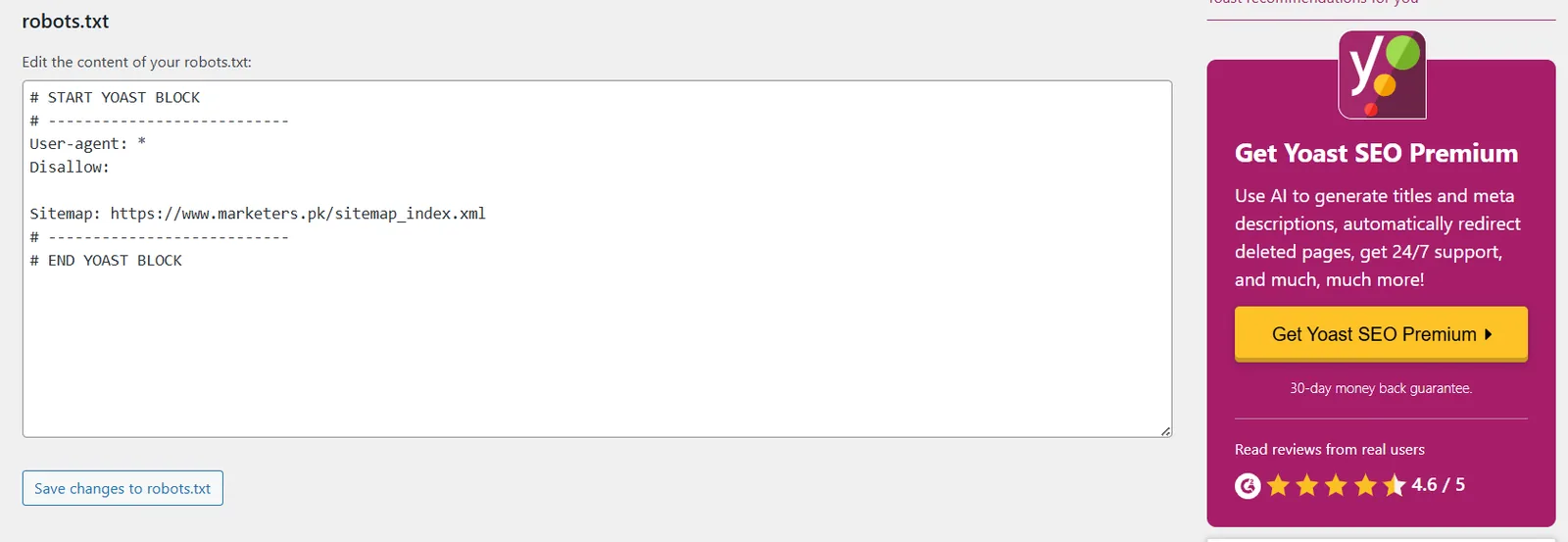
If you're not comfortable dealing with server files directly, the easiest way to overwrite your robots.txt in WordPress is by using a popular SEO plugin. Yoast SEO, Rank Math and All in One SEO all provide built-in editors so you never leave your dashboard. One caveat: Rank Math and AIOSEO will not save their rules while a physical robots.txt file exists in your site root, so delete or rename that file first.
Follow these steps:
- Install and Activate an SEO Plugin
- Go to Plugins → Add New in your WordPress dashboard.
- Search for Yoast SEO or All in One SEO (AIOSEO).
- Click Install Now, then Activate.
- Access the File Editor (Yoast SEO)
- Navigate to SEO → Tools → File Editor.
- Yoast will let you create one if the robots.txt file doesn’t exist. In Rank Math, go to Rank Math SEO → General Settings → Edit robots.txt instead.
(All in One SEO)
- Go to All in One SEO → Tools → robots.txt Editor.
- Edit Your robots.txt File.
-
- Add, remove, or modify directives such as:

- Save Changes
- Click Save changes to robots.txt to overwrite the current virtual file.
✅ Pro Tip: After editing, visit yourwebsite.com/robots.txt in your browser to ensure the changes are live.
Method 2 – Upload a Physical robots.txt File via FTP or File Manager

WordPress uses a virtual robots.txt by default, but you can override it by uploading a physical file to your server’s root directory. This method gives you complete control and works even if you’re not using an SEO plugin.
Follow these steps:
- Access Your Website Files
- Use an FTP client like FileZilla or your hosting’s File Manager in cPanel.
- Navigate to the public_html folder or the root directory where WordPress is installed.
- Backup Existing File (If Any)
- If you see an existing robots.txt file, download a copy to your computer as a backup before making changes.
- Create or Edit Your robots.txt File.
- Open a plain text editor (e.g., Notepad).
- Add your preferred rules, for example:

- Upload the File
- Save the file as robots.txt.
- Upload it to the root directory of your WordPress site.
- Verify the Changes
- Go to yourwebsite.com/robots.txt in your browser.
- Check that it displays your new content.
✅ Pro Tip: A physical robots.txt file always overrides WordPress’s default virtual version.
Method 3 – Edit robots.txt directly via cPanel File Manager
If you can access your hosting control panel, you can edit or create a robots.txt file directly from cPanel without using plugins or FTP software.
Follow these steps:
- Log in to your Hosting cPanel
- Use the credentials provided by your hosting provider to access cPanel.
- Open File Manager
- In cPanel, find and click File Manager.
- Navigate to your website’s public_html or root WordPress directory.
- Locate or Create robots.txt
- If robots.txt exists, right-click it and select Edit.
- If it doesn’t exist, click + File, name it robots.txt, and open it for editing.
- Add Your Directives
- Enter the rules you need, for example:

- Save the File
-
- Click Save Changes in the editor.
- Test Your File
-
- Visit yourwebsite.com/robots.txt to ensure the new rules are active.
✅ Pro Tip: Editing through cPanel is fast and doesn’t require extra tools, making it ideal for quick updates.
Method 4 – Override robots.txt with functions.php Code (Advanced)
For developers or advanced WordPress users, it’s possible to overwrite the virtual robots.txt output directly in WordPress by adding a code snippet to your theme’s functions.php file. This approach is useful to control the file’s output without creating or uploading a physical file.
Follow these steps:
- Access Your Theme’s functions.php File
- In your WordPress dashboard, go to Tools → Theme File Editor on a block theme (Twenty Twenty-Four, Twenty Twenty-Five and most new themes) or Appearance → Theme File Editor on a classic theme. If neither menu shows the editor, your host has disabled file editing (DISALLOW_FILE_EDIT), so edit the file over FTP or use a code snippets plugin instead.
- From the right-hand file list, select functions.php.
(Alternatively, you can edit it via FTP or cPanel File Manager.)
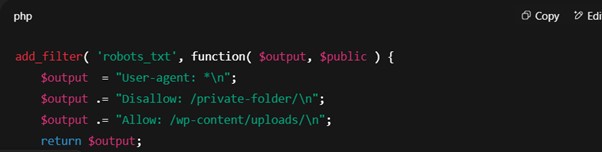
- Add the robots.txt Filter Code.
- Insert this snippet into your functions.php file:
- Save the Changes
-
- Click Update File if editing in WordPress, or upload the modified file using FTP/cPanel.
- Test the Output
-
- Visit yourwebsite.com/robots.txt to confirm your new rules appear correctly.
✅ Pro Tip: This method works well for dynamic control, but always create a backup of functions.php before editing to avoid breaking your site.
Tips for Writing an Effective robots.txt File
Overwriting your robots.txt file gives you control over what search engines can and cannot crawl, but it’s important to use it wisely to avoid hurting your SEO.
Best practices to follow:
- Allow essential resources: Don’t block CSS, JavaScript, or image directories; these are important for proper site rendering in search results.
- Only block sensitive or irrelevant pages: Examples are admin pages (/wp-admin/), temporary pages, or private content folders.
- Avoid blocking important content: Pages you want to rank should always be accessible to crawlers.
- Use wildcard and path rules carefully: For example, Disallow: /*? can block all URLs with query parameters, which may be too aggressive.
- Check what Google sees: open the robots.txt report in Google Search Console (Settings → Crawling → robots.txt) to see the version Google last fetched, when, and whether it parsed without errors. Before you upload, run the rules through our free robots.txt tester to catch a Disallow that blocks more than you meant.
- Keep it simple: The fewer unnecessary rules you have, the easier it is to manage and avoid mistakes.
✅ Pro Tip: Always keep a backup of your working robots.txt file before making new changes.
Physical File vs Virtual File: Which One Wins?
Understanding the order of priority saves a lot of confusion. When a crawler requests yourdomain.com/robots.txt, the web server checks the root folder first. If a real robots.txt file is there, the server sends it straight away and WordPress never runs. Only when no file exists does the request pass to WordPress, which builds the virtual version on the fly.
| What you changed | Takes effect when |
|---|---|
| Physical file uploaded via FTP or cPanel | Always. It overrides everything else |
| Yoast SEO file editor | Yoast writes a physical file, so it behaves like an upload |
| Rank Math or AIOSEO rules | Only when no physical file exists; both editors refuse to save while a physical file is present |
| robots_txt filter in functions.php | Only when no physical file exists |
So if you add a functions.php snippet and nothing changes, look for a forgotten robots.txt file in public_html. It is often left behind by an old plugin, a migration tool or a previous developer.
One more difference: since WordPress 5.5 the virtual file automatically adds a Sitemap: line for the core wp-sitemap.xml, and plugins add their own. The moment you upload a physical file, that automatic line is gone, so include the sitemap yourself. A sensible starting file looks like this:
User-agent: *
Disallow: /wp-admin/
Allow: /wp-admin/admin-ajax.php

Sitemap: https://www.example.com/sitemap_index.xml
Blocking AI Crawlers in robots.txt
Since 2024 the most common reason site owners edit robots.txt is to keep AI companies from using their content for training. Each crawler has its own user-agent token, so you block them one by one:
User-agent: GPTBot
User-agent: ClaudeBot
User-agent: Google-Extended
User-agent: CCBot
User-agent: Bytespider
User-agent: PerplexityBot
Disallow: /
Three things to understand before you add this:
- Google-Extended is not Googlebot. It only controls whether your pages are used to train Gemini models. Blocking it does not change your Google Search rankings and does not keep you out of AI Overviews or AI Mode, which draw on the normal Google index.
- It is a polite request. OpenAI, Anthropic and Common Crawl say they honour robots.txt, but some scrapers do not. If you need a real block, use a firewall rule. Cloudflare offers a one-click setting that blocks known AI crawlers at the edge, which works even for bots that ignore robots.txt.
- Think about the trade-off. Blocking AI crawlers can also keep your business out of answers in ChatGPT or Perplexity, which some customers now use instead of Google. Many businesses allow search-style bots and block only training bots.
If you use the functions.php method, add these lines to $output in the filter; with a physical file, paste them at the end. Either way, confirm the live file at yourdomain.com/robots.txt afterwards.
Troubleshooting: Your Overwrite Is Not Showing
If yourdomain.com/robots.txt still shows the old rules after you overwrite it, work through these checks in order.
- Cache. Clear your caching plugin, server cache and CDN cache, such as Cloudflare, then reload the file in a private window.
- Wrong folder. The file must sit in the folder your domain points to, usually public_html. Addon domains and subdomains often have their own folders.
- Wrong file name. The name must be exactly robots.txt in lowercase. Windows can hide extensions and save it as robots.txt.txt, so check the name in File Manager.
- Wrong format. Save as plain text (UTF-8), not a Word document or rich text. Each rule goes on its own line.
- Two sources of truth. If both a physical file and a plugin editor are in use, delete one. Decide where the rules live and edit only there.
Once the live file is correct, open Settings, then Crawling, then robots.txt in Google Search Console and request a recrawl so Google fetches the new version sooner. The report also shows the last version Google fetched and any parsing errors.
Keep a functions.php Override Update-Safe
Code added to a parent theme's functions.php is wiped the next time the theme updates, and your custom rules silently disappear. To keep the override:
- Add the snippet to a child theme, or use a code snippets plugin so it survives theme changes.
- Use the
robots_txtfilter to append or replace rules rather than echoing output directly. - Leave a short comment above the code explaining what it does and who added it, so the next developer does not remove it by accident.
Conclusion
Manually overwriting the robots.txt file in WordPress gives you full control over how search engines interact with your site, helping you protect sensitive areas and optimise crawling for better SEO. Whether you use an SEO plugin, upload a physical file via FTP, edit it directly through cPanel, or apply a custom code snippet in functions.php, always make a backup before making changes and test the file to ensure it works as intended. With careful adjustments, your robots.txt can become a powerful tool in managing your site’s visibility and performance.
Frequently asked questions
Does the Discourage search engines setting change robots.txt?
Not in current WordPress versions. Since WordPress 5.3, ticking Discourage search engines from indexing this site under Settings, Reading adds a noindex robots meta tag to your pages instead of a blanket Disallow rule. If you have uploaded a physical robots.txt file, that file is served as written regardless of this setting, so check both before launching a site.
Where should robots.txt go if WordPress is installed in a subfolder?
Always in the root of the domain, not the WordPress folder. Crawlers only request yourdomain.com/robots.txt, so a file placed at yourdomain.com/blog/robots.txt is ignored. If WordPress lives in a subfolder, upload the physical file to the top-level public_html folder and write paths that include the subfolder, such as Disallow: /blog/wp-admin/.
How do I go back to the default WordPress robots.txt?
Delete or rename the physical robots.txt file in your site root, for example to robots-backup.txt, and remove any robots_txt filter you added to functions.php. WordPress will immediately start serving its virtual file again. Clear your caching plugin and CDN cache, then open yourdomain.com/robots.txt to confirm the default rules are showing.
Does blocking AI crawlers in robots.txt hurt my Google rankings?
No, as long as you do not block Googlebot. Google-Extended is a separate token that only controls whether your content trains Gemini models; blocking it does not affect Google Search rankings or whether you appear in AI Overviews, which use Googlebot. Blocking GPTBot, ClaudeBot or CCBot likewise has no effect on Google. Remember robots.txt is a request, not a wall; badly behaved bots ignore it.