How to Add a Sitemap to Google Search Console
A sitemap is like a roadmap for your website that helps Google understand the structure of your pages. It lists important URLs, ensuring search engines can discover and index them quickly. While modern search engines are smart enough to crawl most websites, submitting a sitemap directly through Google Search Console gives you more control, improves visibility, and speeds up indexing. If you want your site’s content to appear in search results faster and more accurately, adding a sitemap to Google Search Console is one of the most effective steps you can take.
Key takeaways
- In Search Console, open Indexing > Sitemaps, enter your sitemap URL and click Submit.
- Your property must be verified first, and the sitemap URL must load in a browser without a login.
- WordPress plugins usually use /sitemap_index.xml; WordPress core uses /wp-sitemap.xml; Shopify uses /sitemap.xml.
- Check the status after submitting: Success is good, while Has errors or Couldn't fetch need fixing.
- Submitting a sitemap helps discovery but does not guarantee that every URL gets indexed.
Steps to Add a Sitemap to Google Search Console
Step 1: Log in to Google Search Console
The first step is to access your Google Search Console account. Go to Google Search Console and sign in using the Google account connected to your website. Once logged in, you’ll be taken to the Search Console dashboard, where you can manage all the properties (websites) you’ve added. If this is your first time using GSC, you must add and verify your site before continuing.
Step 2: Select Your Property
After signing in, you’ll see a list of properties (websites) associated with your account. Choose the correct property for which you want to add the sitemap. Select the verified one that matches your website setup if you have the Domain and URL-prefix properties. For example, if your site is verified as https://www.example.com, ensure you choose that property to avoid submission errors.
Step 3: Go to the Sitemaps Section
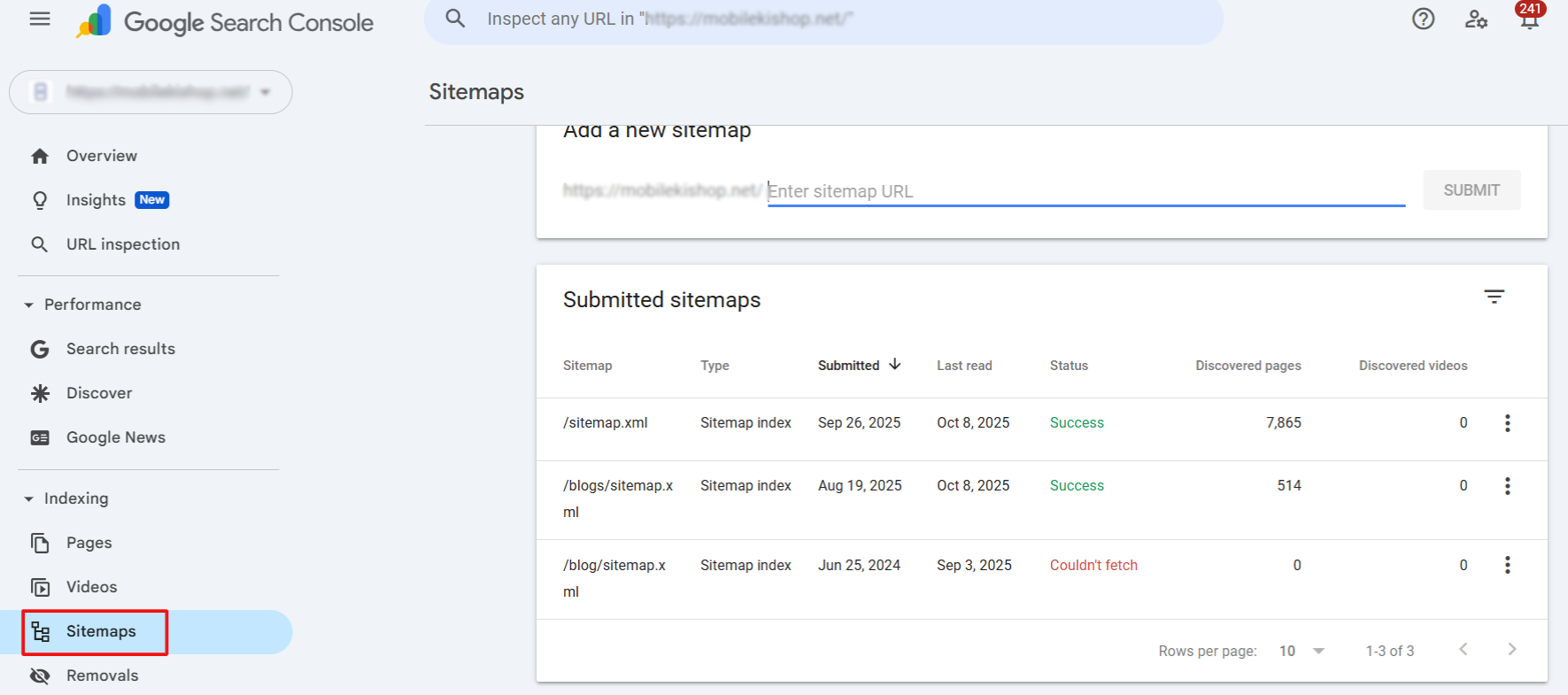
Once you’ve selected the right property, look at the left-hand menu in your Google Search Console dashboard. Under the “Indexing” section, you’ll find the “Sitemaps” option. Click on it to open the sitemap submission page. You can add a new sitemap, view previously submitted ones, and check their status.
Step 4: Enter Your Sitemap URL

You’ll see a field labelled “Add a new sitemap” on the sitemap submission page. In this box, type or paste the complete URL of your sitemap. For most websites, the default location is yourdomain.com/sitemap.xml.
Using platforms like WordPress (with plugins such as Yoast SEO or Rank Math), the sitemap is usually auto-generated and found at /sitemap_index.xml. For Shopify, it is the same as standard /sitemap.xml. Double-check that the link works in your browser before submitting.
Step 5: Submit the Sitemap
After entering your sitemap URL, click the “Submit” button next to the field. Google Search Console will instantly process your request and attempt to fetch the sitemap file from your website. If everything is set up correctly, the sitemap will appear below with a status update. Submitting ensures Google is officially notified of your site’s structure, helping it crawl and index your pages more efficiently.
Step 6: Check Sitemap Status
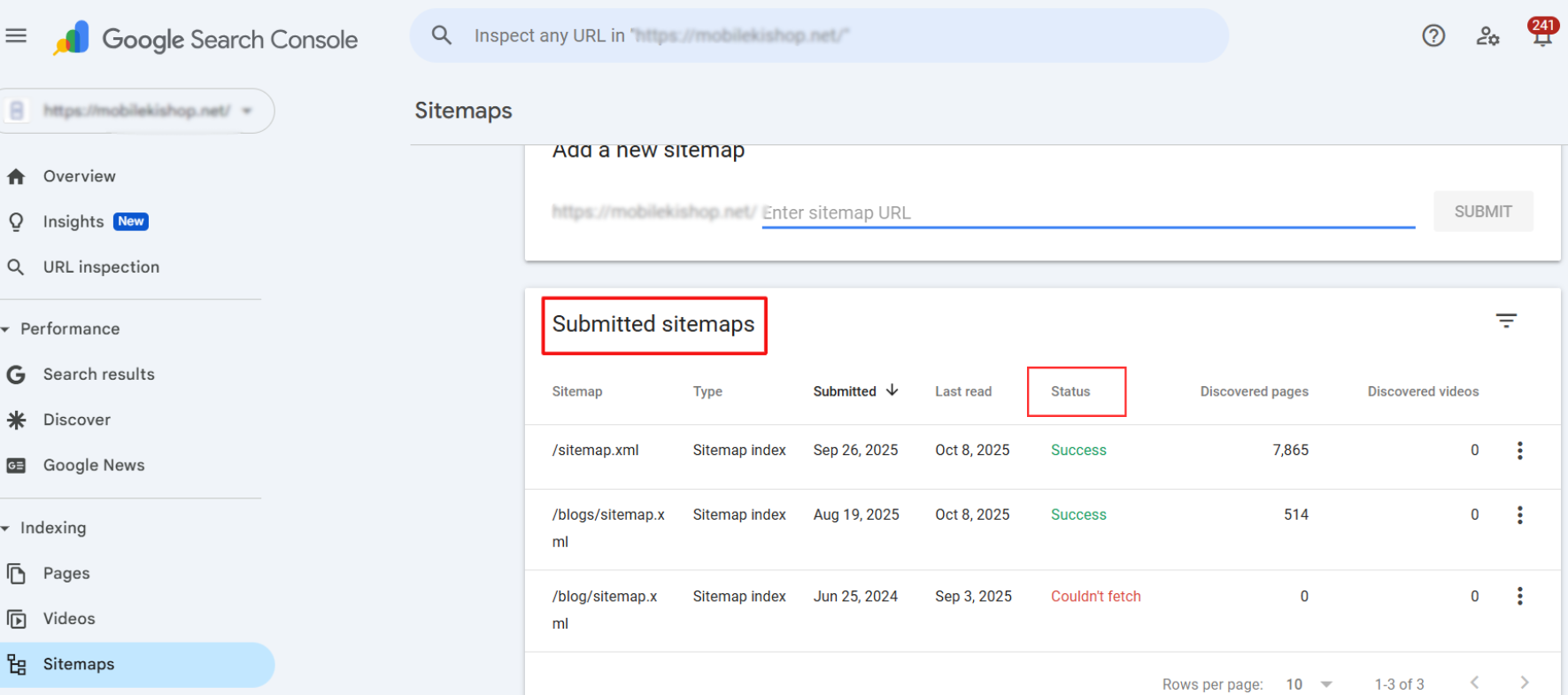
Once your sitemap has been submitted, you’ll see it listed below the submission field in the Sitemaps report below. Here, Google Search Console shows whether the sitemap was processed successfully or if there were any issues. Common statuses include:
- Success – The sitemap was read and URLs were discovered.
- Has errors – Some parts of the sitemap couldn’t be processed (e.g., broken links or blocked URLs).
- Couldn’t fetch – Google could not access the sitemap, often due to a wrong URL or server issue.
Checking this status ensures that your sitemap is valid and that Google can use it to crawl your site effectively.
If you find any errors, you may need to remove the sitemap from Search Console while you make corrections to the file. We already have a detailed guide on how to do this. Once you’ve fixed the issues, you can add the corrected sitemap using the same method later.
Where to Find Your Sitemap URL
Before you open Search Console, confirm the exact sitemap address. Type it into your browser: you should see a page of XML or a list of links, not a 404 error.
| Platform or plugin | Usual sitemap URL |
|---|---|
| WordPress with Yoast SEO or Rank Math | /sitemap_index.xml |
| WordPress with All in One SEO | /sitemap.xml |
| WordPress with no SEO plugin | /wp-sitemap.xml |
| Shopify | /sitemap.xml |
| Wix and Squarespace | /sitemap.xml |
If you are not sure, open yourdomain.com/robots.txt. Many sites list the sitemap there on a line starting with Sitemap:.
How to type it in Search Console: in a URL-prefix property, the box already shows your domain, so you only type the ending, such as sitemap_index.xml. In a Domain property, paste the full URL including https://.
How to Fix Common Sitemap Errors
Couldn't fetch
Google could not download the file. Check these in order:
- The URL is spelled correctly and matches your live domain, including https and www.
- robots.txt does not block the sitemap URL.
- A security plugin, firewall or Cloudflare setting is not blocking Googlebot.
- The sitemap loads without a password or login.
A brand-new submission can sometimes show Couldn't fetch before Google has actually tried. Wait a day or two before changing anything if the URL loads fine in your browser.
Has errors
Google read the file but found problems inside it. Common causes are URLs on a different domain or protocol than the property, invalid XML from a broken plugin, or a file that is too large. A single sitemap can hold up to 50,000 URLs or 50MB uncompressed; bigger sites should split it into several files listed in a sitemap index.
Success but few pages indexed
The sitemap works; the pages simply have not been chosen for indexing yet. Open the Page indexing report to see the reasons, such as duplicates, noindex tags or Crawled, currently not indexed.
What Your Sitemap Should Include
A sitemap works best as a clean list of the pages you actually want in Google. Before submitting, open it and check:
- Only indexable pages. Leave out URLs that redirect, return a 404, carry a noindex tag or point their canonical tag elsewhere. Mixed signals make Google trust the file less.
- One version of each URL. Use the same https and www format as your live site, with consistent trailing slashes.
- Accurate lastmod dates. Google uses the last modified date when it is reliable, and ignores the priority and changefreq fields.
- No thin archive pages. Most SEO plugins let you exclude tag archives, author pages and media attachment pages from the sitemap.
Clean this up once, and Search Console reports will become much easier to read.
Conclusion
Adding a sitemap to Google Search Console is a quick but powerful way to improve your website’s visibility in search results. Submitting your sitemap makes it easier for Google to understand your site structure, discover new content faster, and ensure that important pages are indexed properly. Once submitted, monitor the sitemap status and regularly monitor your performance in GSC to maintain strong SEO health and maximize your site’s reach.
Frequently asked questions
How long does Google take to read a submitted sitemap?
There is no fixed time. Google often fetches a new sitemap within a few hours to a few days, and the Sitemaps report shows the Last read date once it has. Indexing the URLs inside it takes longer and depends on your site's quality and crawl demand. If the status stays at Couldn't fetch for several days, check the URL and your server.
Do I need to resubmit my sitemap every time I publish a post?
No. Once a sitemap is submitted, Google re-reads it on its own schedule, and plugins like Yoast SEO and Rank Math update the file automatically when you publish. Resubmit only if you change the sitemap URL, for example after switching SEO plugins or moving to a new domain. For an important new page, use URL Inspection and Request Indexing instead.
Can I tell Google about my sitemap without Search Console?
Yes. Add a line such as Sitemap: https://www.example.com/sitemap.xml to your robots.txt file, and Google and other search engines can discover it there. The old sitemap ping URL was retired by Google in 2023, so it no longer works. Search Console is still the better option because it shows whether Google processed the file and reports errors.