Best WordPress robots.txt Template (Blog, WooCommerce and News Sites)
When it comes to WordPress SEO, one small file often makes a big difference — the robots.txt file. This simple text file sits at the root of your website and tells search engines which parts of your site they should crawl and which they should skip. A well-structured robots.txt helps improve crawl efficiency, prevents duplicate content from being indexed, and ensures your most valuable pages get the attention they deserve.
Key takeaways
- A safe general template blocks /wp-admin/, allows admin-ajax.php and lists your XML sitemap.
- Blogs add rules for internal search pages; WooCommerce stores add cart, checkout and my-account.
- Use the exact sitemap URL your SEO plugin or WordPress core generates, written as a full URL.
- Never block CSS, JavaScript or the whole /wp-content/ folder, and remember robots.txt controls crawling, not indexing.
What is robots.txt?
The robots.txt file is a plain text file that instructs search engine crawlers about which areas of your website they can or cannot access. It works as a set of rules for bots, guiding them through your site. For example, you can use it to block crawlers from crawling private directories, duplicate content, or internal search pages.
It’s important to remember that robots.txt only controls crawling, not indexing. If a URL is blocked but linked elsewhere online, it may still appear in search results without a description. That’s why using robots.txt correctly is essential for SEO and site performance.
Default WordPress robots.txt
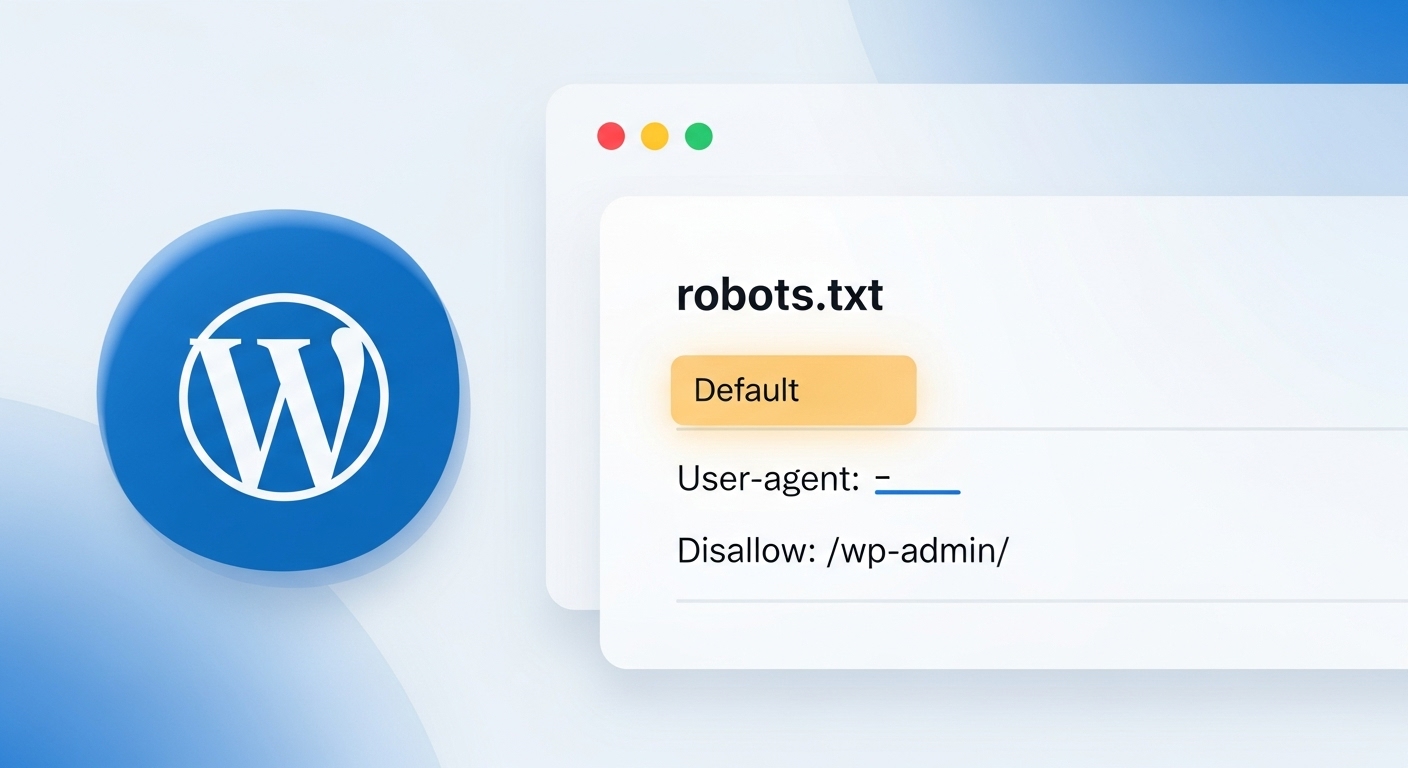
By default, WordPress creates a virtual robots.txt file that you can view by adding /robots.txt to the end of your domain name. This file isn’t physically stored on your server — WordPress generates it dynamically.
The default rules are very basic. Typically, they allow all crawlers to access your content while blocking the /wp-admin/ directory and permitting the admin-ajax.php file so plugins and themes function properly.
While this setup is safe for most new sites, it’s limited. It doesn’t include important directives like your XML sitemap or rules to manage duplicate content. That’s why many site owners choose to create or upload a custom robots.txt file for better SEO control.
Why Use a Template
Using a ready-made robots.txt template ensures your WordPress site has the right balance between accessibility and restrictions. A good template helps:
- Optimise crawl budget – Search engines focus on important pages instead of wasting time on low-value URLs.
- Prevent duplicate content – Blocks archives, tags, or search pages from cluttering search results.
- Enhance SEO performance – Ensures search engines can properly crawl CSS, JS, and sitemap files.
- Reduce errors – Protects against overblocking or accidentally hiding key pages from Google.
Instead of starting from scratch, templates provide a proven structure for blogs, e-commerce sites, and news platforms.
Best General robots.txt Template
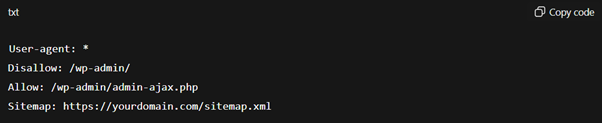
If you’re looking for a safe, all-purpose setup, the following template works well for most WordPress sites:
Explanation
- User-agent: * → Applies the rules to all search engine crawlers.
- Disallow: /wp-admin/ → Blocks crawlers from accessing the WordPress admin area.
- Allow: /wp-admin/admin-ajax.php → Lets crawlers access the AJAX file needed for plugins and themes.
- Sitemap → Points search engines directly to your site’s XML sitemap for better indexing.
This is the best starting template for most WordPress installations and can be customised depending on your site type.
Blog/Content Site Template
For WordPress blogs and content-focused websites, the goal is to let search engines crawl your main posts and pages while avoiding duplicate or low-value URLs like search results. Here’s a recommended template:
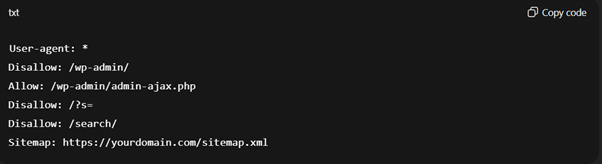
Why this works
- Disallow: /?s= and /search/ → Blocks internal search result pages that often create duplicate or thin content.
- Keeps posts, pages, and categories crawlable → Ensures your core content is indexed.
- Sitemap included → Directs crawlers to the main sitemap for efficient indexing.
This setup is ideal for bloggers, publishers, and content marketers who want Google to focus on articles and pages rather than search or filter results.
WooCommerce Template
For e-commerce stores built with WooCommerce, it’s important to keep product and category pages crawlable while blocking cart and checkout pages that don’t need to appear in search results. A safe template looks like this:
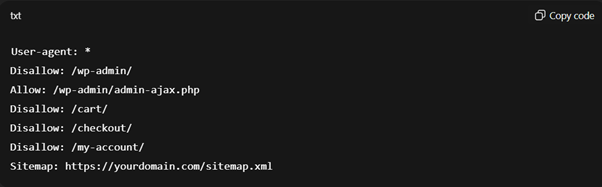
Why this works
- Disallow: /cart/, /checkout/, /my-account/ → Prevents search engines from crawling private or duplicate-value pages.
- It keeps product, category, and shop pages crawlable → ensures your core sales pages are visible in search results.
- Sitemap directive → Helps crawlers find all product and category URLs efficiently.
This template gives WooCommerce stores better crawl efficiency and avoids indexing pages that don’t bring organic traffic.
News/Magazine Template
News and magazine websites publish a large volume of content, so the robots.txt file should make it easy for crawlers to discover fresh stories while avoiding unnecessary duplication. Here’s a recommended template:
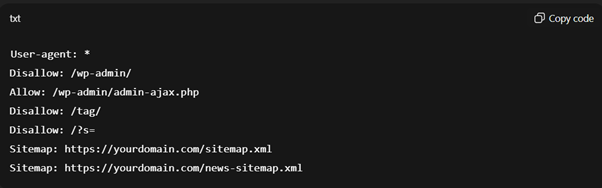
Why this works
- Disallow: /tag/ → Prevents excessive tag archives from creating duplicate pages.
- Disallow: /?s= → Blocks internal search results that add little SEO value.
- Multiple sitemap lines → Lets search engines crawl both your main sitemap and a dedicated news sitemap (if your site generates one).
- Keeps articles and category archives crawlable → Ensures timely news stories are indexed quickly.
This template is ideal for publishers wanting their news and magazine content to be discovered and ranked quickly.
Key Mistakes to Avoid
While setting up a robots.txt file is simple, a few common mistakes can seriously harm your site’s visibility in search engines. Avoid these pitfalls:
- Blocking CSS and JS files → Search engines need access to these resources to render your site properly.
- Disallowing the entire /wp-content/ folder → This hides images, themes, and important assets from crawlers.
- Forgetting the sitemap directive → Without it, search engines may miss key pages.
- Overblocking private sections → Accidentally disallowing product pages, blog posts, or categories can deindex valuable content.
- Relying only on robots.txt for indexing control → Remember, it only affects crawling, not indexing. Use meta tags or canonical URLs when necessary.
Find the Right Sitemap URL for Your Template
Every template ends with a Sitemap line, and it must point to the sitemap your site actually produces. Open the URL in your browser before you save the file. If it returns a 404, crawlers get nothing useful from that line.
| What generates your sitemap | Usual sitemap URL |
|---|---|
| WordPress core (no SEO plugin) | /wp-sitemap.xml |
| Yoast SEO | /sitemap_index.xml |
| Rank Math | /sitemap_index.xml |
| All in One SEO (AIOSEO) | /sitemap.xml |
Write the line as a full URL that includes https:// and the correct www or non-www version, for example Sitemap: https://www.example.com/sitemap_index.xml. You can list more than one Sitemap line, such as a separate news or video sitemap.
Optional Rules You Can Add to Any Template
Add these only when they fit your site. Each one goes under the relevant User-agent line.
WooCommerce parameter URLs
Sorting and add-to-cart links create endless URL variations. These rules stop crawlers wasting time on them:
Disallow: /*?add-to-cart=Disallow: /*?orderby=
Do not block filter URLs if you deliberately want some filtered pages, such as a brand or colour page, to rank.
AI crawlers
If you do not want your content used to train AI models, add a separate group for each bot, for example User-agent: GPTBot followed by Disallow: /. Google-Extended controls whether Google may use your content for Gemini training; blocking it does not affect your normal Google Search rankings. Decide carefully, because some AI tools can also send you visitors.
Staging sites
A staging copy can use Disallow: / for all user agents, but also password-protect it. Remove that rule before the site goes live, or your whole site will stop being crawled. After every push from staging to live, open the live robots.txt and check it.
Rules to Leave Out of Your Template
Some lines still circulate in old templates but do nothing, or cause harm:
- Noindex: lines. Google stopped supporting noindex inside robots.txt in 2019. Use a meta robots tag instead.
- Crawl-delay. Google ignores it. It only affects some other crawlers.
- Disallow: /wp-includes/ or plugin folders. These hold scripts and styles Google needs to render your pages.
- Private URLs. robots.txt is public. Listing a secret folder tells everyone where it is. Protect private areas with a password instead.
- Blocks on pages you want removed. If a page must leave Google, keep it crawlable so Google can see its noindex tag or 404 status.
Conclusion
A well-structured robots.txt file is a small but powerful tool for guiding search engines through your WordPress site. Using the right template—whether for a blog, ecommerce store, or news site—can optimise crawling, prevent duplicate content, and ensure your most valuable pages get indexed. Keep the file simple, avoid common mistakes, and always test changes to maintain a healthy SEO foundation.
Frequently asked questions
Does every WordPress site need a custom robots.txt?
No. The default virtual file WordPress creates is safe for most small sites, and many never need more. A custom template is worth it when you want to add your sitemap URL, stop crawlers wasting time on internal search or cart pages, or control specific bots. If you are unsure, start with the general template and change one rule at a time.
Where do I paste a robots.txt template in WordPress?
Paste it into your SEO plugin's robots.txt editor, such as Yoast SEO's File Editor or Rank Math's Edit robots.txt screen, or save it as a plain text file named robots.txt and upload it to your site's root folder. Then open yourdomain.com/robots.txt to confirm the new rules are live, and replace the example sitemap URL with your own.
Should I block category and tag pages in robots.txt?
Usually not. Category pages often rank well and help Google find posts. Thin tag archives are better handled with a noindex setting in your SEO plugin, which removes them from results while still letting Google follow their links. Blocking them in robots.txt stops crawling but can leave already-indexed tag URLs sitting in search results.