How to Remove URL from Google Search Console
Not every page on your website deserves to stay in Google’s search results forever. Sometimes you publish an outdated page, sensitive data slips into the index, and sometimes duplicate or low-value pages start cluttering up your visibility. In all these cases, the solution is to remove or hide specific URLs from Google’s search index.
Key takeaways
- Search Console's Removals tool hides a URL from Google results for about six months; it does not delete it.
- For permanent removal, add a noindex tag or return a 404 or 410 status, and let Google recrawl.
- Do not block the page in robots.txt, or Google cannot see the noindex tag.
- Google no longer keeps a public cached copy; the Clear Snippet request only refreshes the title and description shown in results.
- Use the exact URL and the right property, then confirm with URL Inspection and the Page indexing report.
Google Search Console (GSC) provides built-in tools that allow you to temporarily hide a page, clear its search snippet, or guide Google toward a permanent removal using technical fixes like noindex tags or 404/410 status codes. Understanding when to use each method is essential because a temporary removal only temporarily hides the URL, while permanent methods ensure the page is deindexed for good.
Step 1: Access the Removals Tool
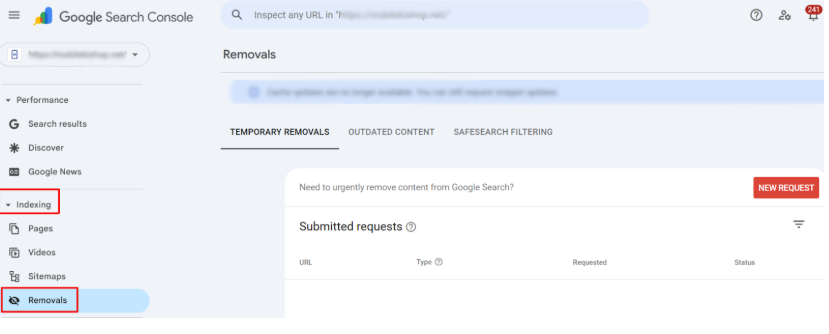
The first step in removing a URL is finding the right tool inside Google Search Console. Once you log into your GSC account, select the correct property for your website (make sure you’re using the exact version—such as https://example.com vs http://example.com, or www vs non-www). From the left-hand menu, go to Indexing → Removals. This section is where Google allows you to submit requests to temporarily hide a URL from search results or clear its search snippet.
When you open the Removals dashboard, you’ll see three tabs: Temporary Removals, Outdated Content and SafeSearch Filtering. Click the “New Request” button, and the dialog offers two options: Temporarily Remove URL and Clear Snippet. You’ll be prompted to enter the URL you want to remove. Copy and paste the full URL exactly as it appears in Google’s index, including any parameters or trailing slashes, because even a small mismatch could cause the request to fail. Note the blue notice at the top of the report: as of 2026 Google says cache updates are no longer available, and you can only request snippet updates.
This dashboard is the control center for all URL removal requests, and using it correctly ensures you’re targeting the right page before moving on to the next steps.
Step 2: Temporary Removal
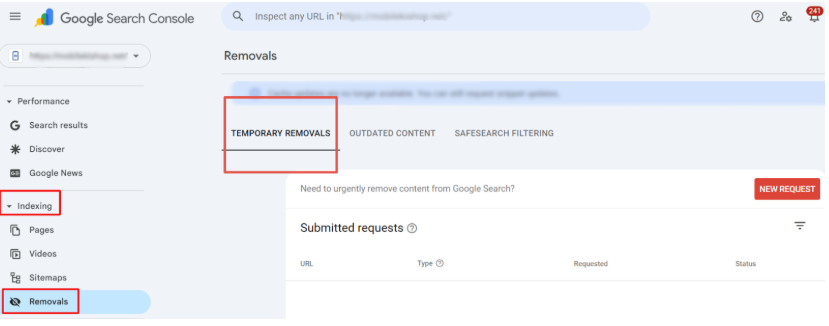
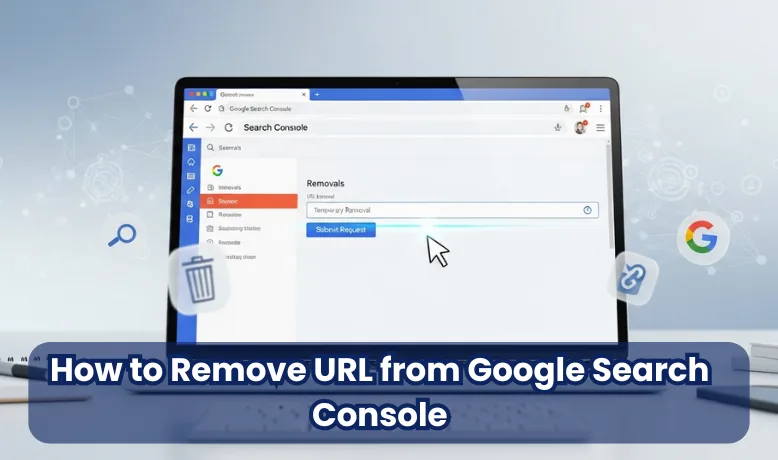
If you need to hide a page from Google’s search results quickly, the Temporary Removals option is your best choice. After clicking “New Request” in the Removals tool, select “Temporarily Remove URL”. You’ll then be asked to provide the exact page URL. Google offers two options: remove a specific URL or block all URLs with the same prefix (useful if you need to hide an entire directory, like /old-products/).
When approved, Google will hide the page from search results for about six months, giving you time to fix the issue, delete the page permanently, or apply a more permanent removal method like noindex or 404/410 status codes. The content won’t appear in search results during this period, but it may still exist on your site and be accessible to users with a direct link.
This option is especially useful for urgent cases—such as hiding sensitive information, product pages with incorrect pricing, or old promotional content—when you need the page removed from search right away without waiting for a recrawl.
Step 3: Clear Snippet (formerly Clear Cached URL)
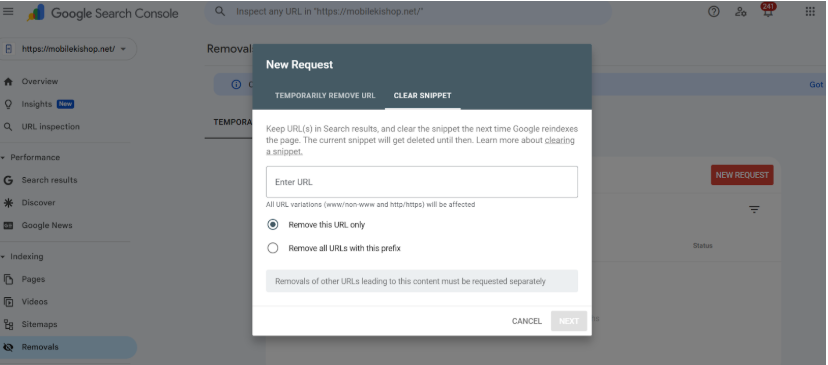
Sometimes, the problem isn’t that you want a page completely removed, but that Google is still showing an outdated title or description in search results. This is where the Clear Snippet option comes in. In the Removals dashboard, click “New Request”, switch to the “Clear Snippet” tab and paste in the exact page address you want refreshed. The option used to be called Clear Cached URL, and older guides still use that name.
This request tells Google to drop the page’s current search snippet (title and description) until it recrawls the page and builds a new one. Google stopped showing cached copies of pages in early 2024 and removed the cache: operator, so there is no longer a public cached version to clear; only the preview in results is affected. It’s useful if you’ve corrected old information or removed sensitive text that still shows up in search previews. It does not remove the page from Google’s index: the page can still appear in results, just with a refreshed snippet.
Think of this as a “reset button” for how your page looks in results, not for whether it appears. In most cases, requesting indexing for the edited page in the URL Inspection tool does the same job, because Google rebuilds the snippet when it recrawls the page.
Step 4: Permanent Removal Options
Temporary removals are quick fixes, but if you want a URL gone for good, you must apply permanent removal methods. Google won’t delete a page forever just because of a single request—it relies on signals from your website to confirm the page should no longer exist in search results. Here are the main ways to achieve this:
- Add a Noindex Tag
Place a<meta name="robots" content="noindex, follow">tag in the page’s HTML (use straight quotes, not curly ones) or return anX-Robots-Tag: noindexHTTP header. Once Google recrawls the page, it will drop it from the index. Request indexing through the URL Inspection tool to speed up the process. - Return a 404 or 410 Status Code
If the page has been deleted, configure your server to return a 404 (Not Found) or 410 (Gone) response. A 410 is stronger because it signals the page is permanently removed, but both tell Google to deindex over time. - Update Sitemaps and Internal Links
Ensure the removed page isn’t listed in your sitemap or linked from active pages. If not cleaned up, internal links and sitemaps can confuse Google and delay the deindexing process.
Step 5: Monitor & Confirm

Tracking whether Google has processed your changes after submitting a removal request or applying permanent fixes is essential. The URL Inspection Tool in Google Search Console is the best way to do this. Simply paste the page’s URL into the tool and check its current index status. If you’ve added a noindex tag or set a 404/410 response, you can click “Request Indexing” to prompt Google to re-crawl the page faster.
You should also review the Page indexing report inside Search Console. This report will show if the URL is still listed as valid, excluded, or flagged with an error. If it shows up as “Excluded by ‘noindex’ tag” or “Not Found (404),” then your removal is working correctly.
Remember that permanent removals may take days or weeks, depending on your site’s crawl frequency. For urgent issues, always start with a temporary removal while waiting for permanent signals (like noindex or 410) to take effect.
Common Issues & Fixes
Some URLs may stubbornly remain in Google’s index even after submitting a removal request. This usually happens because of small but critical mistakes. Here are the most common issues and how to fix them:
- Wrong Property Selected
Google treats each site version separately (http://, https://, www, and non-www). If you request a removal under the wrong property, it won’t apply. Always double-check you’re using the exact property version your page belongs to. - HTTP vs HTTPS and Trailing Slashes
Google sees https://example.com/page and https://example.com/page/ as two different URLs. If you remove one but the other is still live, it may continue to appear. Always match the full URL exactly. - Robots.txt Blocking Noindex
If your robots.txt disallows crawling for a page, Google can’t see the noindex tag on it. In that case, the page might stay indexed longer than expected. The fix: temporarily allow crawling until Google processes the noindex. - Canonical Tag Conflicts
If the removed page points to a canonical URL that’s still indexable, Google may choose to keep it in search results. Make sure canonicalization is set correctly and consistent with your removal goal.
Which Removal Method Should You Use?
Pick the method based on how fast you need the page gone and whether it should come back.
| Situation | Best method |
|---|---|
| Sensitive data leaked and must disappear today | Temporary removal, then delete the page or password-protect it |
| Page deleted with no replacement | Return 404 or 410 and remove it from the sitemap |
| Page replaced by a newer page | 301 redirect to the replacement |
| Page must stay live for users but not appear in Google | noindex meta tag or X-Robots-Tag header |
| Thin tag, filter or thank-you pages | noindex, and keep them out of the sitemap |
| Old title or description still showing after an edit | Request indexing in URL Inspection, or a Clear Snippet request in Removals |
| A whole folder, such as a retired product range | Temporary removal by prefix, plus 404, 410 or redirects |
For PDFs and other non-HTML files, a meta tag is not possible, so send an X-Robots-Tag: noindex HTTP header from the server or delete the file.
Conclusion
Removing a URL from Google Search Console can seem tricky, but the right approach depends on your goal—temporary removals work best for urgent cases, while permanent methods like noindex tags, 404/410 status codes, and sitemap cleanups ensure lasting results. By carefully submitting requests in the Removals tool, monitoring progress through the URL Inspection tool and the Page indexing report, and avoiding common mistakes like property mismatches or robots.txt conflicts, you can keep your site’s search presence clean, accurate, and professional.
Frequently asked questions
Can I remove a URL from a website I don't own?
Not with Search Console, which only works for sites you have verified. If a page on another site has been changed or deleted but Google still shows the old version, use Google's Refresh Outdated Content tool. For your personal contact details, such as a phone number, home address or email, use Google's Results about you tool (g.co/resultsaboutyou); for private images or other sensitive content, use Google's separate personal content removal forms.
What happens when a temporary removal expires?
After about six months the block ends, and the URL can appear in results again if it is still live and indexable. That is why a temporary removal should always be followed by a permanent fix: a noindex tag, a 404 or 410 status, or password protection. You can cancel a request early from the Removals report if you hid a page by mistake.
How do I check the status of a removal request?
Open Indexing, then Removals in Search Console. The Temporary Removals tab lists every submitted request with its URL, type, date and a status such as Processing, Approved, Denied or Expired. Approved requests usually take effect within a day. If you hid the wrong page, open the request from the same list and cancel it; the URL can then return to results after the next crawl.
Should I use a 301 redirect or a 404 to remove a page?
Use a 301 redirect when a close replacement page exists, such as a newer version of the same product or article. It sends visitors and link value to the new page. Use a 404 or 410 when the content is gone with no real replacement. Redirecting everything to the homepage is often treated by Google as a soft 404.