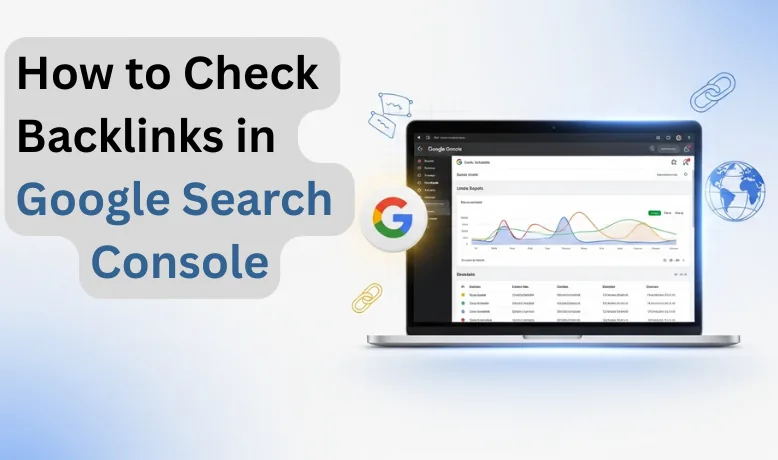
How to Check Backlinks in Google Search Console
Backlinks are a crucial factor in SEO (Search Engine Optimisation) that can significantly impact your website’s rankings. They act as “votes of confidence” from other websites, signalling to search engines that your content is valuable and authoritative. The more quality backlinks you have, the better your chances of ranking well on search engine result pages (SERPs).
Key takeaways
- To check backlinks, open Google Search Console, pick your property and click Links near the bottom of the left menu.
- The Links report shows top linked pages, top linking sites and top linking text for external links.
- Export "more sample links" or "latest links" to Google Sheets, Excel or CSV; exports list pages, not per-link anchor text.
- The report is a free sample, not a full list, and shows no link attributes or quality scores.
- Most sites never need to disavow; reserve it for manual actions or links you knowingly built.
Google Search Console is a powerful, free tool that allows website owners and SEO professionals to monitor and manage their site’s performance in Google search results. Among its many features, one of the most valuable is the ability to track backlinks — the links from other websites that point to your pages.
Why Are Backlinks Important?
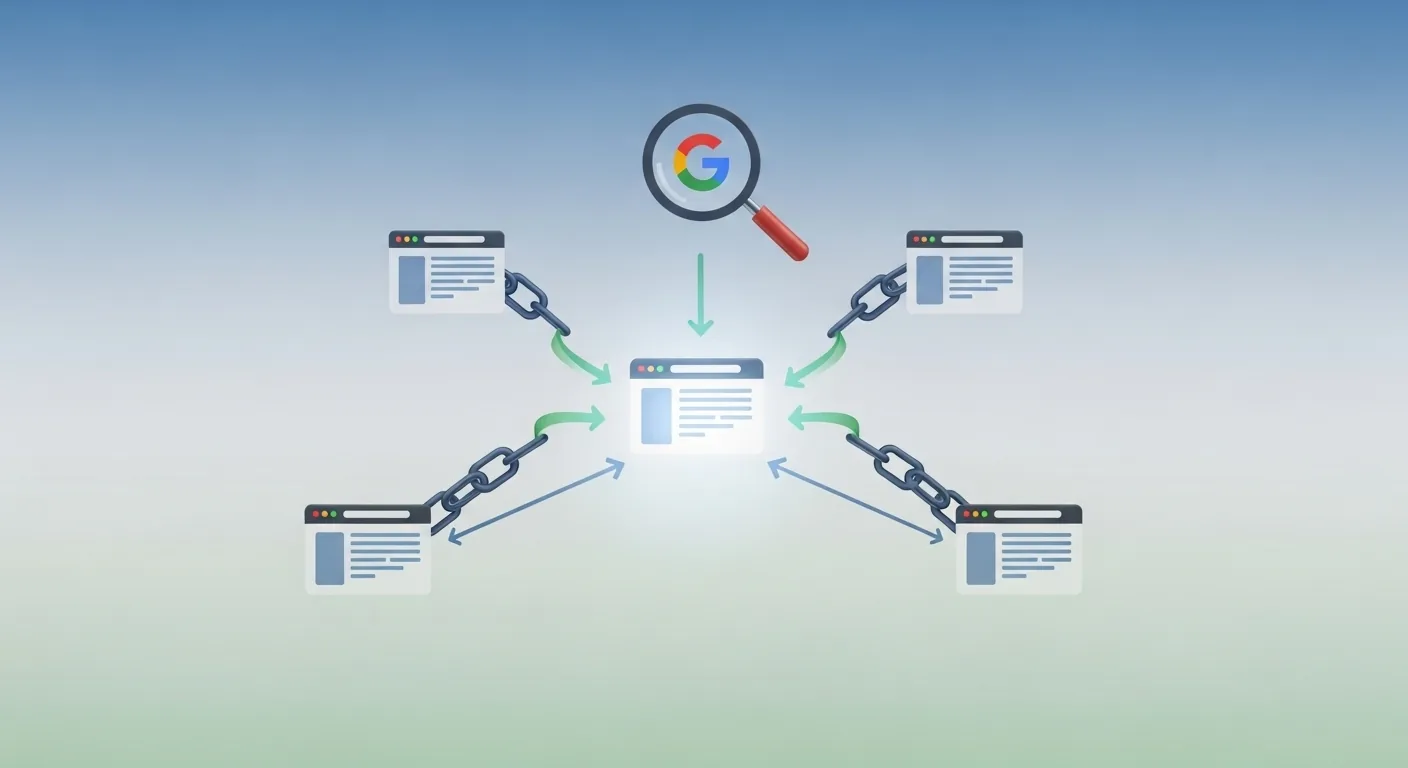
Backlinks are one of the most important factors in SEO because they help search engines determine the relevance and authority of your website. When other reputable sites link to your content, search engines signal that your website is trustworthy and valuable. This trustworthiness boosts your chances of ranking higher on search engine results pages (SERPs), leading to more organic traffic and visibility for your site. The more quality backlinks you have, the stronger your website’s SEO performance tends to be.
In addition to improving search rankings, backlinks help build your site’s authority in Google’s eyes (“domain authority” itself is a Moz score, not something Google measures). Websites with a higher number of quality backlinks tend to have stronger authority in their niche, which helps them maintain a competitive edge. Furthermore, backlinks bring referral traffic, which can be highly relevant and targeted, especially if they come from authoritative sources within your industry. They also aid in faster indexing by search engines, allowing your content to be discovered and ranked quicker, improving site performance over time.
Step-by-Step Process to Check Backlinks in Google Search Console
Step 1: Log in to Google Search Console
The first step is to log in to your Google Search Console account. If you don’t have one yet, add your site as a Domain property (verified through a DNS record at your registrar or Cloudflare) rather than a URL-prefix property: a Domain property covers http, https, www and every subdomain together, so the Links report shows everything Google knows about your site. Once logged in, you’ll be directed to the main dashboard.
From the dashboard, select the website for which you want to check backlinks. If you manage multiple properties, make sure you choose the correct one from the list. If it’s your first time using Google Search Console, the interface might seem overwhelming, but once you’ve selected your property, you’ll be able to navigate the various tools and reports that Google provides, including the backlinks report.
Step 2: Open the Links Report
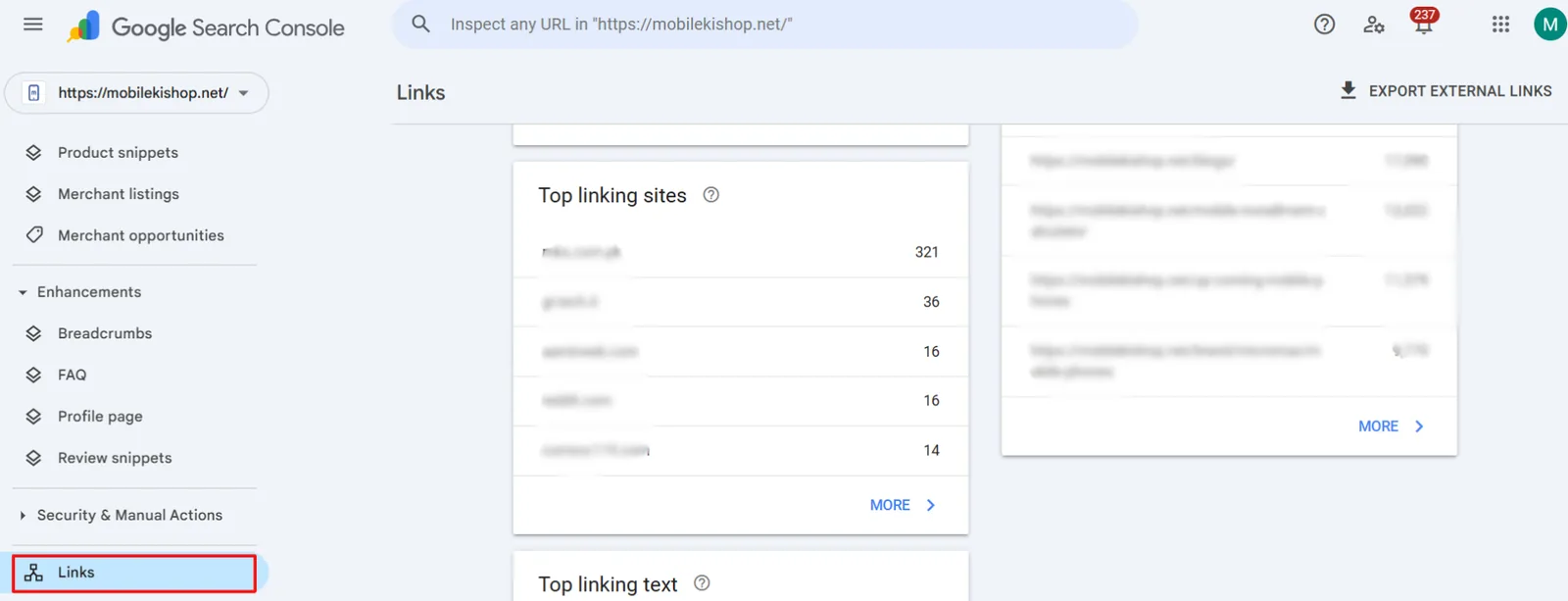
Once you’re logged into Google Search Console and have selected your website, the next step is to open the “Links” report, where you’ll find detailed information about your backlinks. On the left-hand side of the dashboard, scroll down and click the “Links” option near the bottom of the menu.
This will open the Links section, where you can see an overview of external and internal links. The external links point to your site from other websites, while internal links show how pages within your site are interconnected. The external links section will provide you with a breakdown of the websites linking to your content and the pages on your site that receive the most links.
Step 3: Review Top Linked Pages
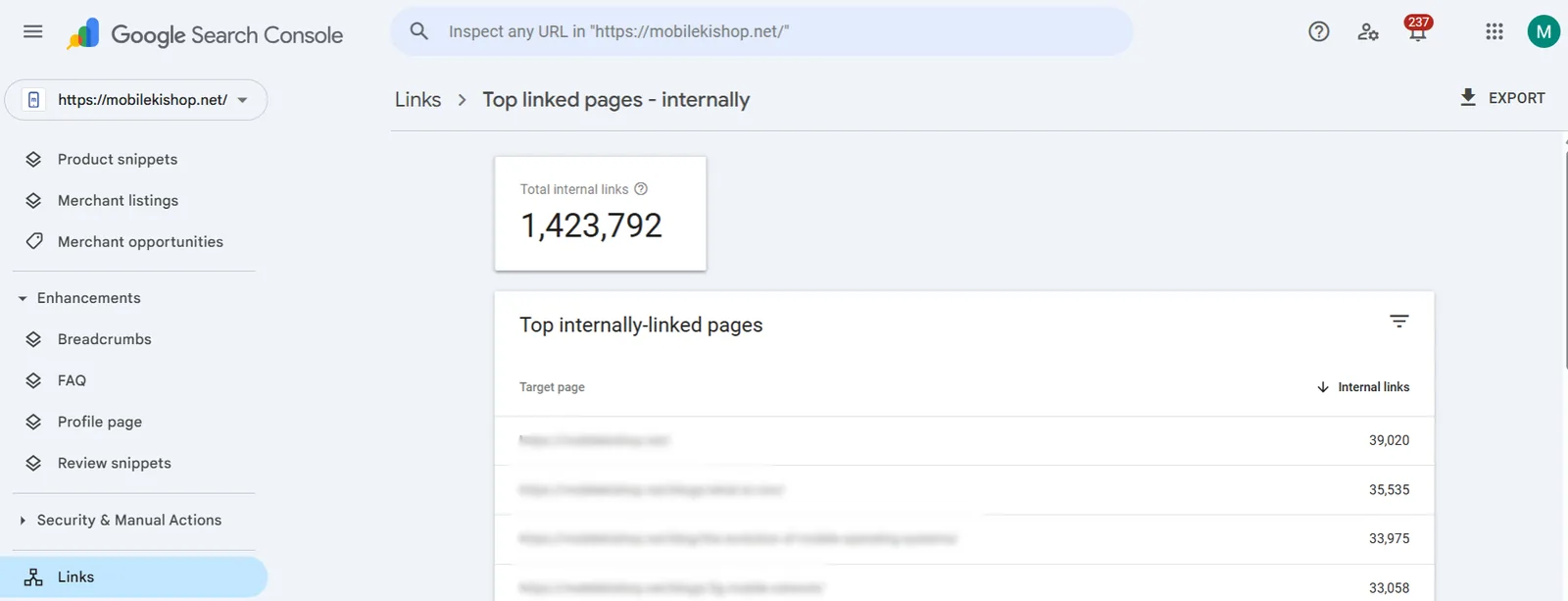
After opening the “Links” report, the next step is to review the “Top Linked Pages” section. This section provides valuable insights into which pages on your website receive the most backlinks from external sources. You will see a list of your top pages most frequently linked to, and the total number of backlinks each page has received.
This is crucial because it helps you identify which content on your site generates the most interest from other websites. Pages with many backlinks are typically viewed as authoritative and can significantly improve your website’s SEO. If you focus on improving the SEO of specific pages, this report will help you assess their current performance and determine which pages need more backlinks to increase visibility.
Step 4: View External Links
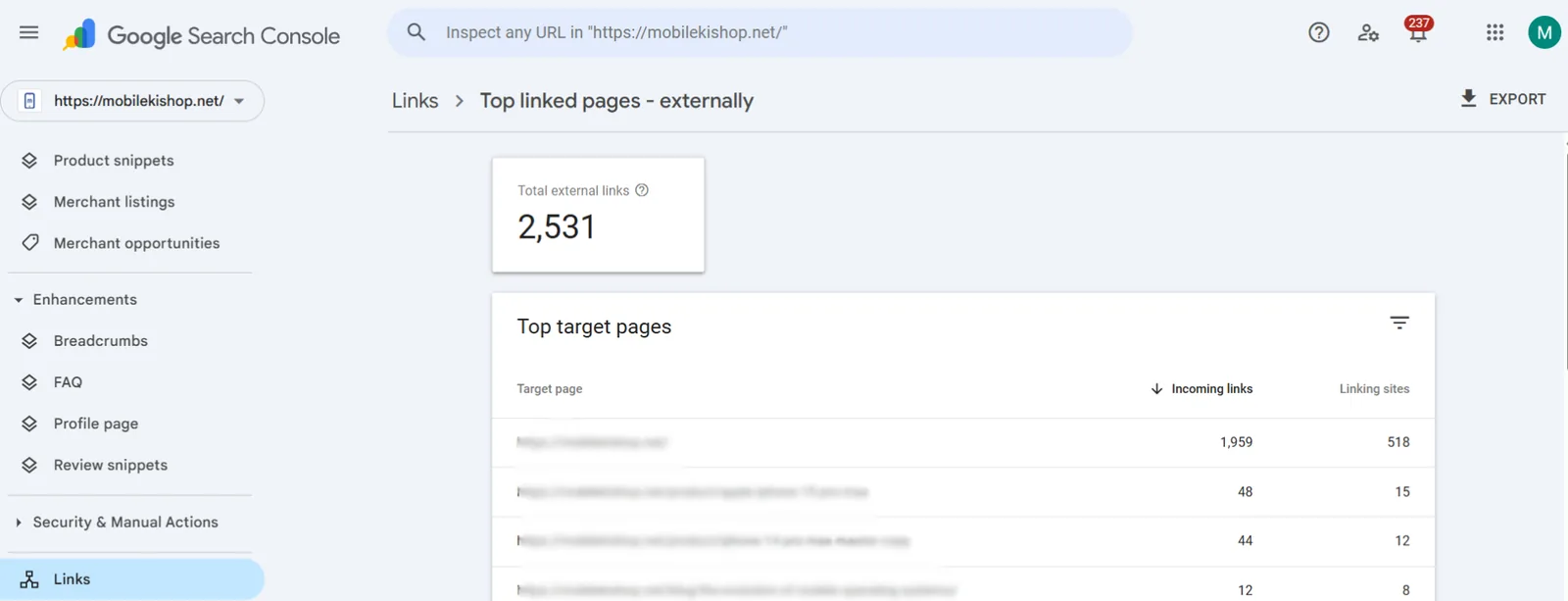
In the “Links” report, you’ll also find the External Links section, which shows all the backlinks pointing to your site from other domains. By clicking on the “External links” tab, you will see a detailed list of the domains linking to your website and the specific pages they are linking to.
This section helps you understand which external websites refer traffic to your content. Reviewing these external links regularly is important to identify the quality and relevance of the domains linking to your site. If you notice low-quality or spammy sites linking to you, do not panic: Google ignores most of these, and disavowing is only needed in specific cases explained in this guide. On the other hand, gaining backlinks from high-authority sites in your industry can significantly boost your SEO performance and increase your site’s credibility.
Step 5: Exporting Backlinks Data
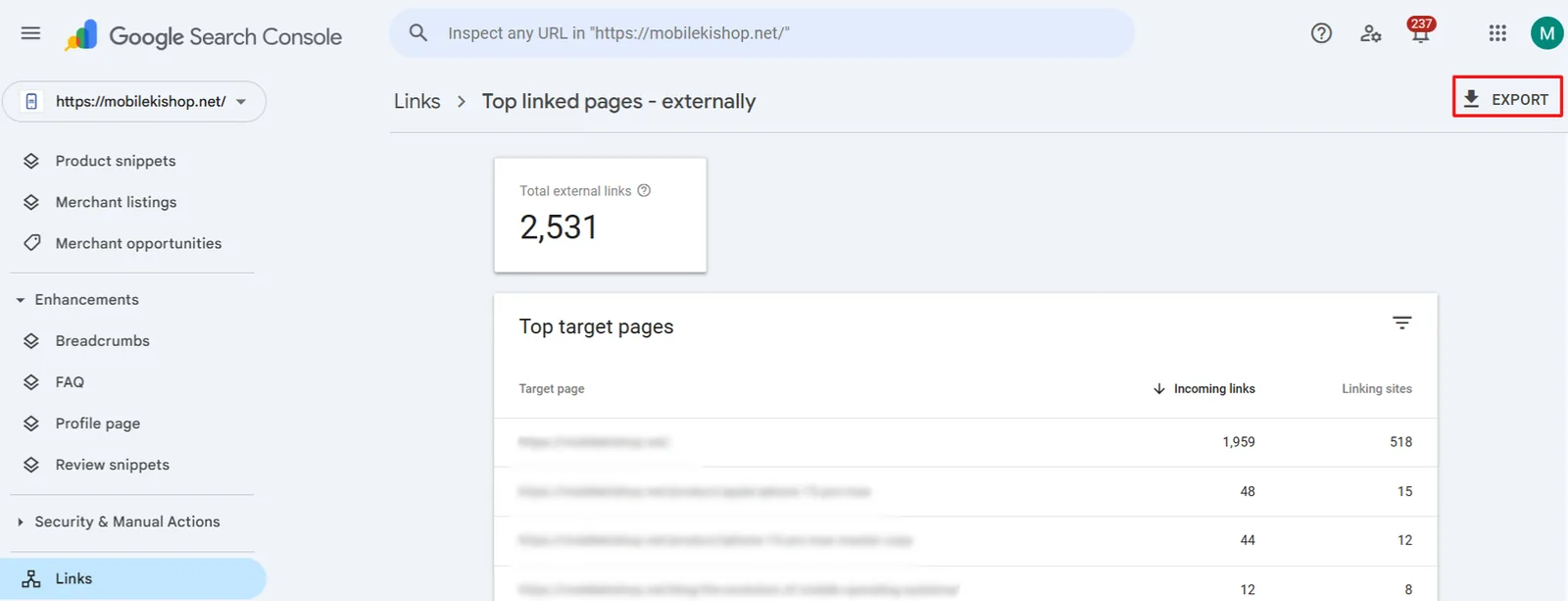
Once you have reviewed the external links and the top-linked pages, you can analyse the backlinks data further. Google Search Console allows you to export this data for more in-depth analysis. To do this, click “Export external links” at the top right of the Links report and choose “More sample links” (a broader sample) or “Latest links” (the most recently found links, with the date Google last crawled each one). Each table, such as Top linked pages or Top linking sites, also has its own Export button once you open it with “More”.
You can export the data in various formats, such as CSV or Google Sheets. This feature is incredibly useful for working with the data in a spreadsheet, sorting the links by specific metrics, or combining the data with other SEO reports. By exporting the backlink information, you can identify patterns in link-building efforts, track changes over time, and create reports for your ongoing SEO strategy.
Step 6: Analysing the Backlinks
After exporting your backlinks data, the next step is to analyse the links thoroughly. The export lists each linking page URL and the page on your site it points to; the “Latest links” export also shows when Google last crawled each one. Anchor text is not listed per link, so use the Top linking text table for that. Together, this data lets you assess the quality and relevance of each linking site.
When analysing backlinks, identify high-quality links from authoritative and relevant websites. Links from well-known, niche-related websites have a stronger impact on your site’s SEO than links from low-quality or irrelevant sources. Check the anchor text used in the backlinks to ensure it is varied and natural, as search engines can sometimes see over-optimised anchor text as spammy. Regularly monitoring your backlinks and analysing their quality will help maintain a strong backlink profile, which is essential for long-term SEO success.
What the Links Report Does Not Show
The Links report is useful and free, but it has limits you should know before drawing conclusions.
- It is a sample: Google shows a selection of the links it knows about, not a complete list. The totals are useful for trends, not exact counts.
- No link attributes: you cannot see whether a link is followed, nofollow, ugc or sponsored.
- No quality scores: there is no authority score, spam score or traffic figure for linking sites. You have to judge quality yourself.
- No per-link anchor in exports: anchor text is shown only in aggregate in the Top linking text report.
- Delays: the report is refreshed periodically, not in real time, so new and lost links take time to appear.
- Property scope: a URL-prefix property only covers that version of the site. A Domain property covers all protocols and subdomains and gives the most complete view.
Pair it with the Performance report
The Links report tells you a page gained a link; the Performance report tells you whether that mattered. Note the date a new linking site appeared, open Performance, filter by the linked page, and compare clicks, impressions and average position for the weeks before and after. If several links point to one page and nothing moves after two or three months, the links are probably being ignored or the page has a content problem.
For competitor research, lost-link alerts or link attributes, pair Search Console with a third-party backlink tool such as Ahrefs or Semrush.
How to Use the Top Linking Text Report
The Top linking text section lists the anchor text other sites use most when linking to you. It is a quick health check of your backlink profile.
- In the Links report, find Top linking text under External links and click More.
- Look at the mix. A natural profile is led by your brand name, website address and descriptive phrases, with only some keyword-rich anchors.
- Watch for warning signs, such as many identical money-keyword anchors, adult or gambling phrases, or text in unrelated languages. These can point to spam links or past link schemes.
- Compare with Top linking sites to see which domains use the unusual anchors.
If you run guest posting or outreach, use this report to make sure your own anchors stay varied and natural.
Should You Disavow Links Found in Search Console?
Usually, no. Google says most sites do not need the disavow tool, because its systems already ignore most spammy links. Random low-quality links from scraper sites are normal for any site that has been online for a while.
Consider disavowing only when:
- You have a manual action for unnatural links in the Manual actions report.
- You, a previous agency or an owner built paid or scheme links that you cannot get removed, and you are worried about a manual action.
If you do disavow, first try to have the links removed. Then create a plain text file with one domain:example.com or URL per line and upload it with the Disavow links tool for the correct property. Disavowing good links by mistake can hurt rankings, so review every entry carefully.
Conclusion
Checking backlinks in Google Search Console is essential to maintaining a healthy SEO strategy. By regularly monitoring which websites are linking to your content, you can understand your site’s authority, identify high-quality referral sources, and uncover opportunities to improve your backlink profile. Using the step-by-step process outlined in this guide, you can easily access, review, export, and analyse backlinks to ensure your website continues to perform well in search engine results. Regular backlink monitoring helps protect your site from low-quality links, strengthen your site’s authority, and boost your organic traffic and online visibility.
Frequently asked questions
Why does Google Search Console show fewer backlinks than Ahrefs or Semrush?
Search Console shows a sample of the links Google has found, not every link, and it groups and deduplicates them differently. Third-party tools run their own crawlers and may count links Google has ignored or not yet processed. Neither is wrong; they measure different things. Use Search Console to see what Google knows and a third-party tool for broader competitor research.
How long does it take for a new backlink to show in Search Console?
It varies. Google first has to crawl the linking page, then process the link, and the Links report is refreshed periodically rather than in real time. Google does not publish the exact schedule; in practice new links often take a few weeks to appear, and links on rarely crawled pages can take longer. If a link never shows up, check that the linking page is indexed and not blocked.
Does Google Search Console show nofollow backlinks?
The Links report does not tell you whether a link is followed, nofollow, ugc or sponsored. It may list links of any type that Google has found. To check the attribute of a specific link, open the linking page, inspect the link in your browser's developer tools, or use a third-party backlink tool that reports link attributes.
How often should I check my backlinks in Search Console?
For most small business sites, a monthly check is enough. Look for new linking sites, sudden spikes from unfamiliar domains, and changes in your top linked pages. Check sooner after a link-building campaign, a site migration or a drop in traffic. Also watch the Manual actions report, which is where Google tells you about link-related penalties.