How to Remove a Sitemap From Google Search Console
A sitemap plays an important role in helping Google discover and crawl the pages on your website. However, there are times when you might need to remove an existing sitemap from Google Search Console—such as when the file is outdated, contains incorrect URLs, or you’ve restructured your site. An unchecked sitemap can confuse crawling and affect your content’s appearance in search results.
Key takeaways
- Open Indexing > Sitemaps, click the submitted sitemap, use the three-dot menu and choose Remove sitemap.
- Removal only deletes the submission from Search Console; the file stays on your server and indexed pages stay indexed.
- Remove sitemaps that are outdated, duplicated, submitted by mistake or left over from a redesign.
- To stop Google fetching an old sitemap, also delete the file or return 404/410 and remove it from robots.txt.
What is a Sitemap?

A sitemap is a file, usually in XML format, that lists your website’s important pages so search engines like Google can easily discover and crawl them. It acts as a roadmap, guiding crawlers to the right URLs and ensuring no key content is missed.
There are two main types of sitemaps:
- XML Sitemap: A file that includes URLs of your site and metadata such as the last modification date.
- Sitemap Index: A master file referencing multiple smaller sitemaps, often used for larger websites.
By keeping sitemaps up to date, you help Google maintain an accurate view of your site’s structure. On the other hand, if a sitemap becomes outdated or contains broken links, it’s better to remove or replace it to avoid confusion in indexing.
When to Remove a Sitemap

Not every sitemap needs to be removed, but there are specific cases when it becomes necessary. Common situations include:
- Outdated sitemap: The file references URLs that no longer exist or have been redirected.
- Incorrect submission: A wrong or duplicate sitemap was accidentally added to Google Search Console.
- Restructured website: After a site migration or major redesign, the old sitemap may no longer reflect your site’s structure.
- Testing or temporary files: Sometimes developers submit test sitemaps that should be cleaned up later.
👉 If your sitemap is valid and up to date, there’s no need to remove it. Updating or replacing the file is often better than deleting it completely.
Steps to Remove a Sitemap From Google Search Console
Step 1: Log in to Google Search Console
To begin, sign in to your Google Search Console account. Make sure you have access to the correct property (domain or URL prefix) where the sitemap is submitted.
If you manage multiple websites, double-check that you’ve selected the right property from the dropdown list. This ensures you don’t accidentally change the wrong site.
Step 2: Go to the Sitemaps Section
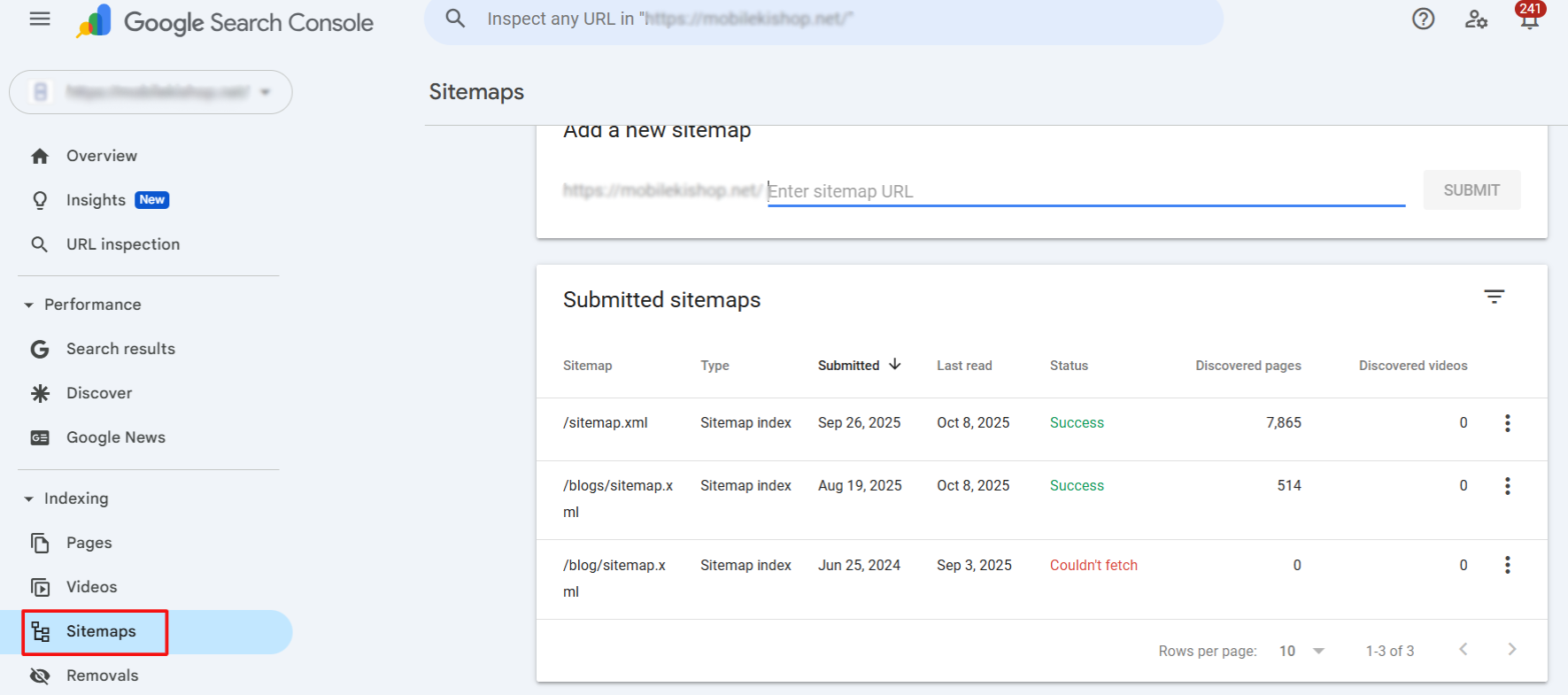
Once inside the correct property, look at the left-hand menu in Google Search Console. From there, click on “Sitemaps” under the Indexing section.
This will open the Sitemaps report, where you can see all the sitemaps you’ve submitted, their status, last read date, and any errors detected by Google.
Step 3: Select the Submitted Sitemap
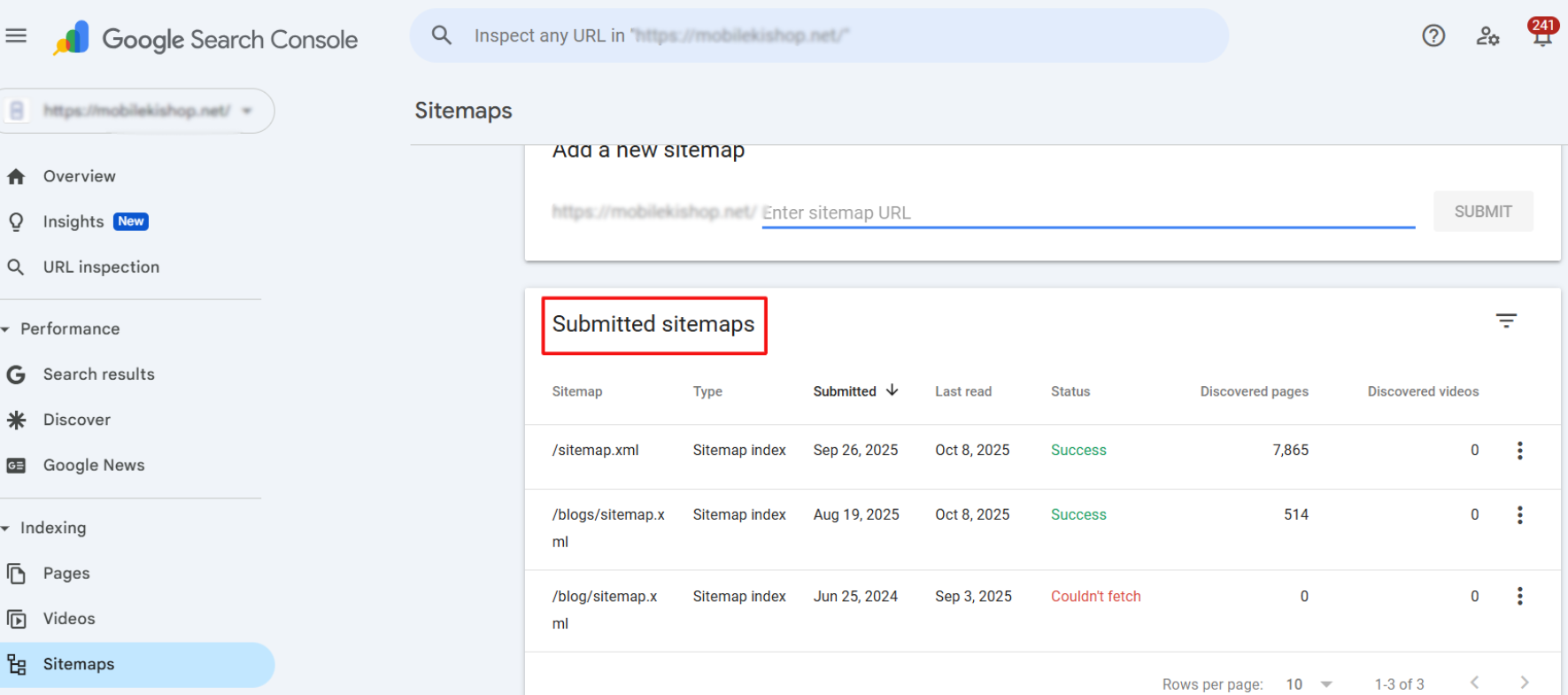
In the Sitemaps report, you’ll see a list of all the sitemaps you’ve submitted for your property. Locate the sitemap you want to remove.
Check carefully to ensure you’ve selected the correct one, especially if multiple sitemaps or indexes are listed. Removing the wrong sitemap could disrupt Google’s ability to crawl important pages on your site.
Step 4: Remove the Sitemap
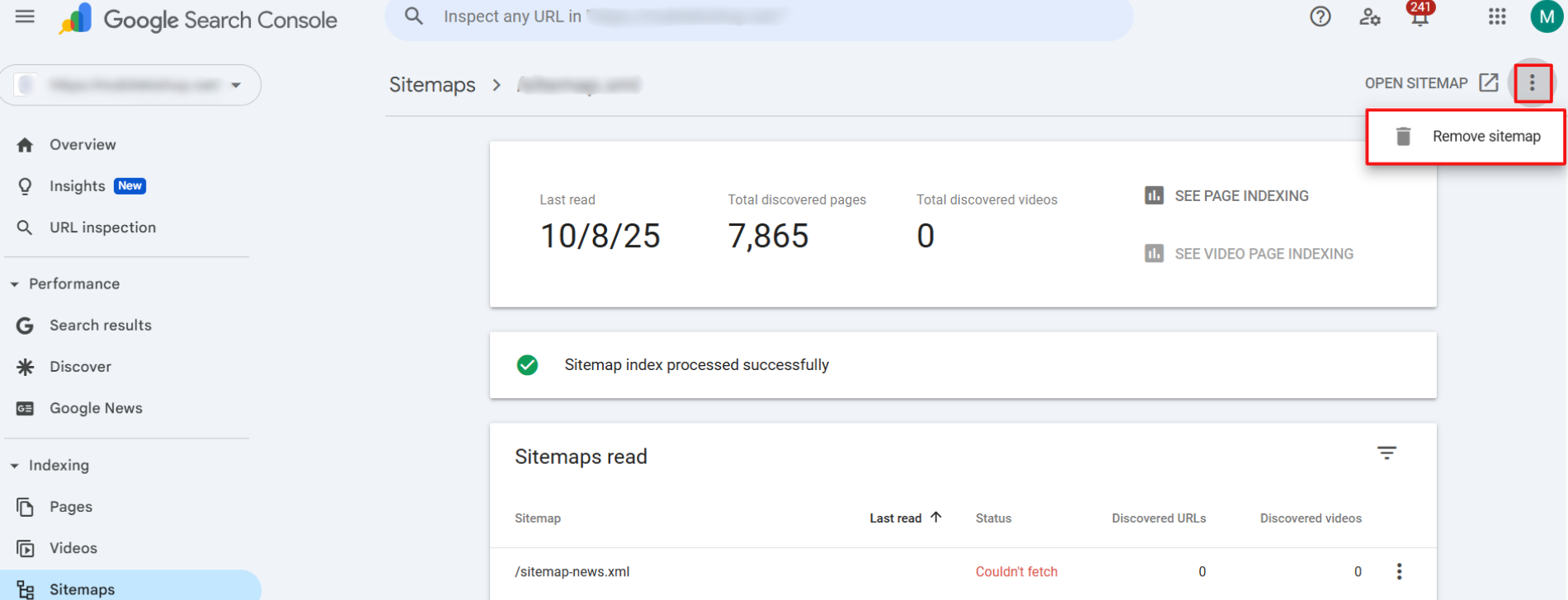
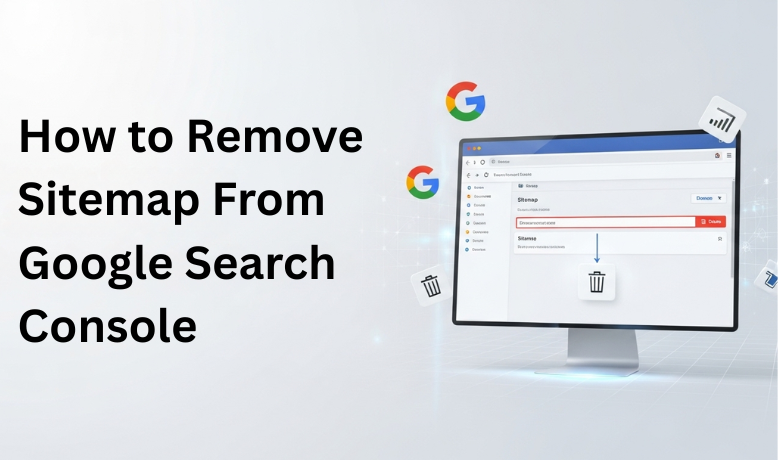
After selecting the sitemap you want to remove, click on the three-dot menu (⋮) next to it. From the options provided, choose Remove sitemap.
Google Search Console will then delete the sitemap entry from your property. Keep in mind that this action only removes the sitemap submission — it does not delete the actual sitemap file from your server. If you no longer need the file, delete or update it directly on your website.
Alternative Method: Return 404/410
If you prefer not to remove the sitemap manually in Search Console, you can handle it directly from your server. By returning a 404 (Not Found) or 410 (Gone) status code for the sitemap URL, you signal to Google that the file no longer exists.
- 404 Response: Tells Google the file cannot be found.
- 410 Response: More strongly indicates that the file has been permanently removed.
Over time, Google stops relying on the missing file, but the entry can stay in the Sitemaps report with a Couldn't fetch status until you remove it there too. This method is especially useful if you’ve permanently retired a sitemap and want to ensure search engines stop requesting it.
After Removal Verification
Once you’ve removed a sitemap, confirming that the changes have taken effect is important. Head back to the Sitemaps report in Google Search Console and check the list of submitted sitemaps. The one you removed should no longer appear.
Additionally, you can use the URL Inspection tool to check specific pages and ensure Google is still crawling your site correctly. Monitor the Page indexing report to verify that important URLs remain indexed without issues.
What Happens After You Remove a Sitemap
Many site owners expect removal to have a bigger effect than it does. Here is what actually changes, and what does not:
| Changes | Does not change |
|---|---|
| The sitemap disappears from the Sitemaps report | Pages already in Google's index stay indexed |
| You stop seeing errors and stats for that file | The sitemap file stays live on your server |
| The file no longer counts as a submission from you | Google may still know the URL and fetch it occasionally |
If you want Google to forget an old sitemap completely, do three things: remove it in Search Console, delete the file or make it return a 404 or 410, and remove any Sitemap line pointing to it in robots.txt.
Replacing a Sitemap After Switching Plugins or Domains
The most common reason to remove a sitemap is that its address changed. Typical cases:
- Switching SEO plugins. Yoast SEO and Rank Math both use /sitemap_index.xml, but All in One SEO uses /sitemap.xml and WordPress core uses /wp-sitemap.xml. After switching, open the new URL in your browser, submit it, then remove the old one.
- Moving to HTTPS or a new domain. Submit the new sitemap in the property for the new address. Keep the old property so you can watch the redirects being processed.
- Rebuilding the site. If the new platform, for example Shopify, generates a different sitemap, submit it first and remove the old entry only once the new one shows Success.
Submitting the new sitemap before removing the old one avoids a gap where Search Console shows no sitemap at all.
Why a Removed Sitemap Keeps Coming Back
If a sitemap you removed reappears in the report, check these causes:
- Another user submitted it. Look at Settings, Users and permissions to see who else has access, including agencies or former developers.
- A connected tool re-submitted it. Some SEO tools and plugins linked to Search Console can submit sitemaps automatically. Check their settings.
- It is listed in robots.txt. Google can discover sitemaps from robots.txt, so remove the old Sitemap line.
Once you have found and fixed the source, remove the sitemap again and check the report a week later. If it has not returned, the cleanup worked. Keep a short note of which sitemaps should be listed, so anyone managing the property knows the correct setup.
Conclusion
Removing a sitemap from Google Search Console is simple, but it should only be done when the file is outdated, incorrect, or no longer needed. By following the proper steps, verifying the removal, and keeping your sitemaps updated, you ensure that Google always has the most accurate picture of your website structure, which helps maintain healthy crawling and indexing.
Frequently asked questions
Will removing a sitemap deindex my pages?
No. Removing a sitemap from Search Console does not remove any page from Google's index. Google keeps indexed URLs and continues to find pages through internal links and other sources. The only change is that Google stops reporting on that sitemap. To remove specific pages from search, use a noindex tag, a 404 or 410 status, or the Removals tool.
Should I remove my sitemap if it shows errors?
Usually no. It is better to fix the file and resubmit it than to remove it. Errors in the Sitemaps report often come from a few bad URLs, a wrong domain version or a temporary fetch problem. Correct the sitemap on your site, then submit the same URL again so Google re-reads it. Remove it only if the URL itself is wrong or obsolete.
Can I remove a sitemap from a Domain property?
Yes. The Sitemaps report works the same way in Domain and URL-prefix properties. Open the property, go to Indexing and then Sitemaps, click the sitemap and choose Remove sitemap from the three-dot menu. You need full owner or full user permission. Restricted users can view the report but cannot add or remove sitemaps.