
Backlinks are a crucial factor in SEO (Search Engine Optimisation) that can significantly impact your website’s rankings. They act as “votes of confidence” from other websites, signalling to search engines that your content is valuable and authoritative. The more quality backlinks you have, your website will rank on search engine result pages (SERPs).
Google Search Console is a powerful, free tool that allows website owners and SEO professionals to monitor and manage their site’s performance in Google search results. Among its many features, one of the most valuable is the ability to track backlinks — the links from other websites that point to your pages.
Why Are Backlinks Important?
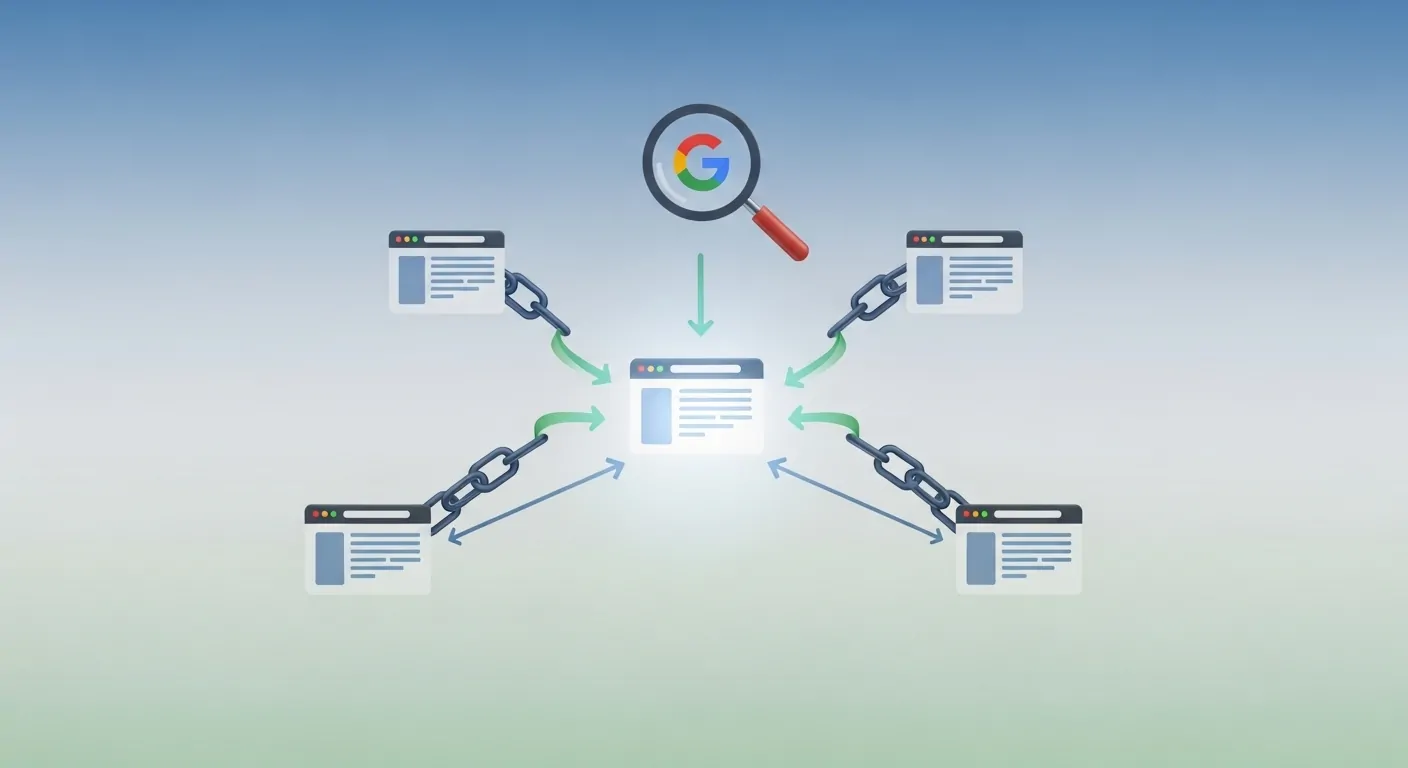
Backlinks are one of the most important factors in SEO because they help search engines determine the relevance and authority of your website. When other reputable sites link to your content, search engines signal that your website is trustworthy and valuable. This trustworthiness boosts your chances of ranking higher on search engine results pages (SERPs), leading to more organic traffic and visibility for your site. The more quality backlinks you have, your website’s SEO performance.
In addition to improving search rankings, backlinks are essential for building domain authority. Websites with a higher number of quality backlinks tend to have stronger authority in their niche, which helps them maintain a competitive edge. Furthermore, backlinks bring referral traffic, which can be highly relevant and targeted, especially if they come from authoritative sources within your industry. They also aid in faster indexing by search engines, allowing your content to be discovered and ranked quicker, improving site performance over time.
Step-by-Step Process to Check Backlinks in Google Search Console
Step 1: Log in to Google Search Console
The first step to checking backlinks in Google Search Console is to log in to your Google Search Console account. If you don’t have an account yet, you’ll need to set one up by verifying ownership of your website. To do this, visit the Google Search Console website and sign in with your Google account. Once logged in, you’ll be directed to the main dashboard.
From the dashboard, select the website for which you want to check backlinks. If you manage multiple properties, make sure you choose the correct one from the list. If it’s your first time using Google Search Console, the interface might seem overwhelming, but once you’ve selected your property, you’ll be able to navigate the various tools and reports that Google provides, including the backlinks report.
Step 2: Open the Links Report
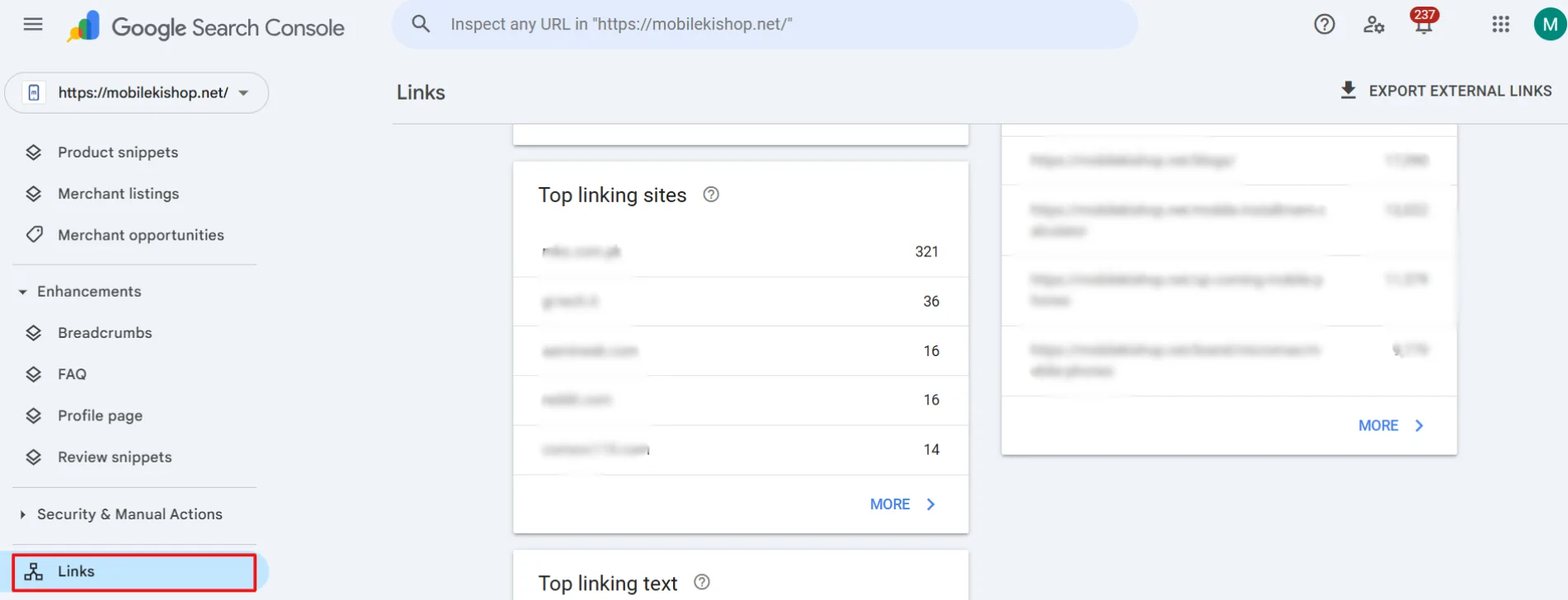
Once you’re logged into Google Search Console and have selected your website, the next step is to open the “Links” report, where you’ll find detailed information about your backlinks. On the left-hand side of the dashboard, look for the “Links” option under the “Legacy Tools and Reports” section and click on it.
This will open the Links section, where you can see an overview of external and internal links. The external links point to your site from other websites, while internal links show how pages within your site are interconnected. The external links section will provide you with a breakdown of the websites linking to your content and the pages on your site that receive the most links.
Step 3: Review Top Linked Pages
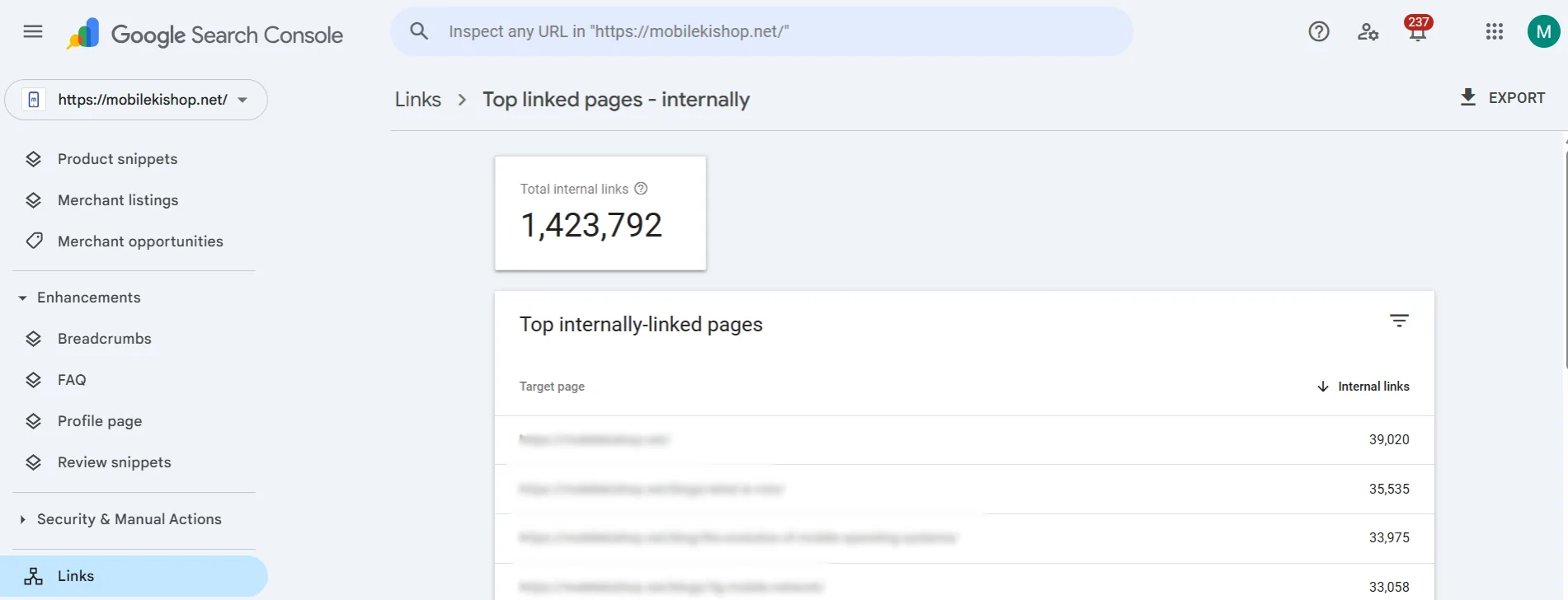
After opening the “Links” report, the next step is to review the “Top Linked Pages” section. This section provides valuable insights into which pages on your website receive the most backlinks from external sources. You will see a list of your top pages most frequently linked to, and the total number of backlinks each page has received.
This is crucial because it helps you identify which content on your site generates the most interest from other websites. Pages with many backlinks are typically viewed as authoritative and can significantly improve your website’s SEO. If you focus on improving the SEO of specific pages, this report will help you assess their current performance and determine which pages need more backlinks to increase visibility.
Step 4: View External Links
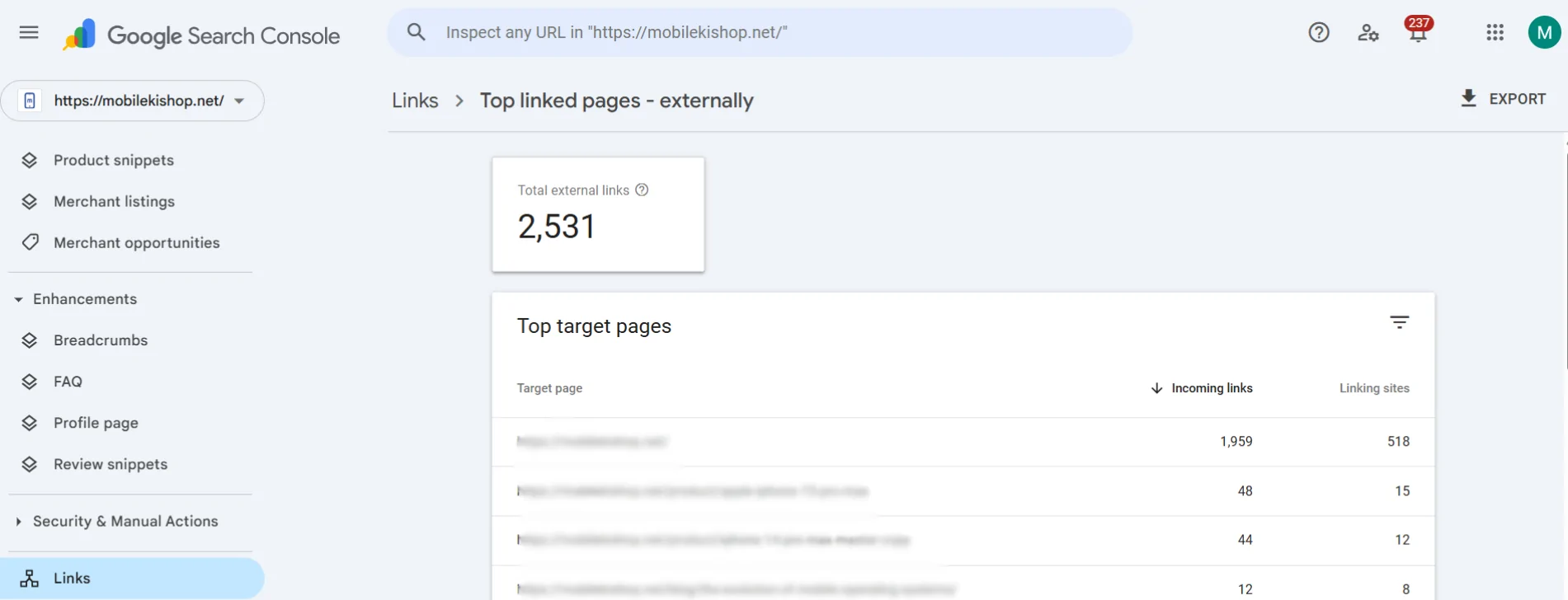
In the “Links” report, you’ll also find the External Links section, which shows all the backlinks pointing to your site from other domains. By clicking on the “External links” tab, you will see a detailed list of the domains linking to your website and the specific pages they are linking to.
This section helps you understand which external websites refer traffic to your content. Reviewing these external links regularly is important to identify the quality and relevance of the domains linking to your site. If you notice any low-quality or spammy sites linking to you, consider disavowing those links to avoid potential penalties from Google. On the other hand, gaining backlinks from high-authority sites in your industry can significantly boost your SEO performance and increase your site’s credibility.
Step 5: Exporting Backlinks Data
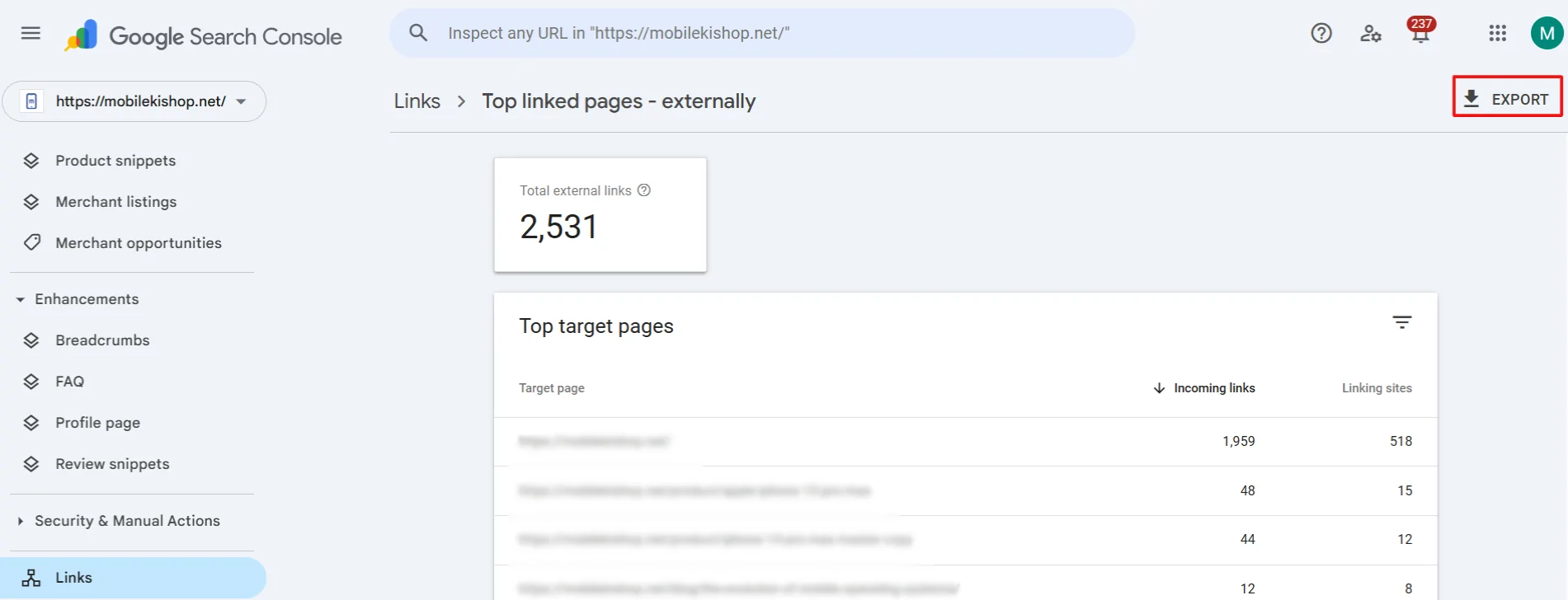
Once you have reviewed the external links and the top-linked pages, you can analyse the backlinks data further. Google Search Console allows you to export this data for more in-depth analysis. To do this, click on the Export button at the top of the Links report.
You can export the data in various formats, such as CSV or Google Sheets. This feature is incredibly useful for working with the data in a spreadsheet, sorting the links by specific metrics, or combining the data with other SEO reports. By exporting the backlink information, you can identify patterns in link-building efforts, track changes over time, and create reports for your ongoing SEO strategy.
Step 6: Analysing the Backlinks
After exporting your backlinks data, the next step is to analyse the links thoroughly. The exported data will provide detailed information about each backlink, including the linking page’s domain, the URL of the page linking to you, and the anchor text used in the link. This data allows you to assess the quality and relevance of each backlink.
When analysing backlinks, identify high-quality links from authoritative and relevant websites. Links from well-known, niche-related websites have a stronger impact on your site’s SEO than links from low-quality or irrelevant sources. Check the anchor text used in the backlinks to ensure it is varied and natural, as search engines can sometimes see over-optimised anchor text as spammy. Regularly monitoring your backlinks and analysing their quality will help maintain a strong backlink profile, which is essential for long-term SEO success.
Conclusion
Checking backlinks in Google Search Console is essential to maintaining a healthy SEO strategy. By regularly monitoring which websites are linking to your content, you can understand your site’s authority, identify high-quality referral sources, and uncover opportunities to improve your backlink profile. Using the step-by-step process outlined in this guide, you can easily access, review, export, and analyse backlinks to ensure your website continues to perform well in search engine results. Regular backlink monitoring helps protect your site from low-quality links, strengthen your domain authority, and boost your organic traffic and online visibility.