
A robots.txt file is a simple text file that tells search engine crawlers which parts of your website they can or cannot access. In WordPress, this file is key in controlling how your site is indexed and displayed in search results. While WordPress generates a virtual robots.txt by default, there may be times when you need to manually overwrite it, whether to block specific pages, allow certain resources, or fine-tune your SEO strategy.
Method 1 – Using an SEO Plugin (Yoast SEO or All in One SEO)
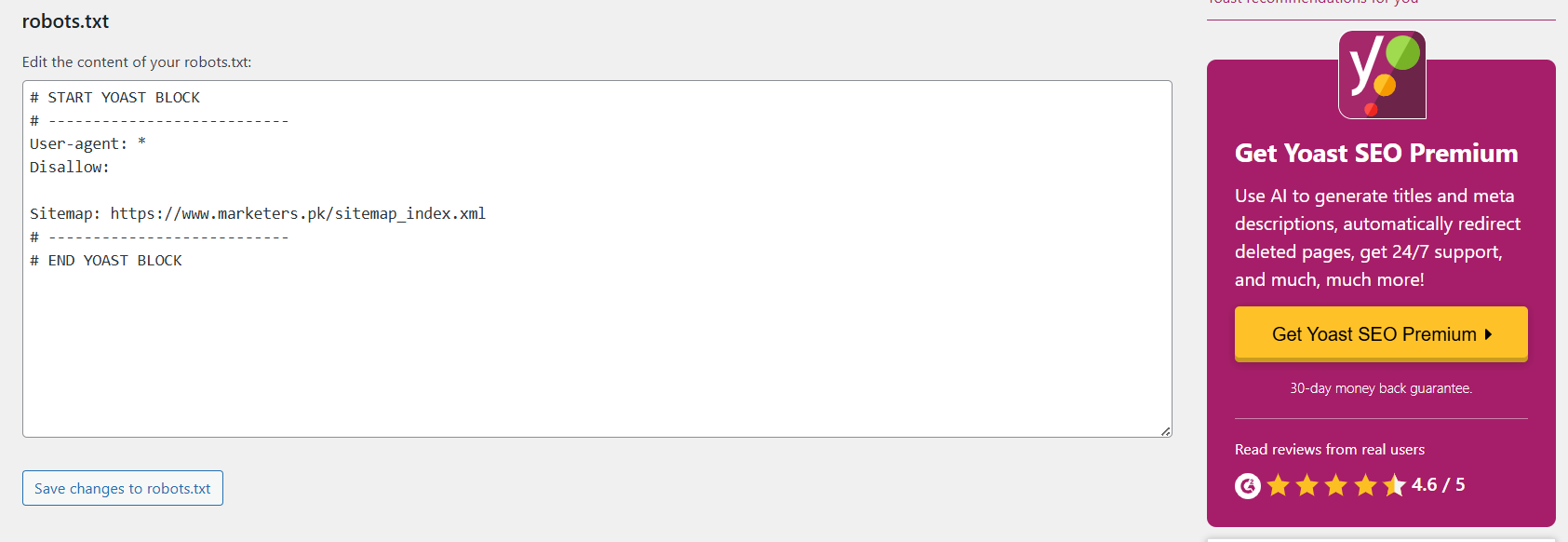
If you’re not comfortable dealing with server files directly, the easiest way to overwrite your robots.txt in WordPress is by using a popular SEO plugin. Yoast SEO and All in One SEO provide built-in tools to edit the file without leaving your dashboard.
Follow these steps:
- Install and Activate an SEO Plugin
- Go to Plugins → Add New in your WordPress dashboard.
- Search for Yoast SEO or All in One SEO (AIOSEO).
- Click Install Now, then Activate.
- Access the File Editor (Yoast SEO)
- Navigate to SEO → Tools → File Editor.
- Yoast will let you create one if the robots.txt file doesn’t exist.
(All in One SEO)
- Go to All in One SEO → Tools → robots.txt Editor.
- Edit Your robots.txt File.
- Add, remove, or modify directives such as:

- Save Changes
- Click Save changes to robots.txt to overwrite the current virtual file.
✅ Pro Tip: After editing, visit yourwebsite.com/robots.txt in your browser to ensure the changes are live.
Method 2 – Upload a Physical robots.txt File via FTP or File Manager

WordPress uses a virtual robots.txt by default, but you can override it by uploading a physical file to your server’s root directory. This method gives you complete control and works even if you’re not using an SEO plugin.
Follow these steps:
- Access Your Website Files
- Use an FTP client like FileZilla or your hosting’s File Manager in cPanel.
- Navigate to the public_html folder or the root directory where WordPress is installed.
- Backup Existing File (If Any)
- If you see an existing robots.txt file, download a copy to your computer as a backup before making changes.
- Create or Edit Your robots.txt File.
- Open a plain text editor (e.g., Notepad).
- Add your preferred rules, for example:

- Upload the File
- Save the file as robots.txt.
- Upload it to the root directory of your WordPress site.
- Verify the Changes
- Go to yourwebsite.com/robots.txt in your browser.
- Check that it displays your new content.
✅ Pro Tip: A physical robots.txt file always overrides WordPress’s default virtual version.
Method 3 – Edit robots.txt directly via cPanel File Manager

If you can access your hosting control panel, you can edit or create a robots.txt file directly from cPanel without using plugins or FTP software.
Follow these steps:
- Log in to your Hosting cPanel
- Use the credentials provided by your hosting provider to access cPanel.
- Open File Manager
- In cPanel, find and click File Manager.
- Navigate to your website’s public_html or root WordPress directory.
- Locate or Create robots.txt
- If robots.txt exists, right-click it and select Edit.
- If it doesn’t exist, click + File, name it robots.txt, and open it for editing.
- Add Your Directives
- Enter the rules you need, for example:

- Save the File
- Click Save Changes in the editor.
- Test Your File
- Visit yourwebsite.com/robots.txt to ensure the new rules are active.
✅ Pro Tip: Editing through cPanel is fast and doesn’t require extra tools, making it ideal for quick updates.
Method 4 – Override robots.txt with functions.php Code (Advanced)

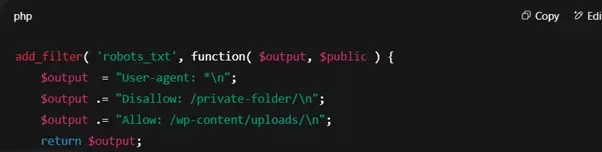
For developers or advanced WordPress users, it’s possible to overwrite the virtual robots.txt output directly in WordPress by adding a code snippet to your theme’s functions.php file. This approach is useful to control the file’s output without creating or uploading a physical file.
Follow these steps:
- Access Your Theme’s functions.php File
- In your WordPress dashboard, go to Appearance → Theme File Editor.
- From the right-hand file list, select functions.php.
(Alternatively, you can edit it via FTP or cPanel File Manager.)
- Add the robots.txt Filter Code.
- Insert this snippet into your functions.php file:
- Save the Changes
- Click Update File if editing in WordPress, or upload the modified file using FTP/cPanel.
- Test the Output
- Visit yourwebsite.com/robots.txt to confirm your new rules appear correctly.
✅ Pro Tip: This method works well for dynamic control, but always create a backup of functions.php before editing to avoid breaking your site.
Tips for Writing an Effective robots.txt File
Overwriting your robots.txt file gives you control over what search engines can and cannot crawl, but it’s important to use it wisely to avoid hurting your SEO.
Best practices to follow:
- Allow essential resources: Don’t block CSS, JavaScript, or image directories; these are important for proper site rendering in search results.
- Only block sensitive or irrelevant pages: Examples are admin pages (/wp-admin/), temporary pages, or private content folders.
- Avoid blocking important content: Pages you want to rank should always be accessible to crawlers.
- Use wildcard and path rules carefully: For example, Disallow: /*? can block all URLs with query parameters, which may be too aggressive.
- Test changes before going live: Use Google Search Console’s robots.txt Tester to ensure your file works as intended.
- Keep it simple: The fewer unnecessary rules you have, the easier it is to manage and avoid mistakes.
✅ Pro Tip: Always keep a backup of your working robots.txt file before making new changes.
Conclusion
Manually overwriting the robots.txt file in WordPress gives you full control over how search engines interact with your site, helping you protect sensitive areas and optimise crawling for better SEO. Whether you use an SEO plugin, upload a physical file via FTP, edit it directly through cPanel, or apply a custom code snippet in functions.php, always make a backup before making changes and test the file to ensure it works as intended. With careful adjustments, your robots.txt can become a powerful tool in managing your site’s visibility and performance.